Linux Basics
This document introduces basic Linux operations that you will frequently use when working with HemiHex edge devices and Jetson-based systems.
1. Terminal
The terminal is a command-line interface used to interact with the operating system.
1.1. Open the terminal
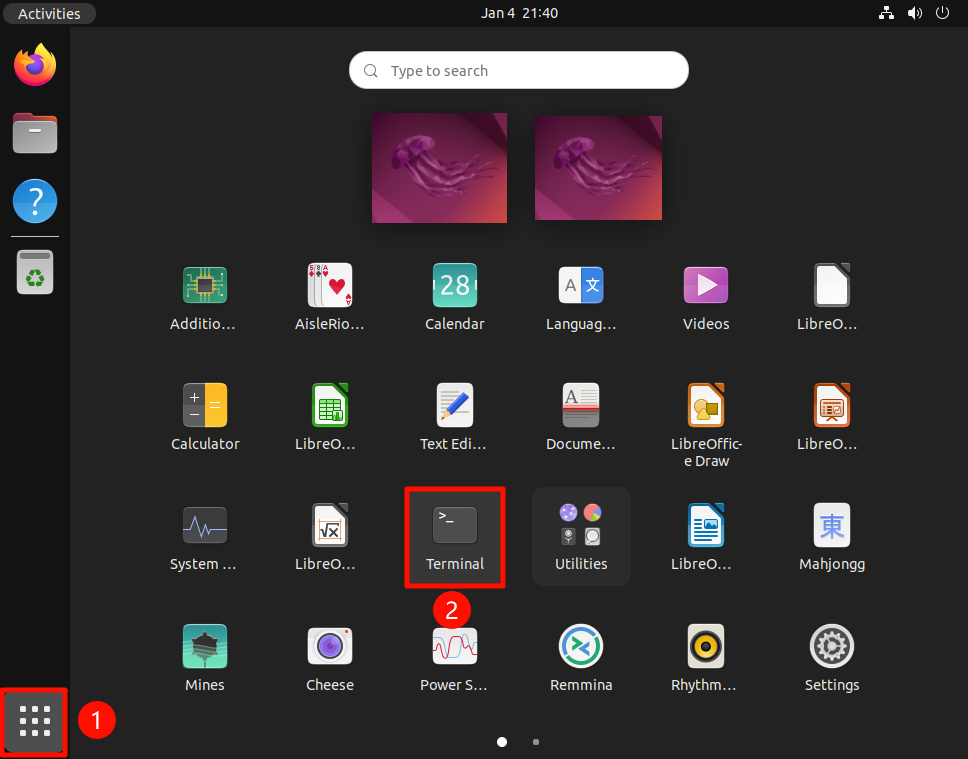
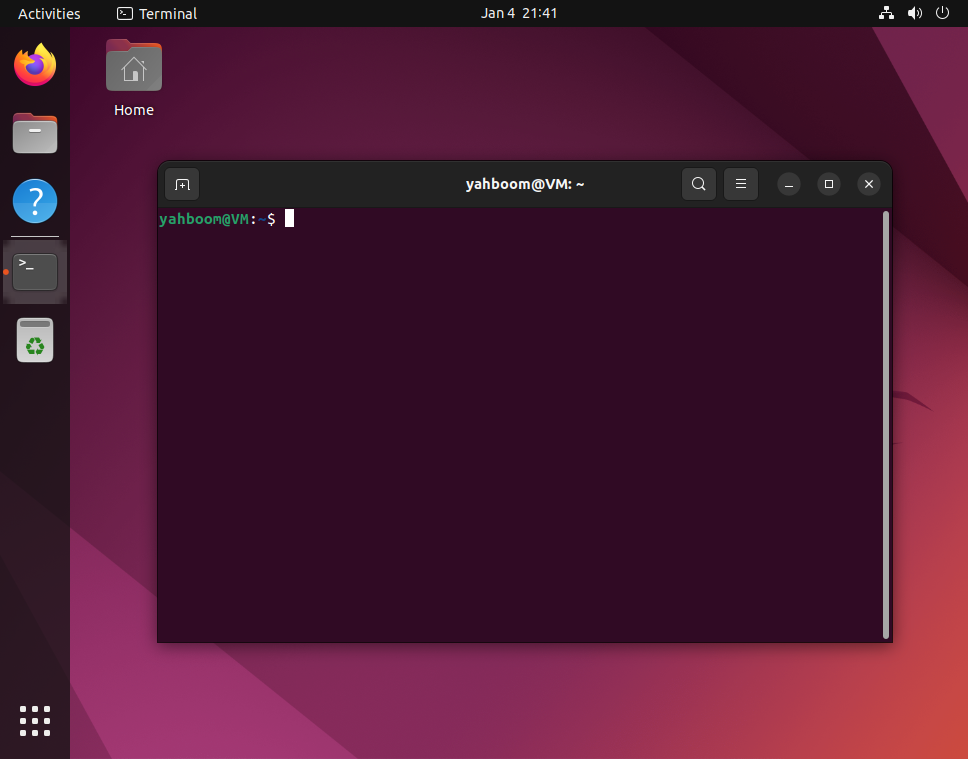
On Ubuntu you can open the terminal by:
- Pressing the keyboard shortcut:
Ctrl + Alt + T - Or opening Terminal from the application menu
1.2. Basic commands
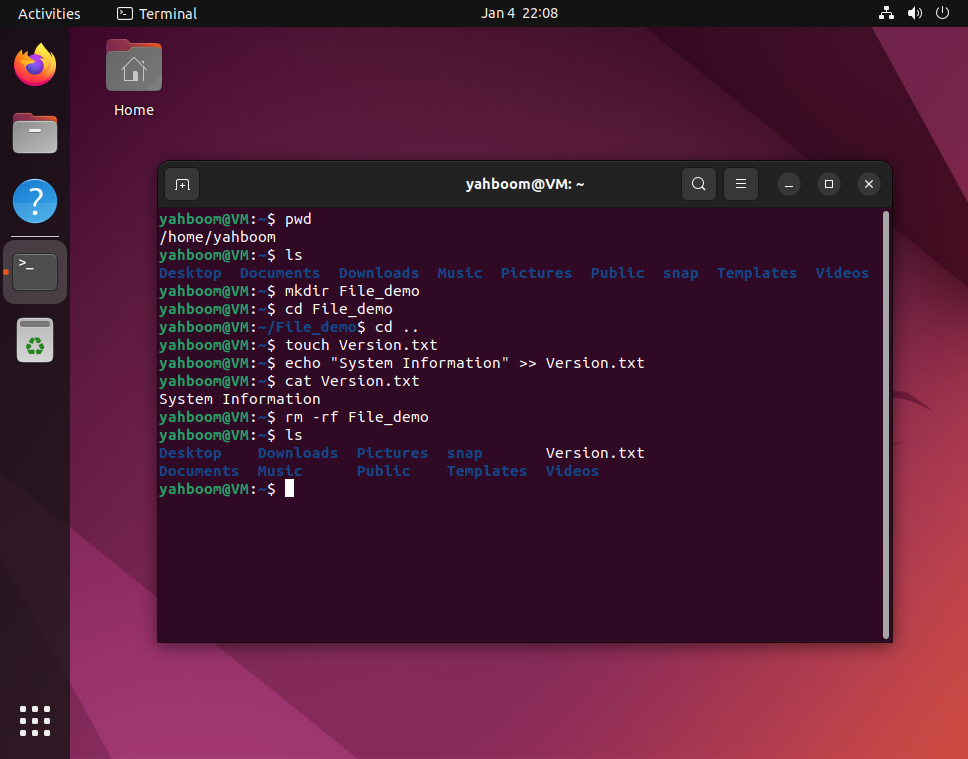
View the current directory
Display the full path of the current working directory:
pwd
List files/directories
List files and subdirectories in the current directory:
ls
Create a new directory
Create a directory named File_demo:
mkdir File_demo
Change directory
Enter the File_demo directory:
cd File_demo
Return to parent directory
Go back to the parent directory:
cd ..
Create new file
Create a file named Version.txt:
touch Version.txt
Modify file
Append the text System Information to Version.txt:
echo "System Information" >> Version.txt
View file
Display the contents of Version.txt:
cat Version.txt
Delete directory
Delete the File_demo directory and everything inside it:
rm -rf File_demo
⚠️ Warning
rm -rfpermanently deletes files/directories. Double‑check the path before running it.
1.3. Shortcut keys
Some useful terminal shortcuts:
Ctrl + C
Interrupt (terminate) the currently running command.
Ctrl + Z
Suspend the current process (puts it in the background as a stopped job).
Tab
Auto‑complete file names and commands.
Press twice to list all possible completions.
2. Text editors
Linux provides multiple text editors. You will use them to edit configuration files, scripts, and logs.
2.1. Gedit (easy – graphical)
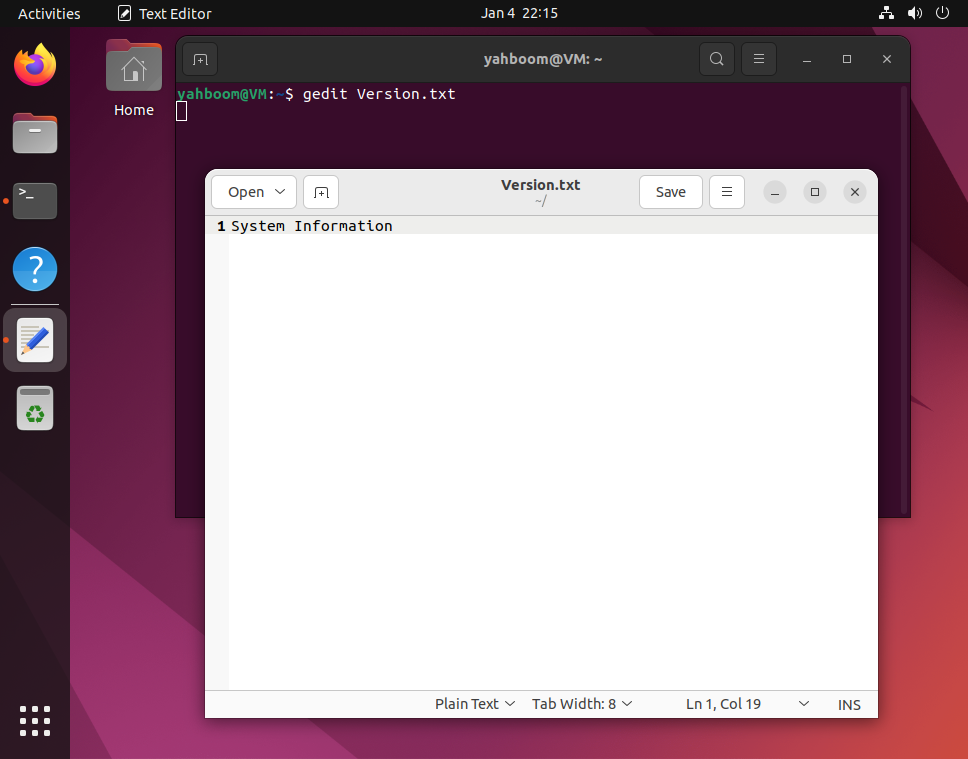
Gedit is the default text editor in the GNOME desktop environment. It has a graphical interface and is suitable for beginners.
Open a file with Gedit
gedit Version.txt
This will open Version.txt in a window where you can edit and save it.
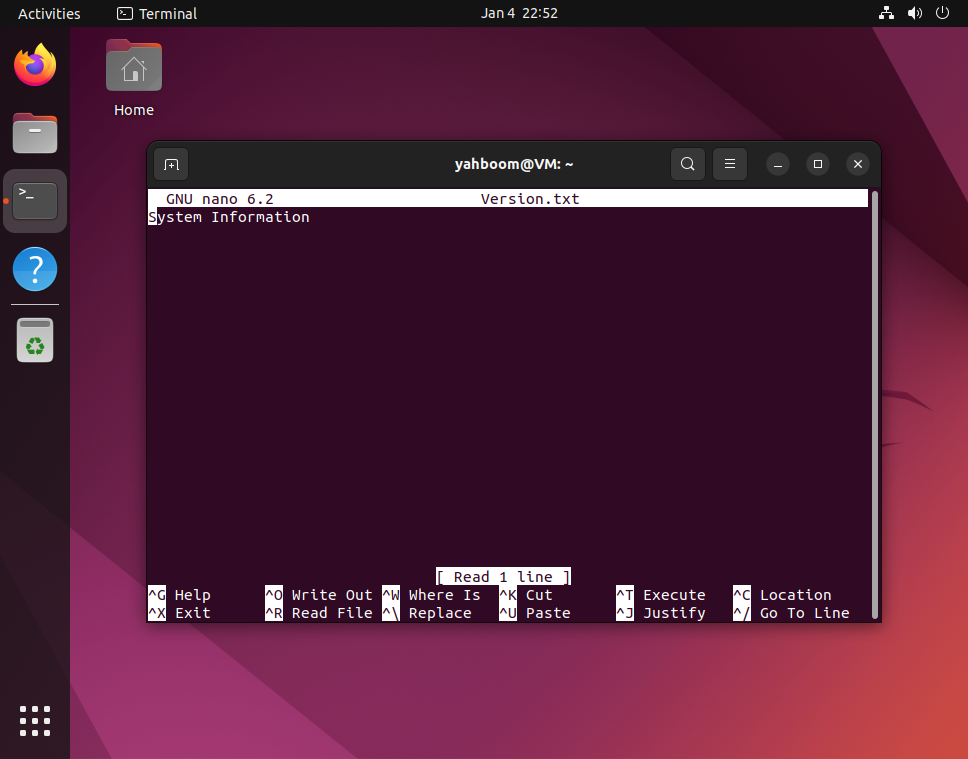
2.2. Nano (medium – terminal editor)
Nano is a simple, easy‑to‑use text editor that runs inside the terminal. It is a good choice when you are connected via SSH or don’t have a desktop environment.
Install Nano (if not already installed)
sudo apt update
sudo apt install nano -y
Open a file with Nano
nano Version.txt
At the bottom of the Nano window you’ll see common shortcuts. Some useful ones:
Ctrl + X– Exit Nano (will ask to save if there are changes)Ctrl + O– Write (save) the fileCtrl + W– Search for textCtrl + K– Cut the current lineCtrl + U– Paste the last cut text
2.3. Vi/Vim (advanced – powerful terminal editor)
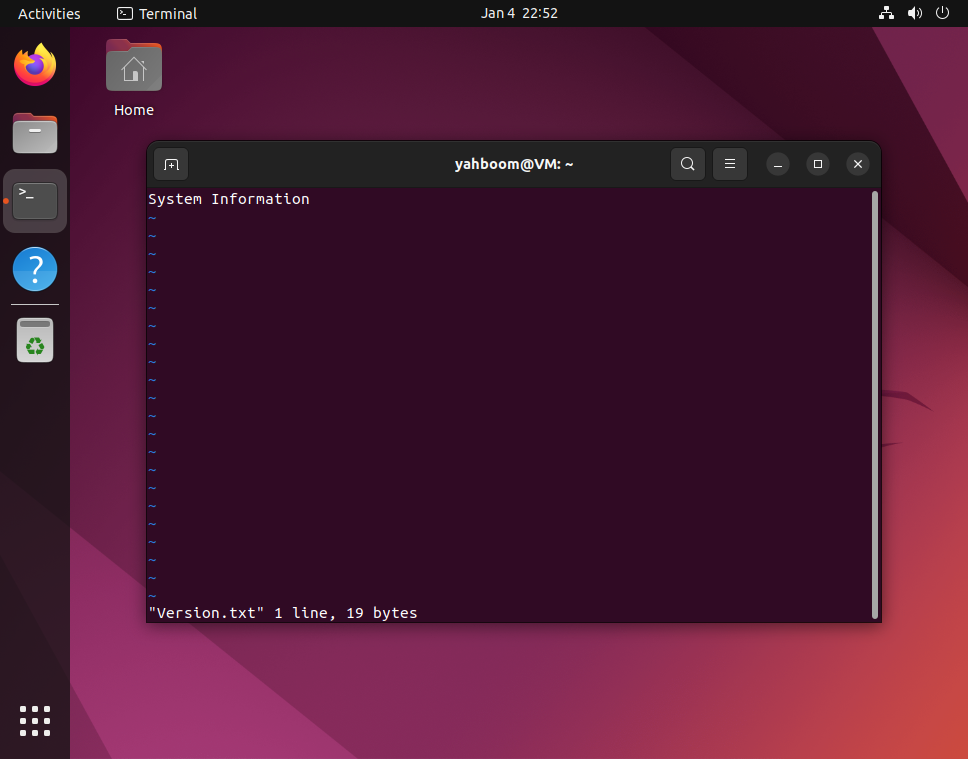
Vim is an enhanced version of the classic vi editor. It is extremely powerful and is available on almost all Unix and Linux systems.
Open a file with Vi/Vim
vi Version.txt
Modes
Vim has three main modes:
- Normal (command) mode – default mode when Vim starts
- Insert mode – for typing and editing text
- Last-line (command-line) mode – for commands like save and quit
Basic mode switching:
- Press
iin normal mode to enter insert mode - Press
Escto return to normal mode - Press
:in normal mode to enter last-line mode (command-line at the bottom)
Save and exit commands (from last-line mode)
Type these after pressing : in normal mode:
:w– Save the file:q– Quit Vim:wq– Save and quit:q!– Quit without saving
This page is intended as a quick Linux reference for HemiHex Jetson/edge deployments. You can link to it from other docs wherever basic terminal or editor usage is required.