02-Open WebUI
Demo Environment
Development board : Jetson Orin series motherboard SSD : 128G
Tutorial Scope
| Motherboard Model | Supported |
|---|---|
| Jetson Orin NX 16GB | √ |
| Jetson Orin NX 8GB | √ |
| Jetson Orin Nano 8GB | √ |
| Jetson Orin Nano 4GB | √ |
Open WebUI is an open source project that aims to provide a simple and easy-to-use user interface (UI) for managing and monitoring open source software and services.
When using Open WebUI, there is a high probability that the dialogue will be unresponsive or timeout. You can try restarting Open WebUI or using the Ollama tool to run the model!
1. Environmental requirements
Host and Conda installation of Open WebUI: Node.js >= 20.10, Python = 3.11:
| Environment construction method | Difficulty (relatively) |
|---|---|
| Host | High |
| Conda | Medium |
| Docker | Low |
Tutorial demonstrates Docker installation of Open WebUI.
2. Docker construction
2.1. Official installation of Docker
If Docker is not installed, you can use the script to install Docker in one click.
sudo apt update
sudo apt upgrade
Download the get-docker.sh file and save it in the current directory.
sudo apt install curl
curl -fsSL https://get.docker.com -o get-docker.sh
Run the get-docker.sh script file with sudo privileges.
sudo sh get-docker.sh
2.2. Add access permissions
Add system current user access rights to Docker daemon: You can use Docker commands without using sudo command
sudo usermod -aG docker $USER
newgrp docker
3. Open WebUI installation
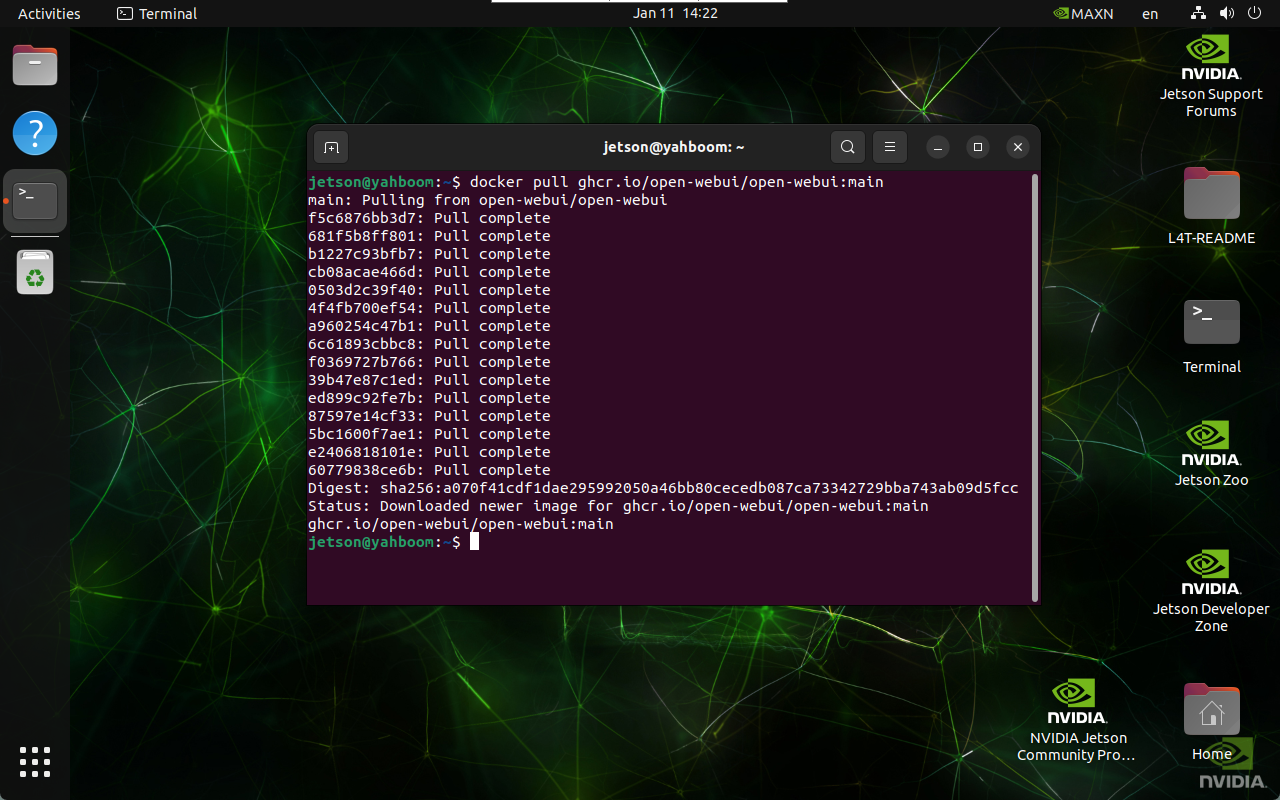
For systems with Docker installed, you can directly enter the following command in the terminal: The image is the result of the pull
docker pull ghcr.io/open-webui/open-webui:main
4. Open WebUI and run
Enter the following command in the terminal to start the specified Docker:
docker run --network=host -v open-webui:/app/backend/data -e OLLAMA_BASE_URL=http://127.0.0.1:11434 --name open-webui --restart always ghcr.io/open-webui/open-webui:main
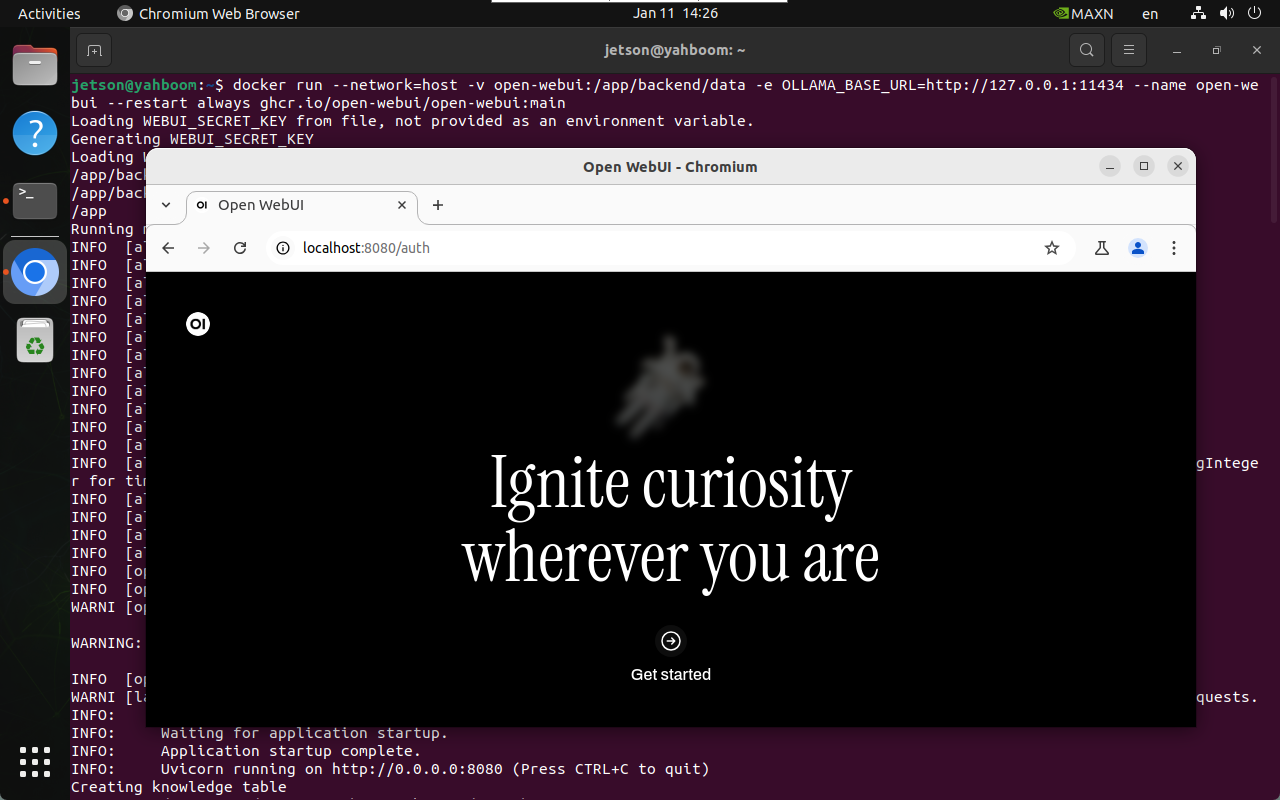
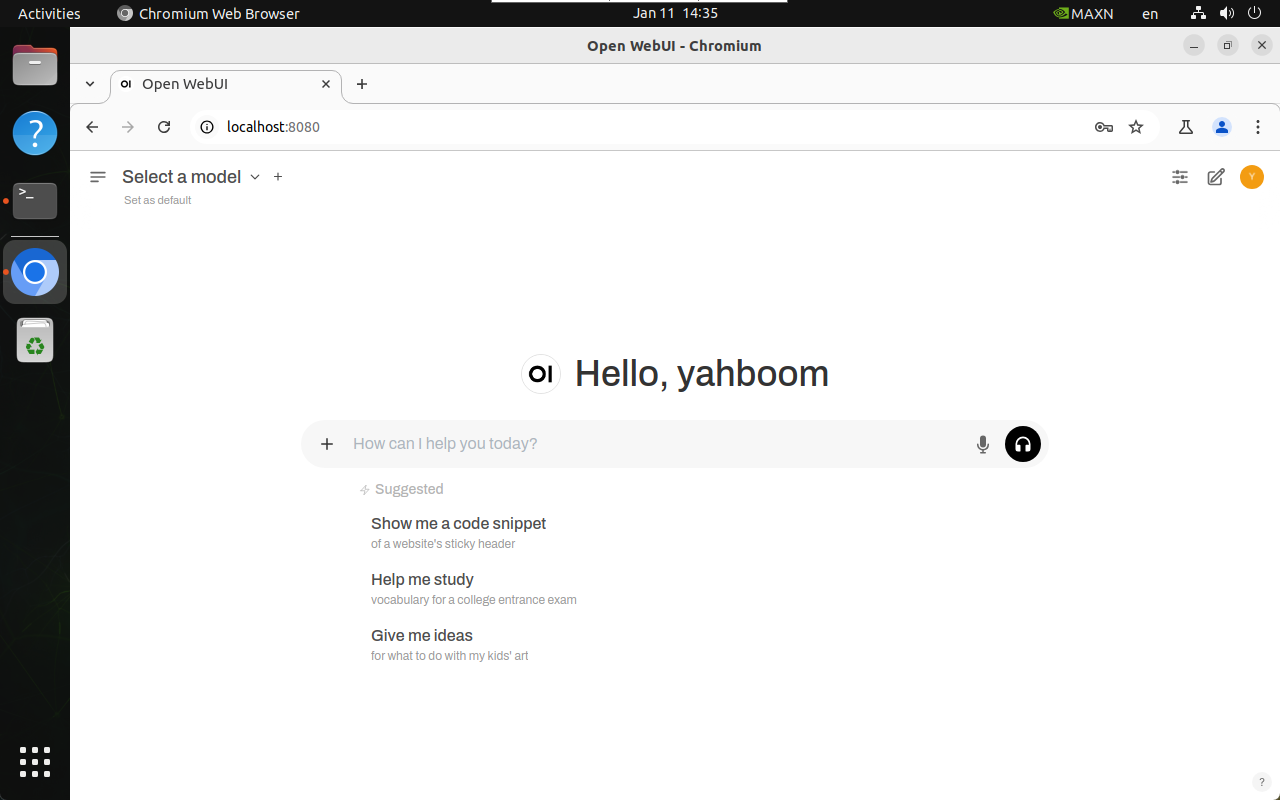
After successful startup, use the following URL to access the browser:
http://localhost:8080/
The same LAN can use the motherboard IP:8080 to access:
Assuming the motherboard IP: 192.168.2.105, we can access it through 192.168.2.105:8080
4.1. Administrator account
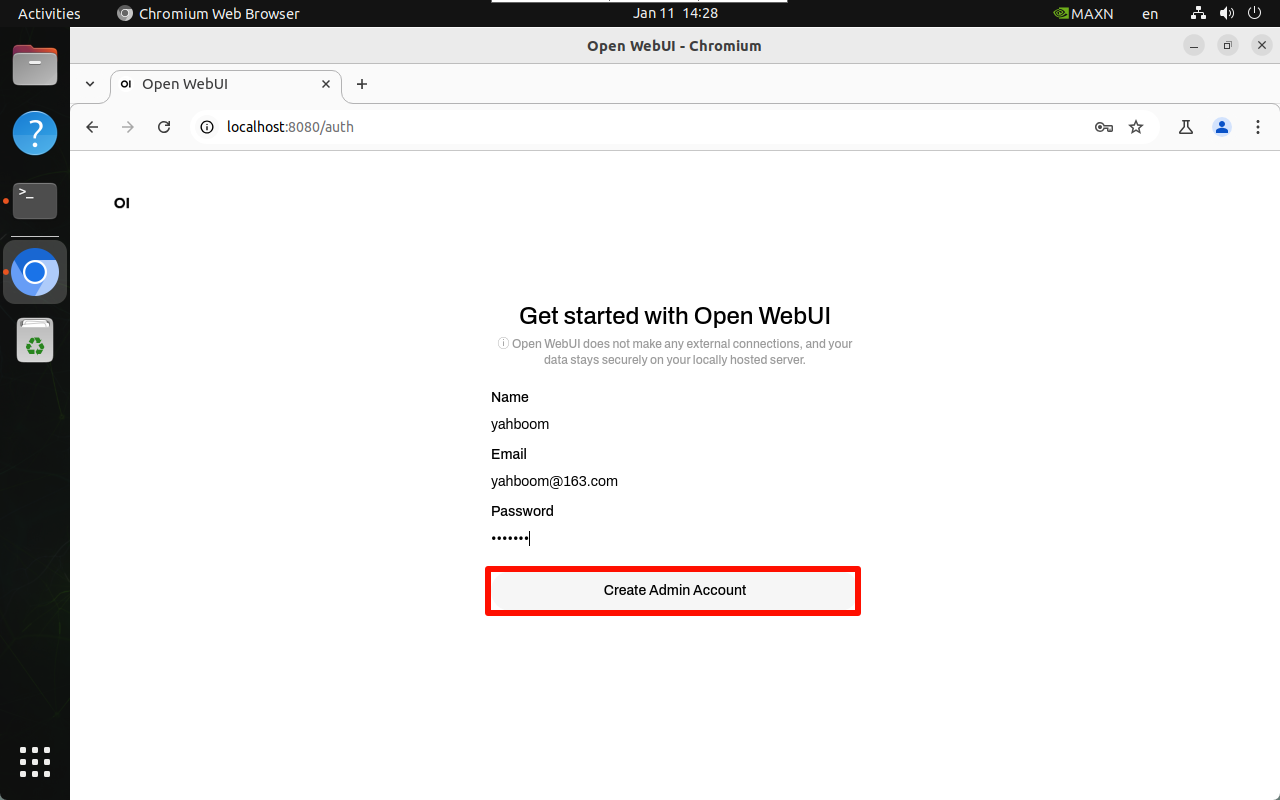
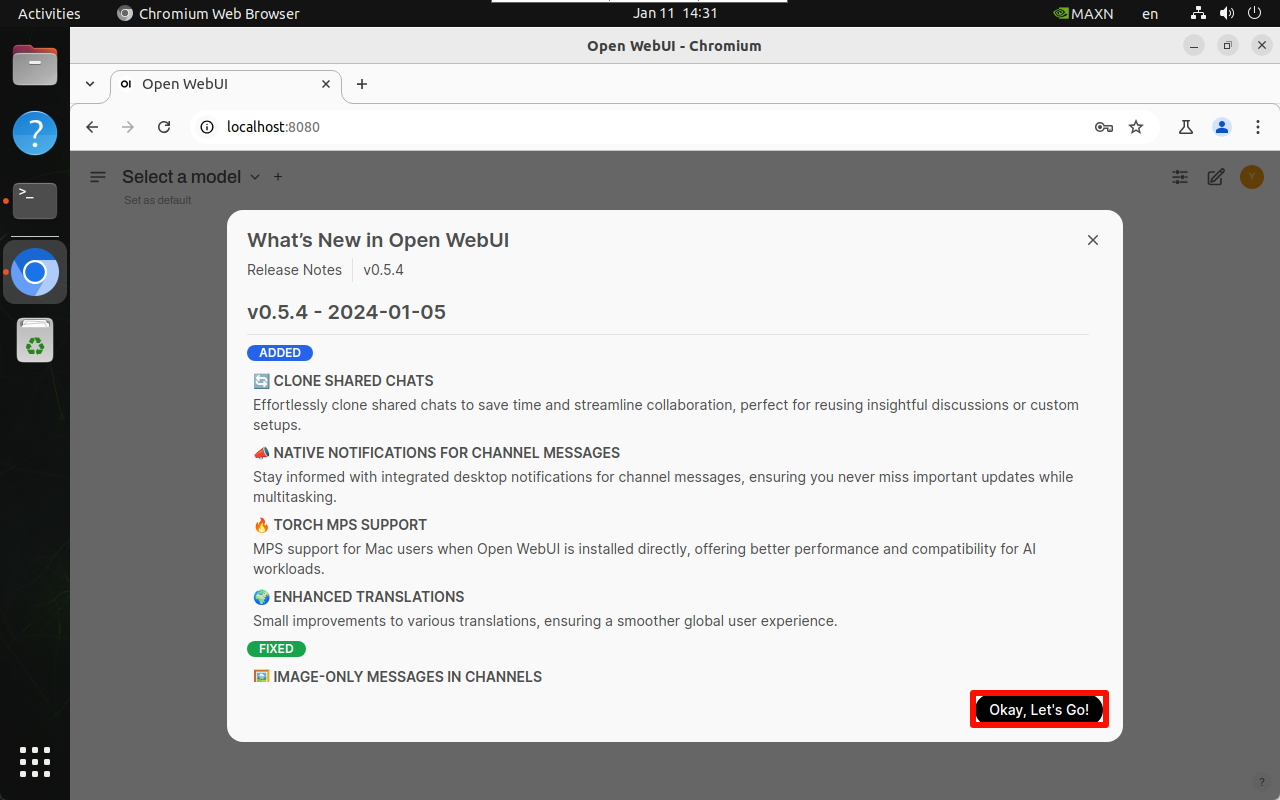
You need to register an account for the first time. This account is an administrator account. You can fill in the information as required!
Since all the contents of our mirror have been set up and tested, users can directly log in with our registered account:
Username: HemiHex
Email: HemiHex@163.com
Password: HemiHex
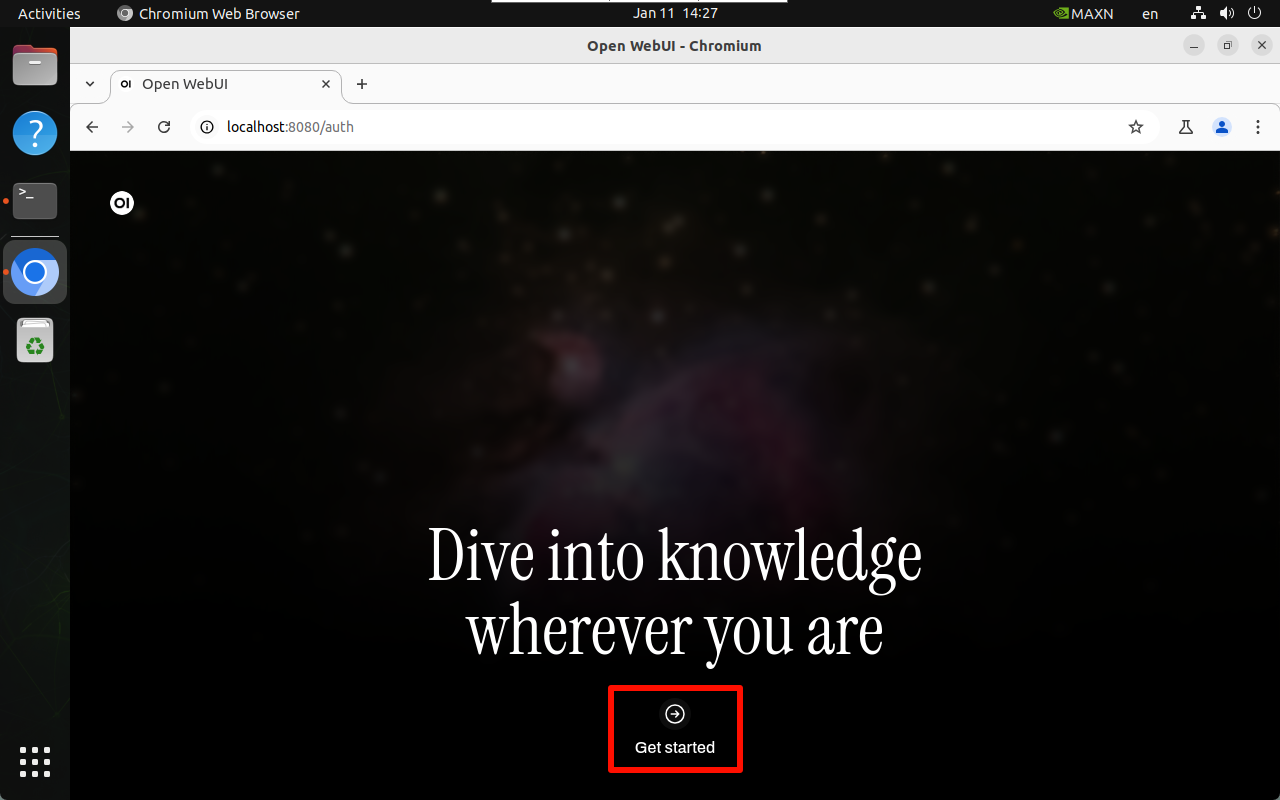
4.2. Register and log in
4.3 User Interface
5. Model dialogue
Using Open WebUI for dialogue will be slower than using the Ollama tool directly, and may even cause timeout service connection failure. This is related to the memory of the Jetson motherboard and cannot be avoided!
Users with ideas can switch to other Linux environments to build the Ollama tool and Open WebUI tool for dialogue
5.1. Switch model
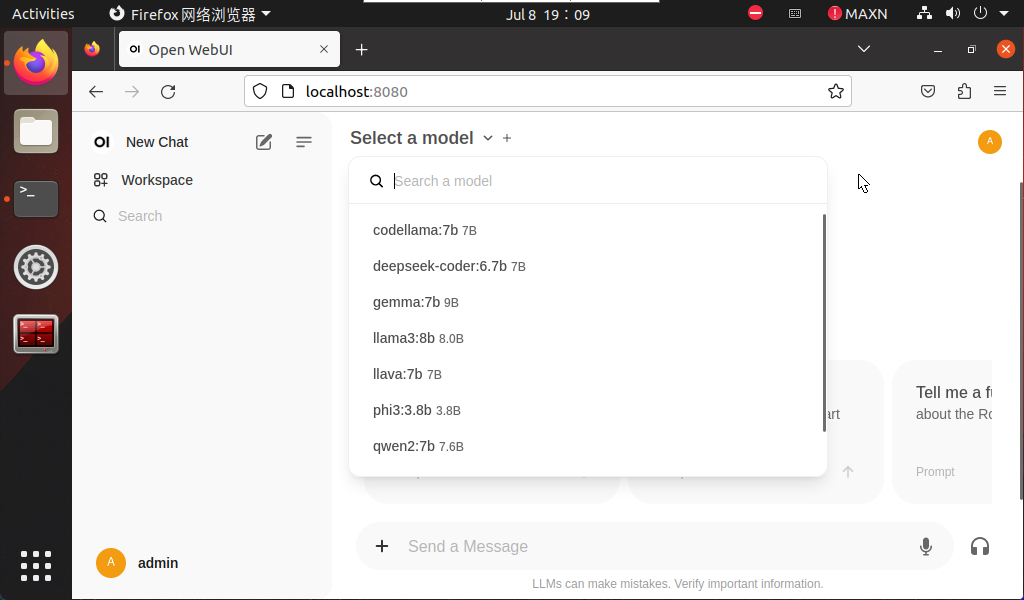
Click Select a model to select a specific model for dialogue.
The model pulled by ollama will be automatically added to the Open WebUI model option. Refresh the web page and the new model will appear!
5.2. Demonstration: LLaVA
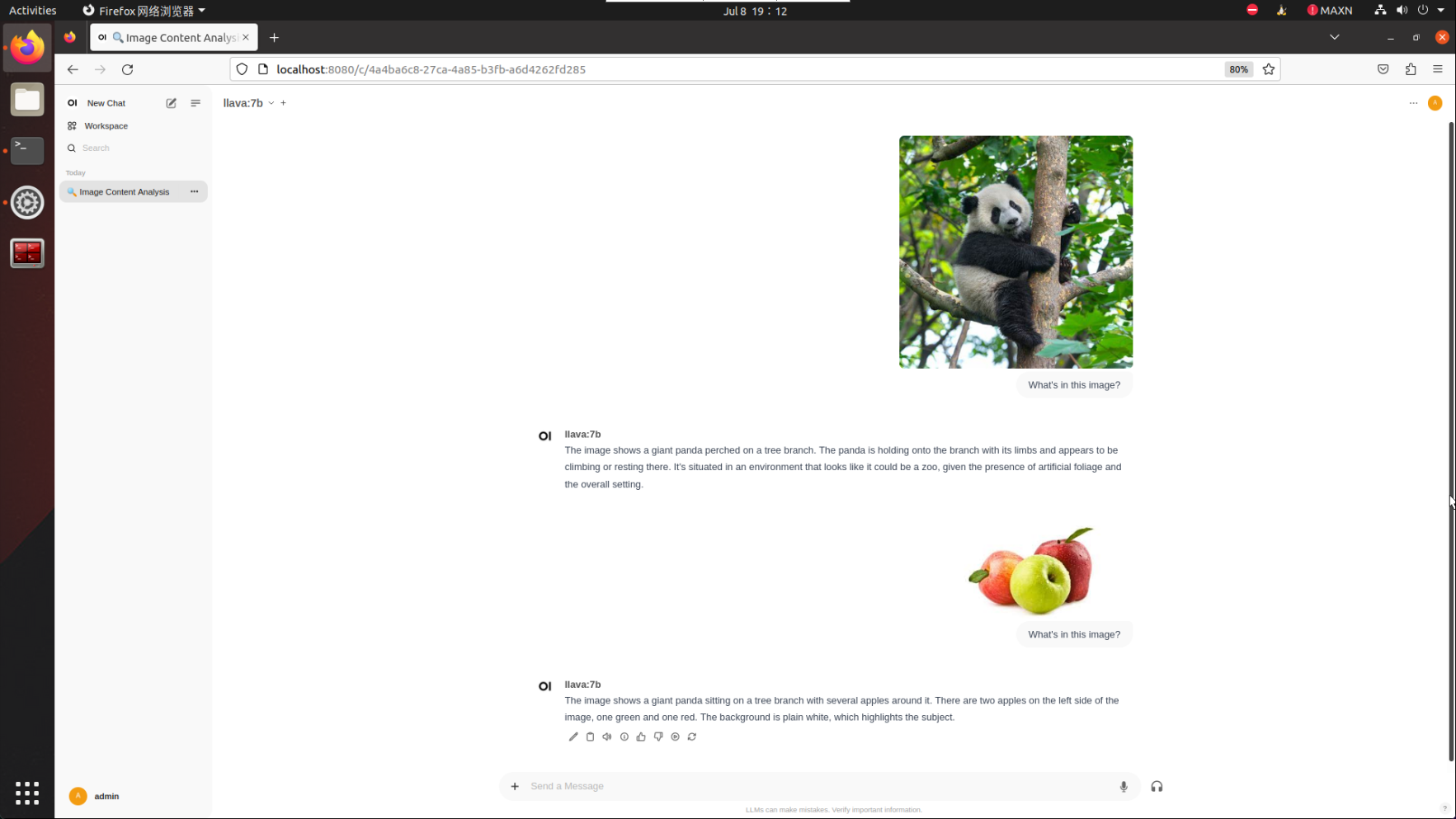
The LLaVA case demonstrated requires 8G or even more than 8G to run. Users can use other cases to test the Open WebUI dialogue function!
What's in this image?
6. Common Problems
6.1. Close Open WebUI
Close the automatically started Open WebUI.
docker ps
docker stop [CONTAINER ID] # Example docker stop 5f42ee9cf784
docker ps -a
docker rm [CONTAINER ID] # Example docker rm 5f42ee9cf784
Clean up all stopped containers:
docker container prune
6.2. Common Errors
Unable to start Open WebUI
Solution: Close Open WebUI once and restart!
Service connection timeout
Close Open WebUI once and restart, then ask again or run the model with the Ollama tool to ask questions!