Calibrate robotic arm gripper
Note: The Jetcobot robotic arm has been calibrated before leaving the factory. Please do not calibrate it unless necessary. If you must calibrate the robotic arm, please follow the instructions in this tutorial.
This course calibrates the six joints of the robotic arm, but does not include calibrating the gripper.
1. API Introduction
release_servo(id)
Function: Release the torque of a joint of the robot arm. After the release, the corresponding joint (servo) can be changed by hand.
Parameter explanation:
- 【id】:The robotic arm joint ID number ranges from 1 to 7, where the value 7 represents the gripper.
- Return value: None
set_gripper_calibration()
Function: Set the current gripper angle to the maximum value of 100.
Parameter explanation:
- Return value: None
2.About code
Code path:~/jetcobot_ws/src/jetcobot_calibration/scripts/cali_gripper.ipynb
Create three new buttons to control the release, calibration, and reading functions of the robotic arm gripper.
# Read robotic arm joint angles
button_Read = widgets.Button(
description='Read',
button_style='info', # 'success', 'info', 'warning', 'danger' or ''
tooltip='Description',
icon='uncheck' )

# Calibrate robotic arm
button_Calibration = widgets.Button(
description='Calibration',
button_style='success', # 'success', 'info', 'warning', 'danger' or ''
tooltip='Description',
icon='uncheck' )

# Release robotic arm
button_Release = widgets.Button(
description='Release',
button_style='danger', # 'success', 'info', 'warning', 'danger' or ''
tooltip='Description',
icon='uncheck' )

# Handle button click events
def on_button_clicked(b):
with output:
print("Button clicked:", b.description)
if b.description == 'Read':
with output:
print("read gripper:", mc.get_gripper_value())

elif b.description == 'Calibration':
mc.set_gripper_calibration()
with output:
print("calibration complete")
elif b.description == 'Release':
mc.release_servo(7)

# Register button callbacks
button_Read.on_click(on_button_clicked)
button_Calibration.on_click(on_button_clicked)
button_Release.on_click(on_button_clicked)
3. Run program
Click the button on the jupyterlab toolbar to run the entire program, and then pull it to the bottom.

After running the program, we can see three buttons.

Click the [Release] button to release the torque of the gripper, allowing the gripper to twist freely, and then change the gripper to the maximum angle.
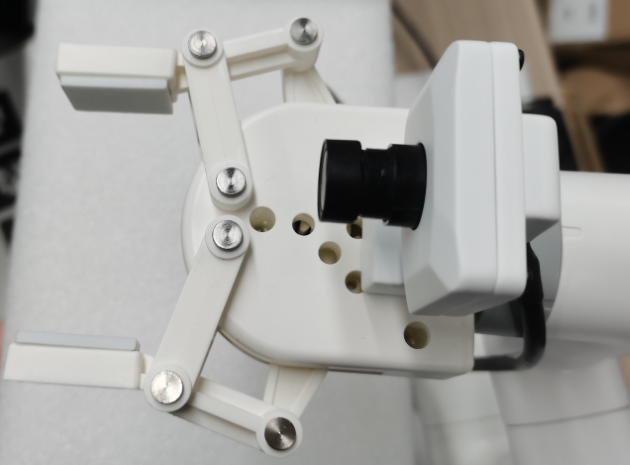
Then, click the [Calibration] button to start calibration, which takes about 1 second.
Do not change the angle of the gripper before receiving the [calibration complete] prompt.
After the calibration is completed, the [calibration complete] prompt will be printed, and the robot arm will be powered on and fixed.

At this time, click [Read] to read the value of the gripper. If the read value is 100 or 99, it means the calibration is complete.