04-VNC remote control
Tutorial to configure the built-in screen sharing of Ubuntu22.04 system for VNC remote control.
Windows computer needs to download and install VNC Viewer in advance and the remote device and the remote device are in the same LAN
1. VNC Viewer
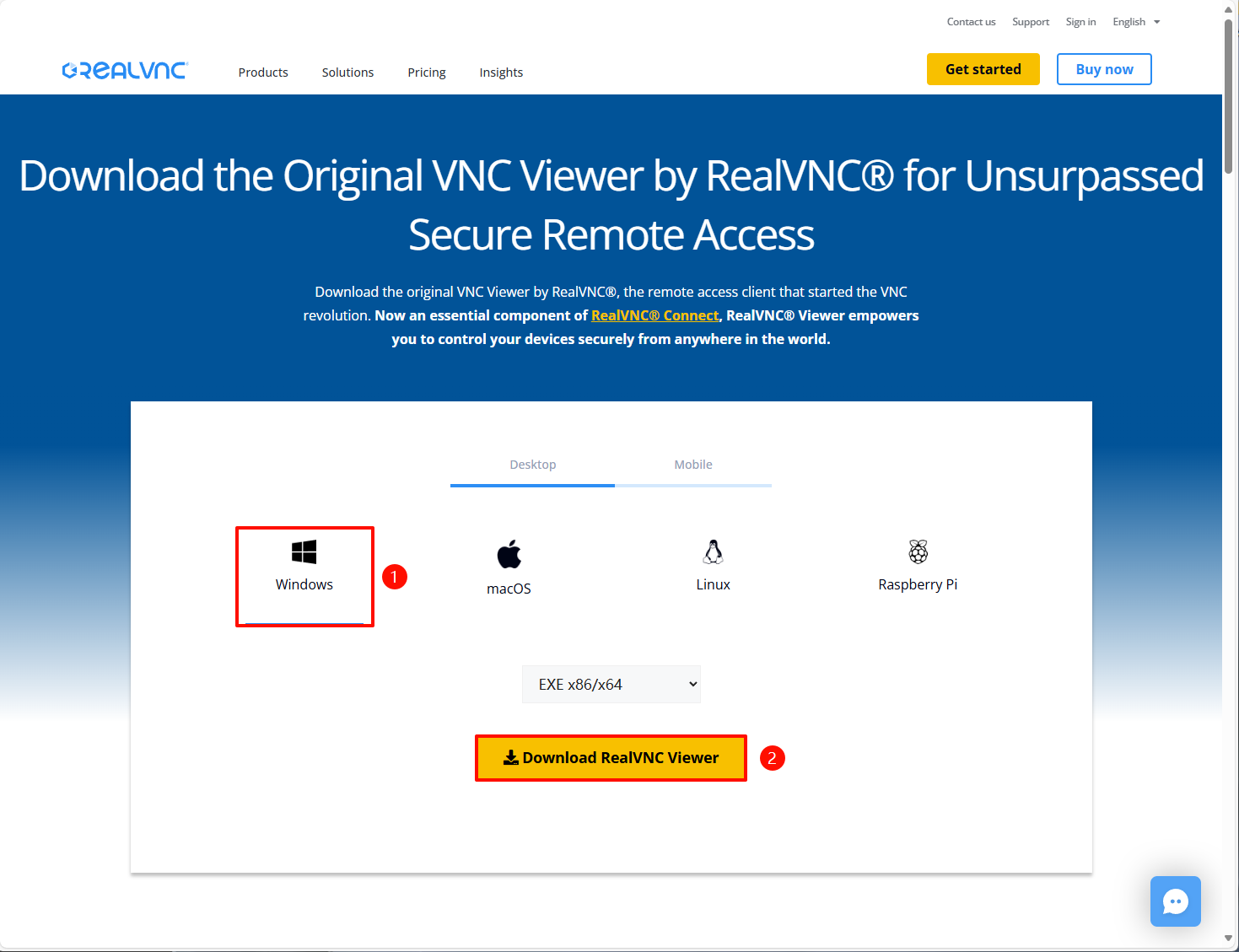
1.1. VNC download
Official website download address: https://www.realvnc.com/en/connect/download/viewer/
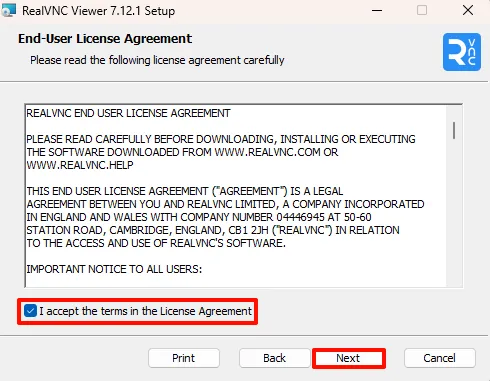
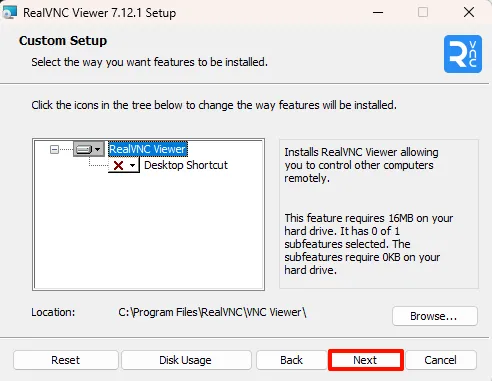
1.2. VNC Installation
Run VNC-Viewer-xxx.exe as an administrator:



1.3. Use VNC


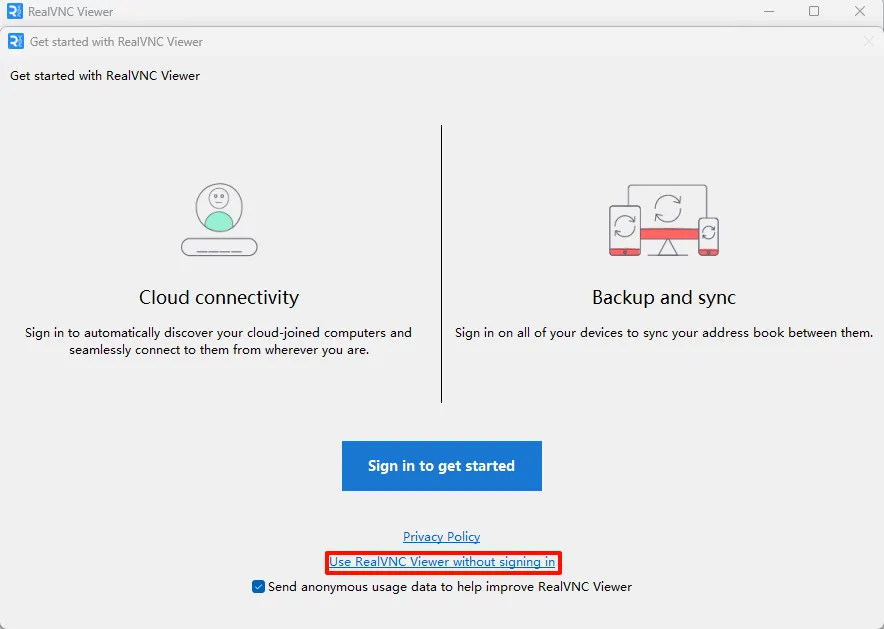
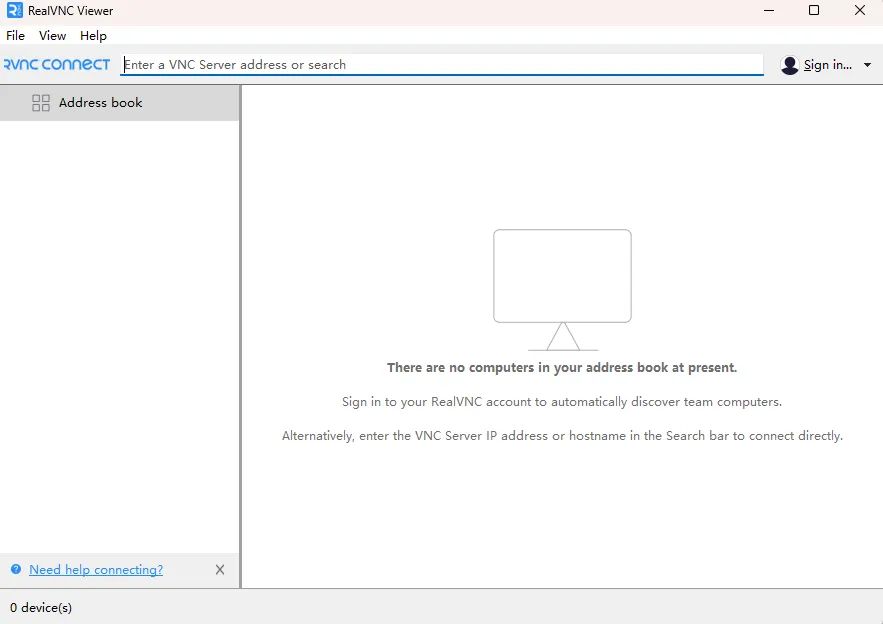
2. System Settings (Jetson)
2.1. Enable desktop remote
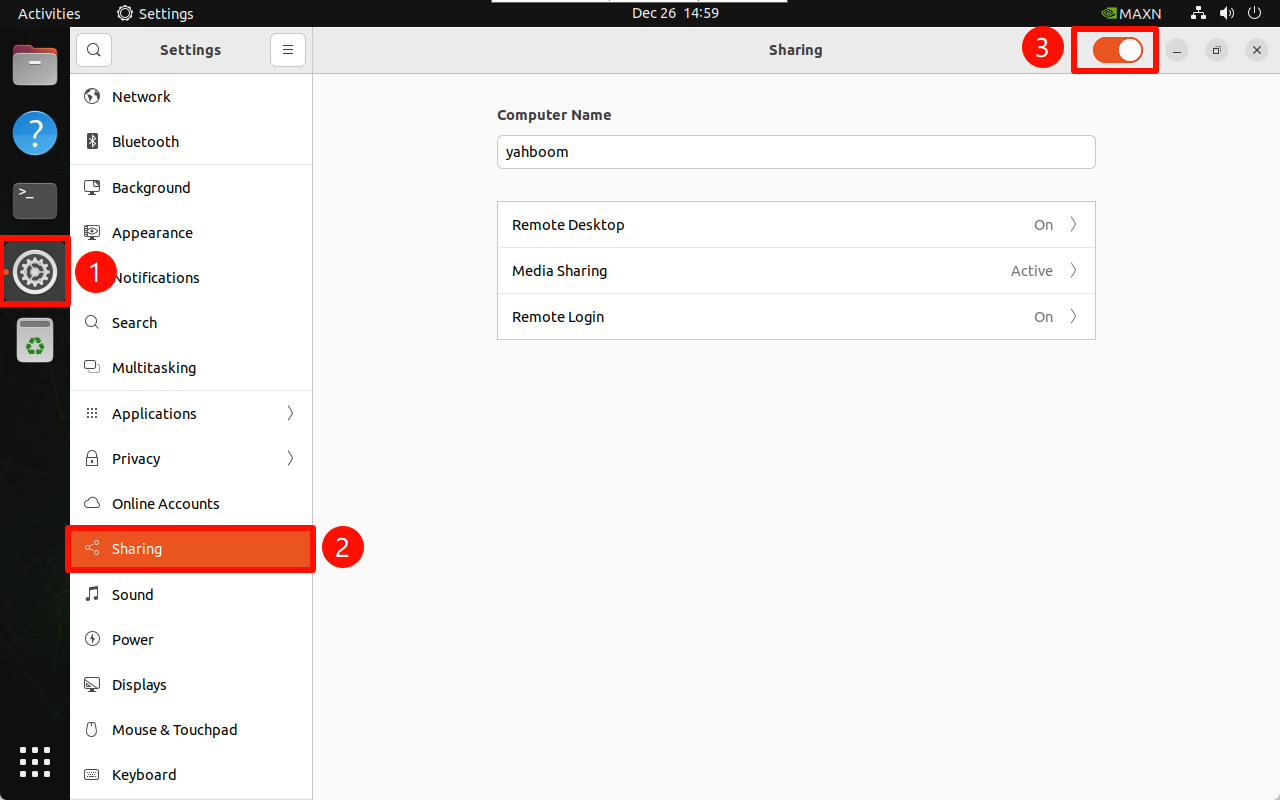
2.1.1. Sharing
Settings → Sharing
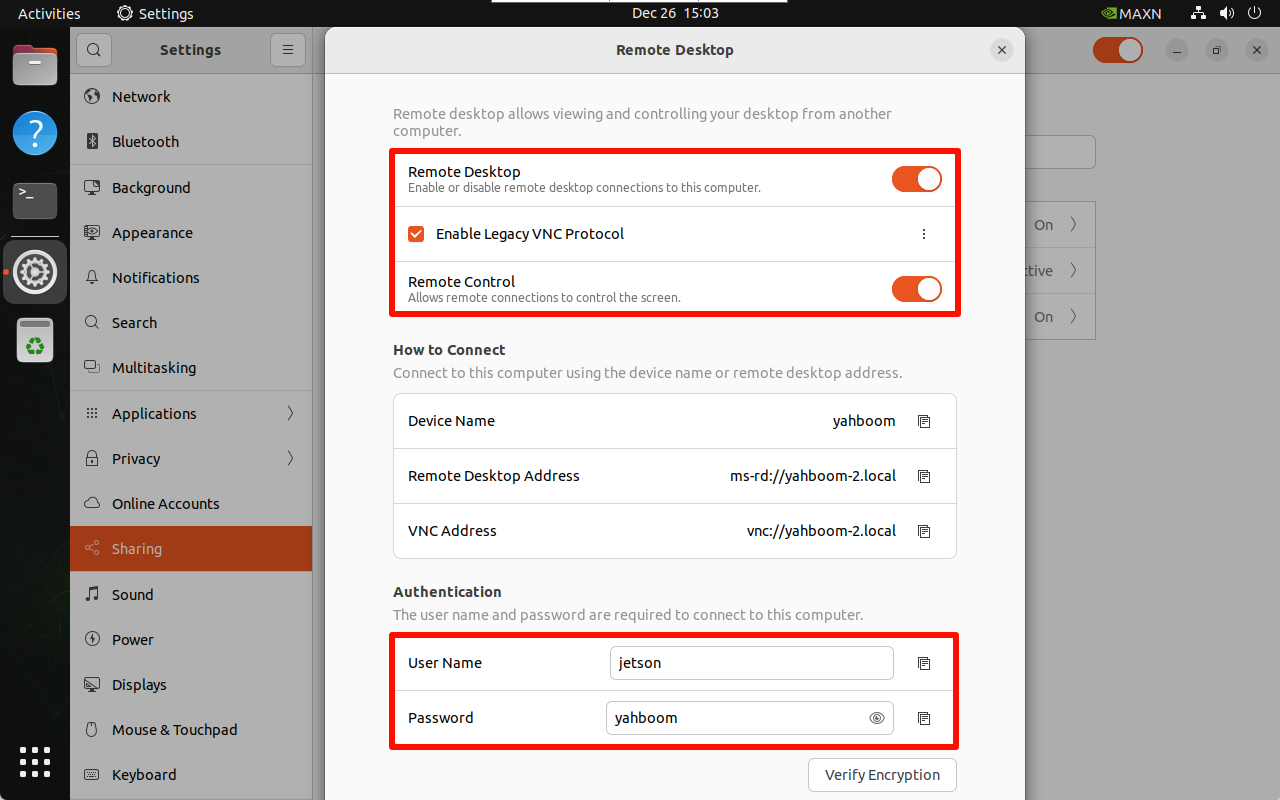
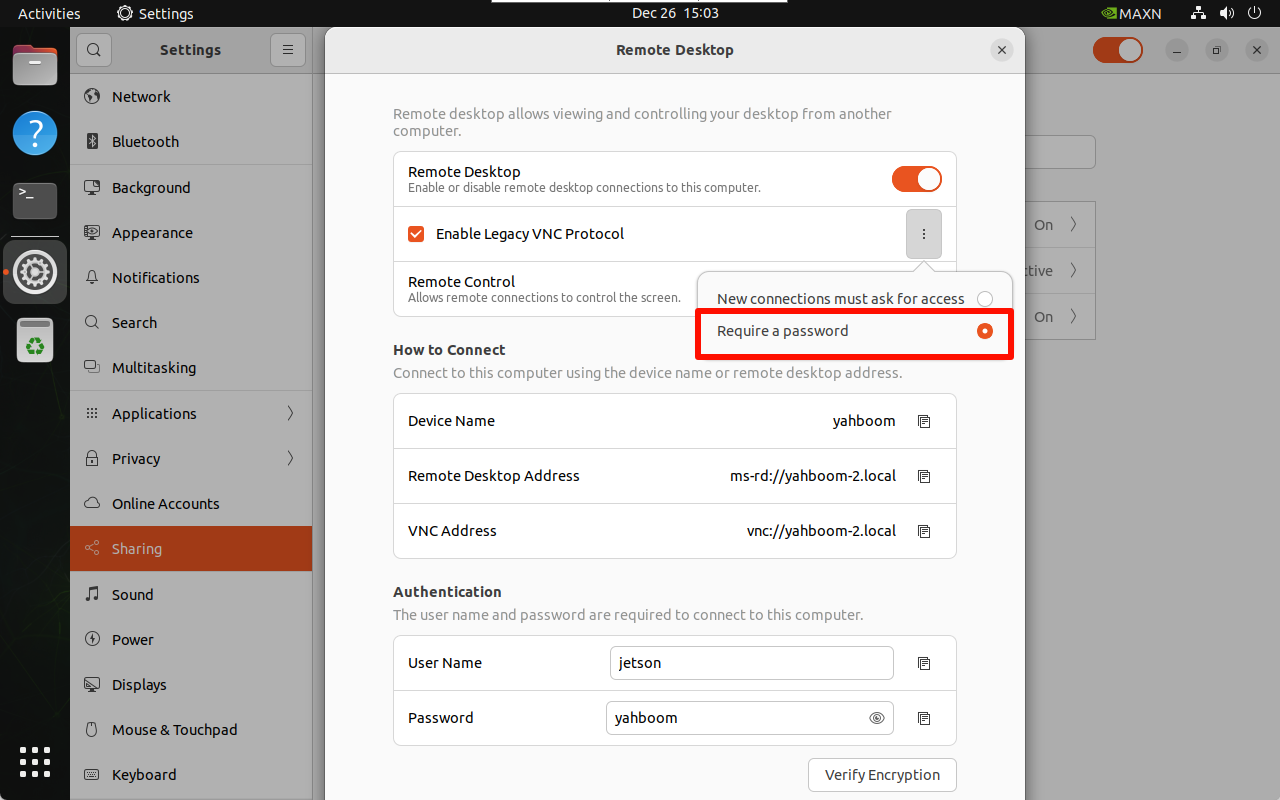
2.1.2. Remote Desktop
Turn on the remote desktop and enable the traditional VNC protocol (need to check the password required): the access password can be modified by yourself!
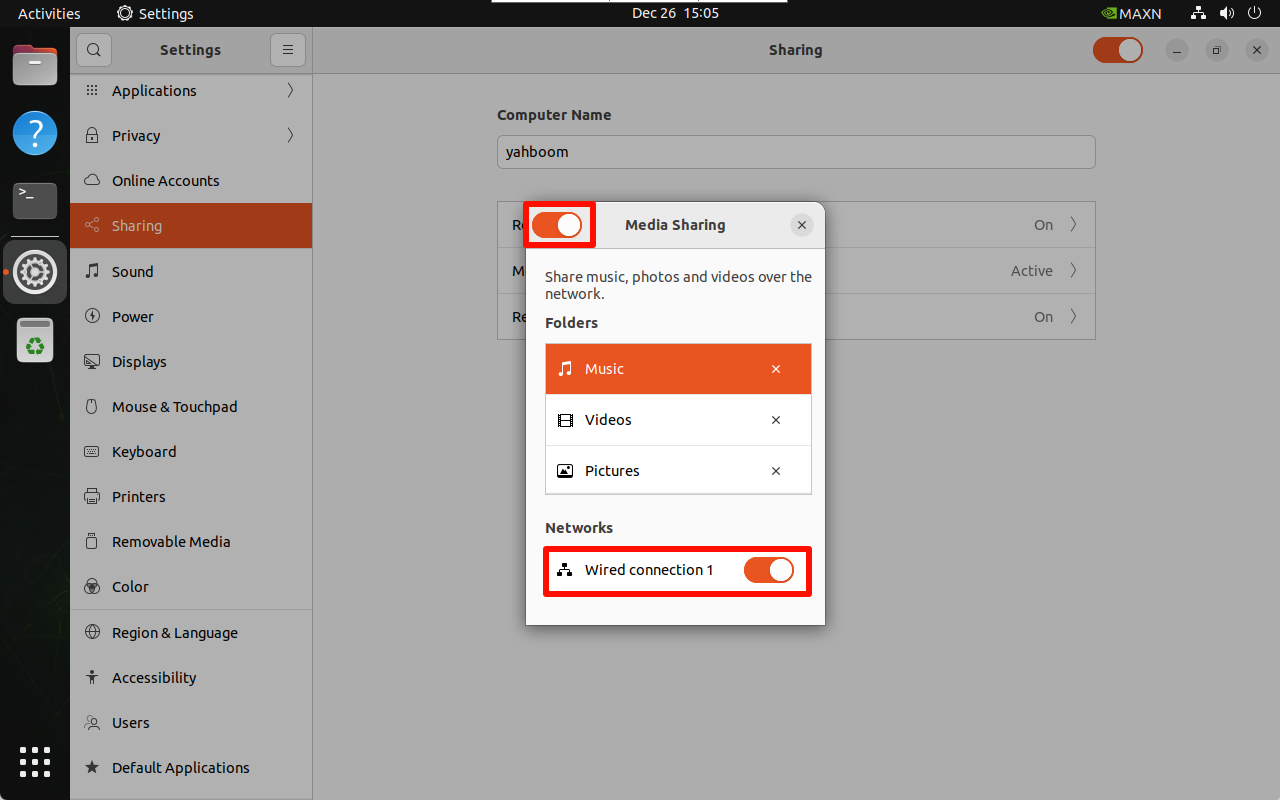
2.1.3, Media Sharing
You need to check this option every time you switch networks and turn on the switch of the new network:
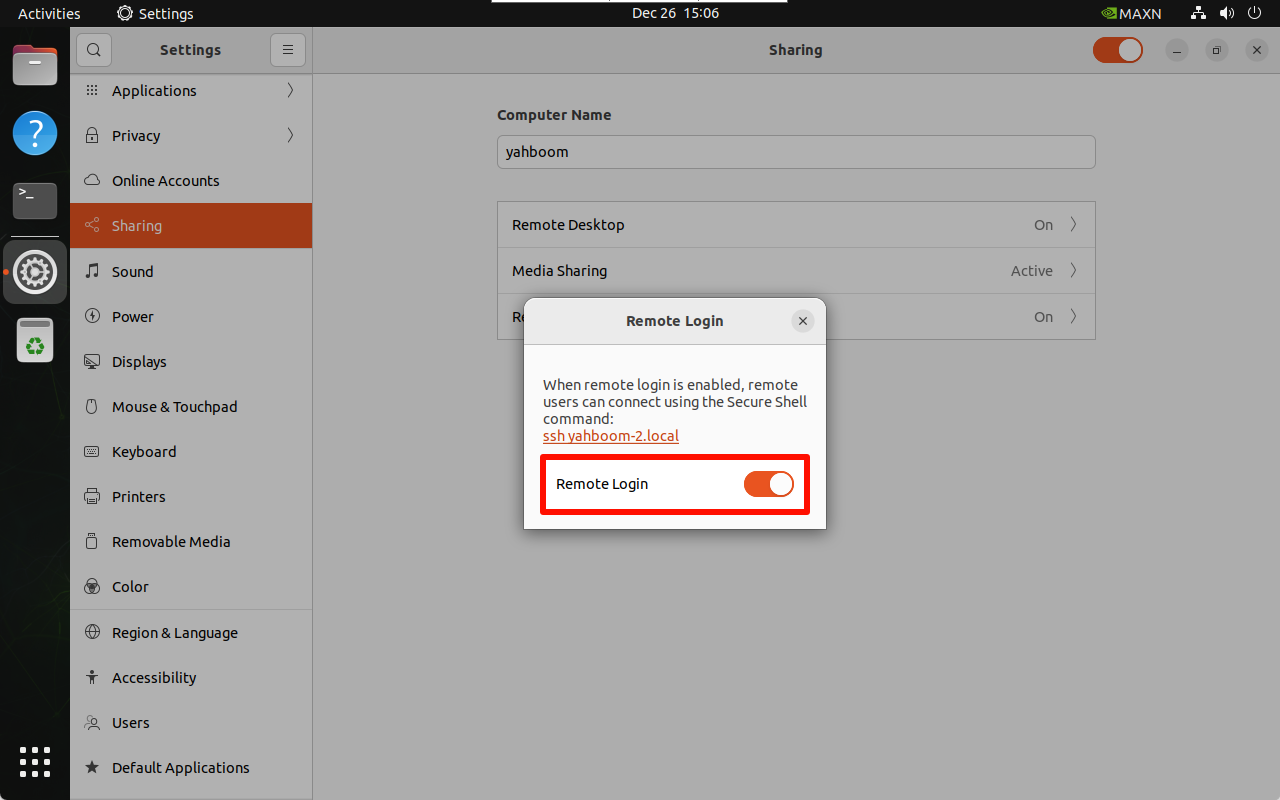
2.1.4 Remote Login
Turn on remote login:
2.2, Fixed remote password
You can perform VNC remote control by completing the above settings, but the access password of the Jetson motherboard will change every time it restarts. The fixed password needs to be operated as follows!
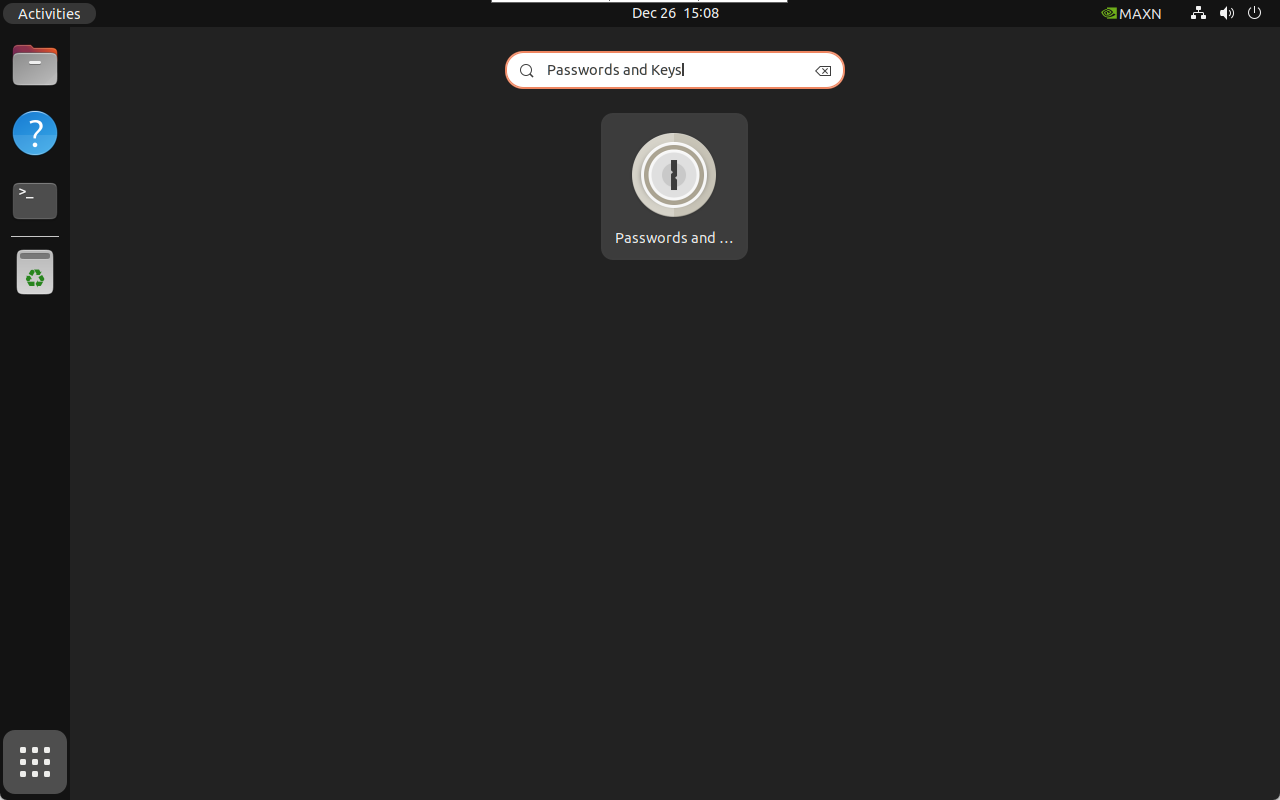
Passwords and Keys
Enter Passwords and Keys to set no key:
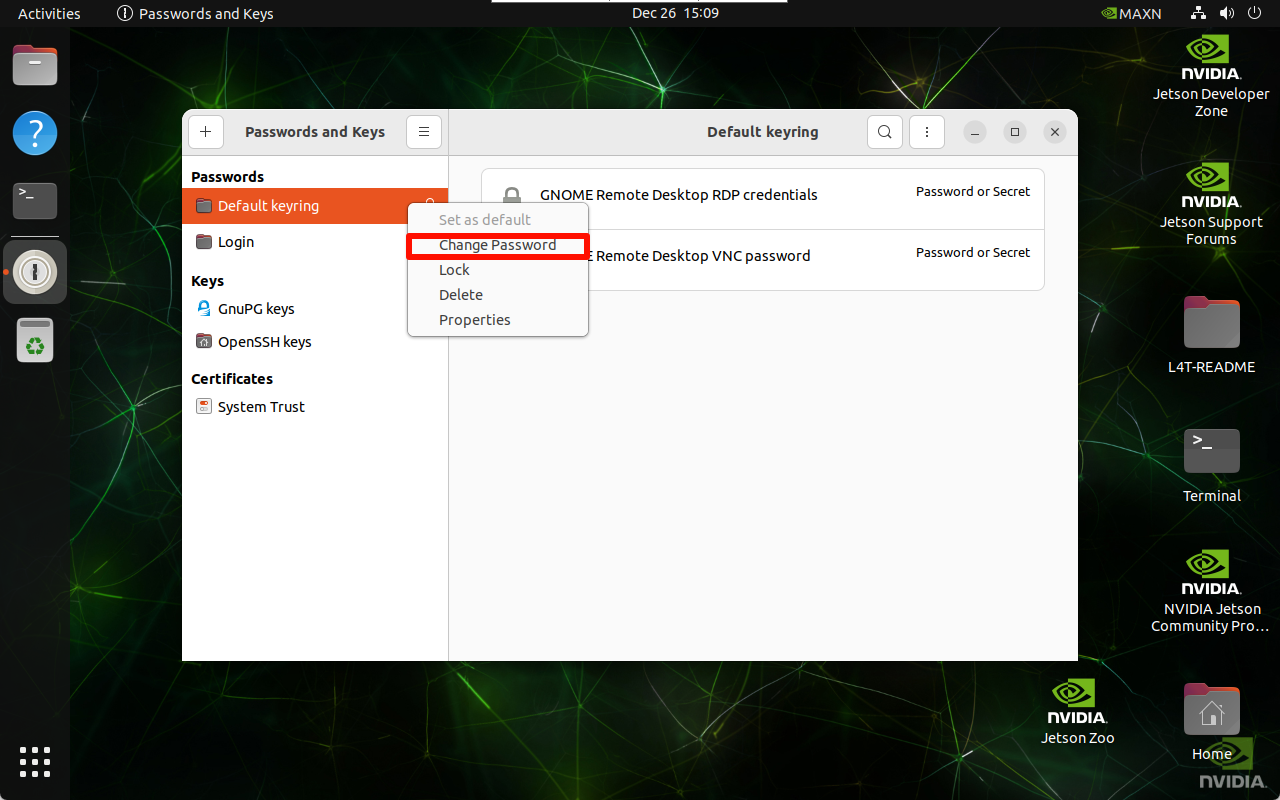
Select the default key to modify the password:
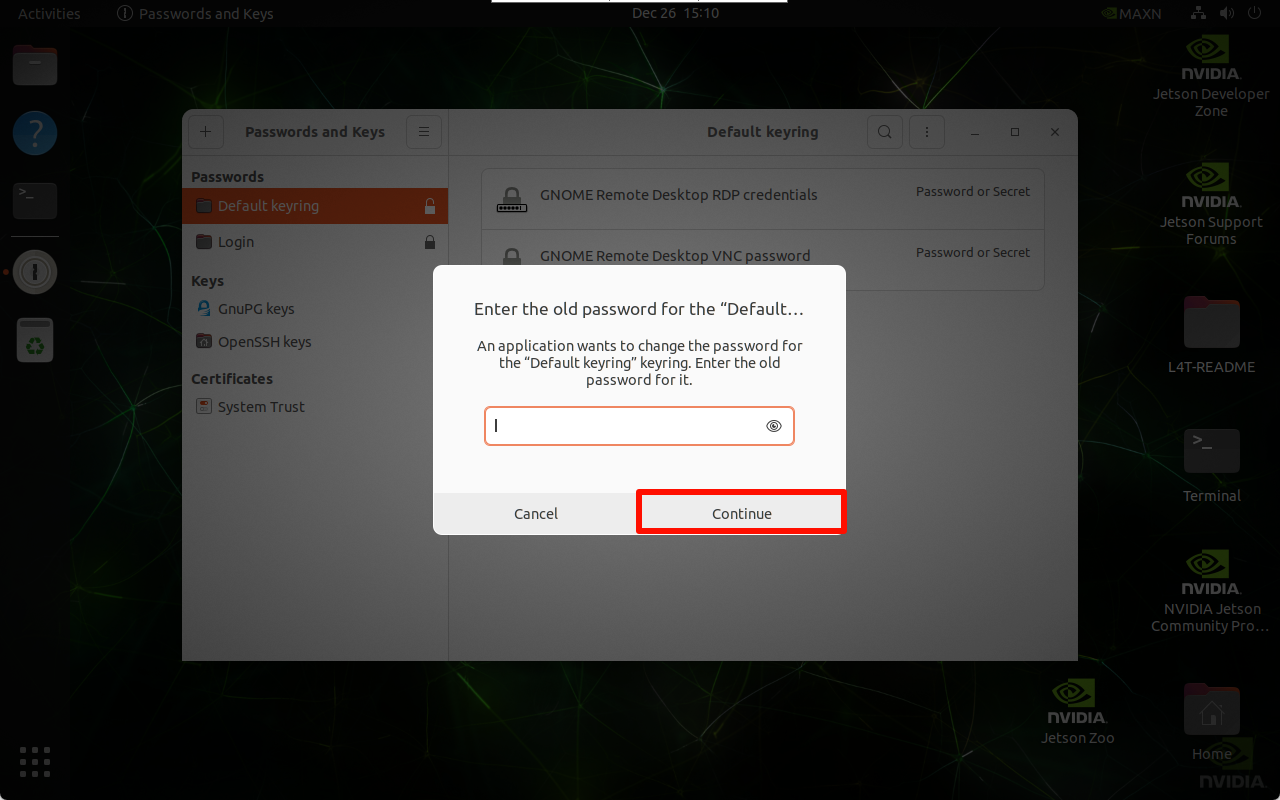
Enter the current password:
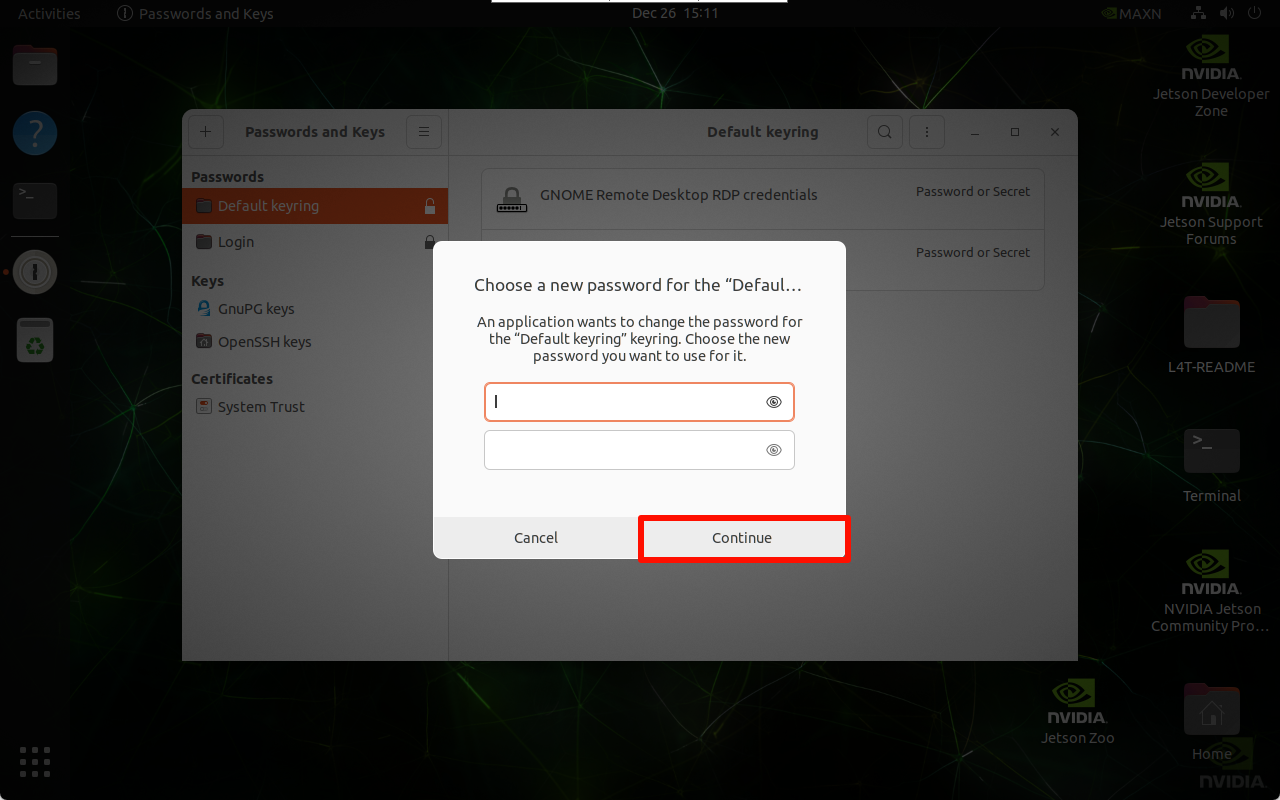
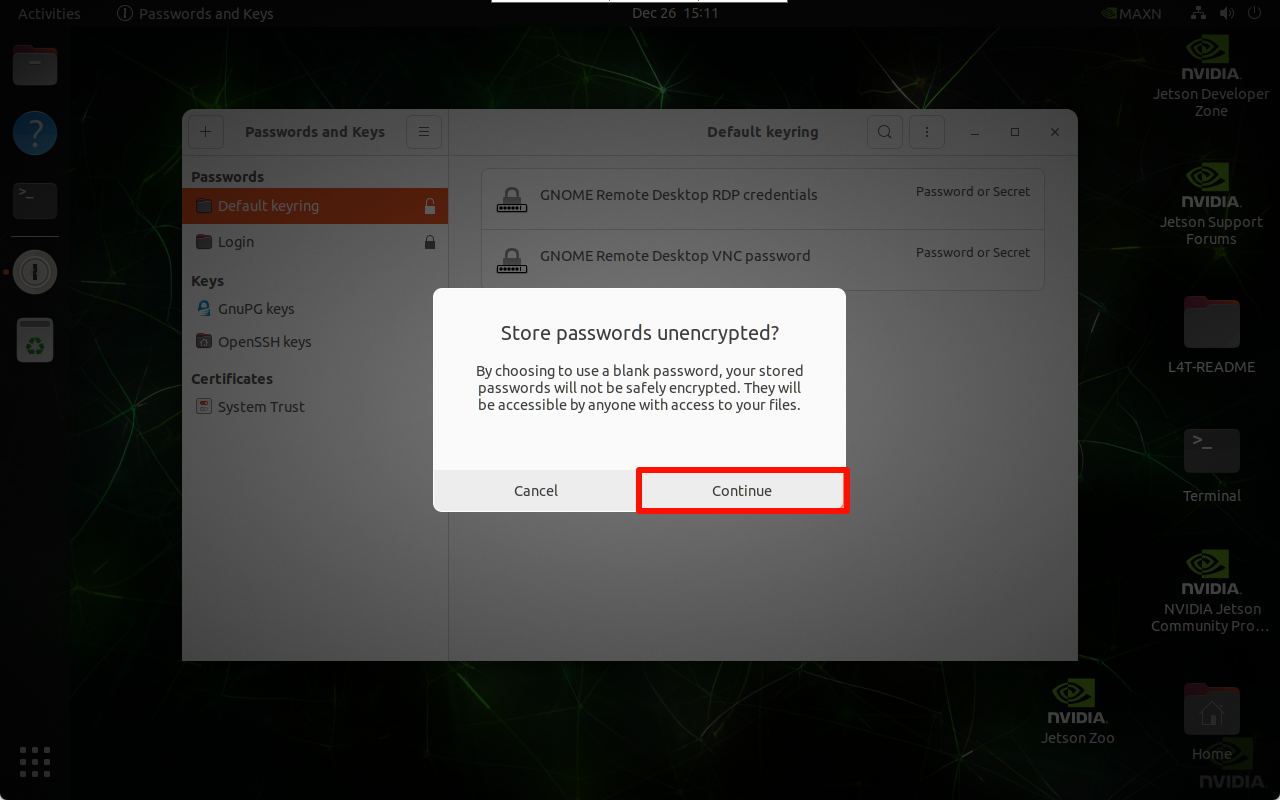
Set an empty key: Submit without filling in any content
2.3, Start VNC automatically after booting
After completing the above operations, the Jetson motherboard cannot be remotely accessed by VNC after the screen is locked. We can follow the following operations to solve the remote problem of locked screen.
Desktop extension manager
Install desktop extension manager:
sudo apt install gnome-shell-extension-manager -y
Get the gnome-shell version number:
gnome-shell --version
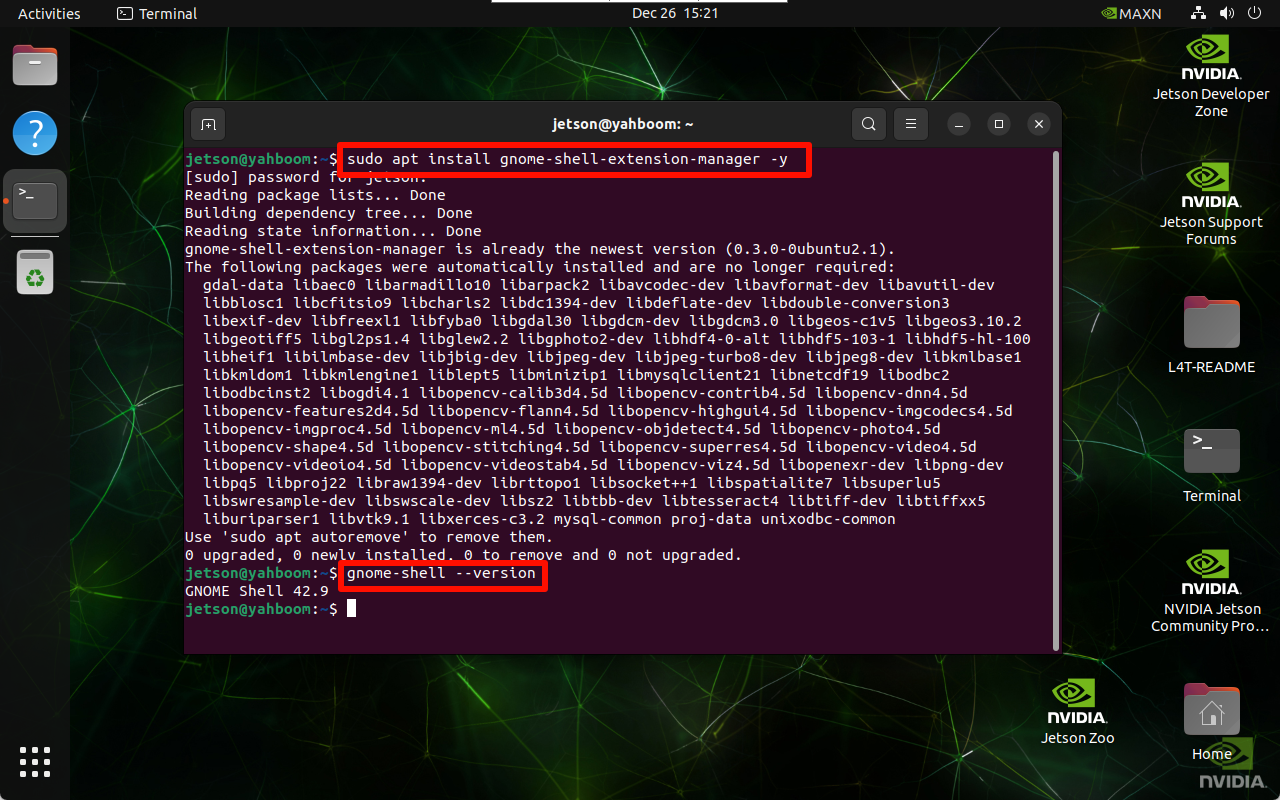
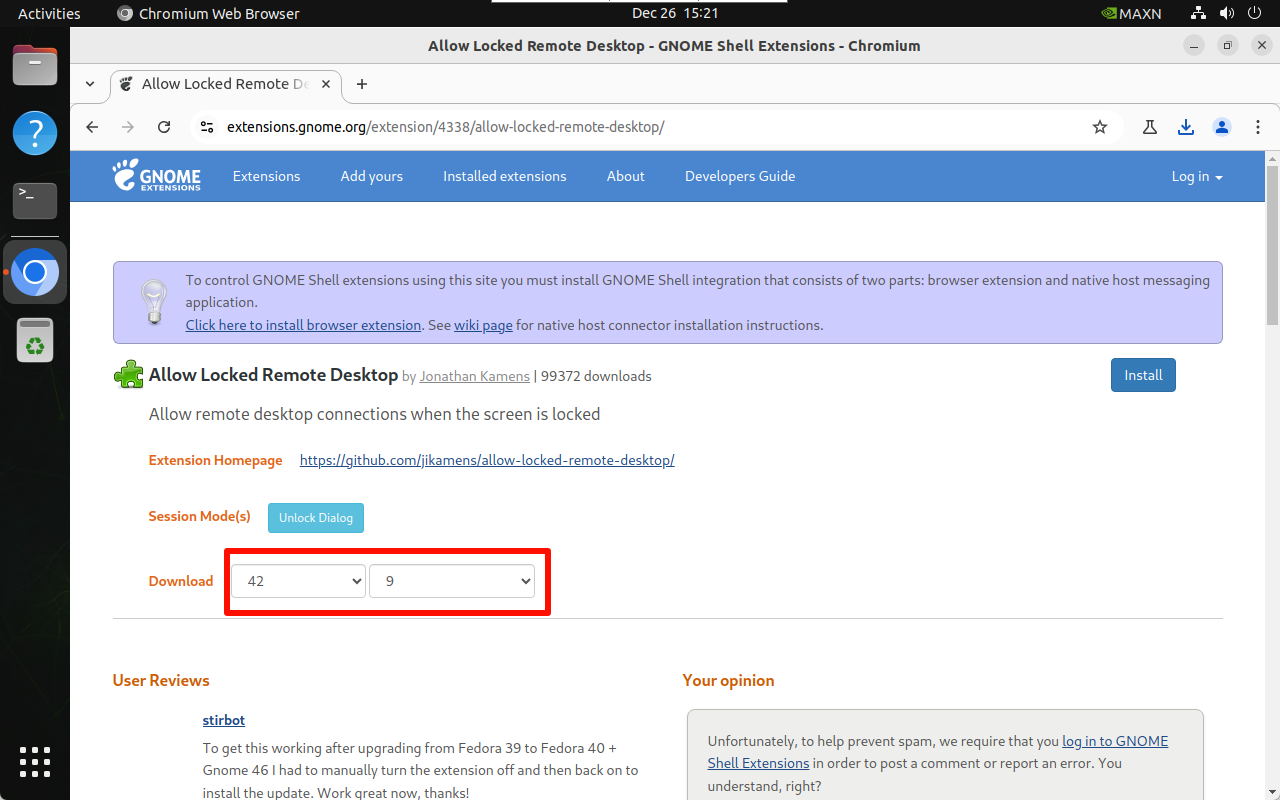
Download the plug-in that allows remote access under lock screen according to the version number:
Official website: https://extensions.gnome.org/extension/4338/allow-locked-remote-desktop/
Official website: https://extensions.gnome.org/extension/4338/allow-locked-remote-desktop/
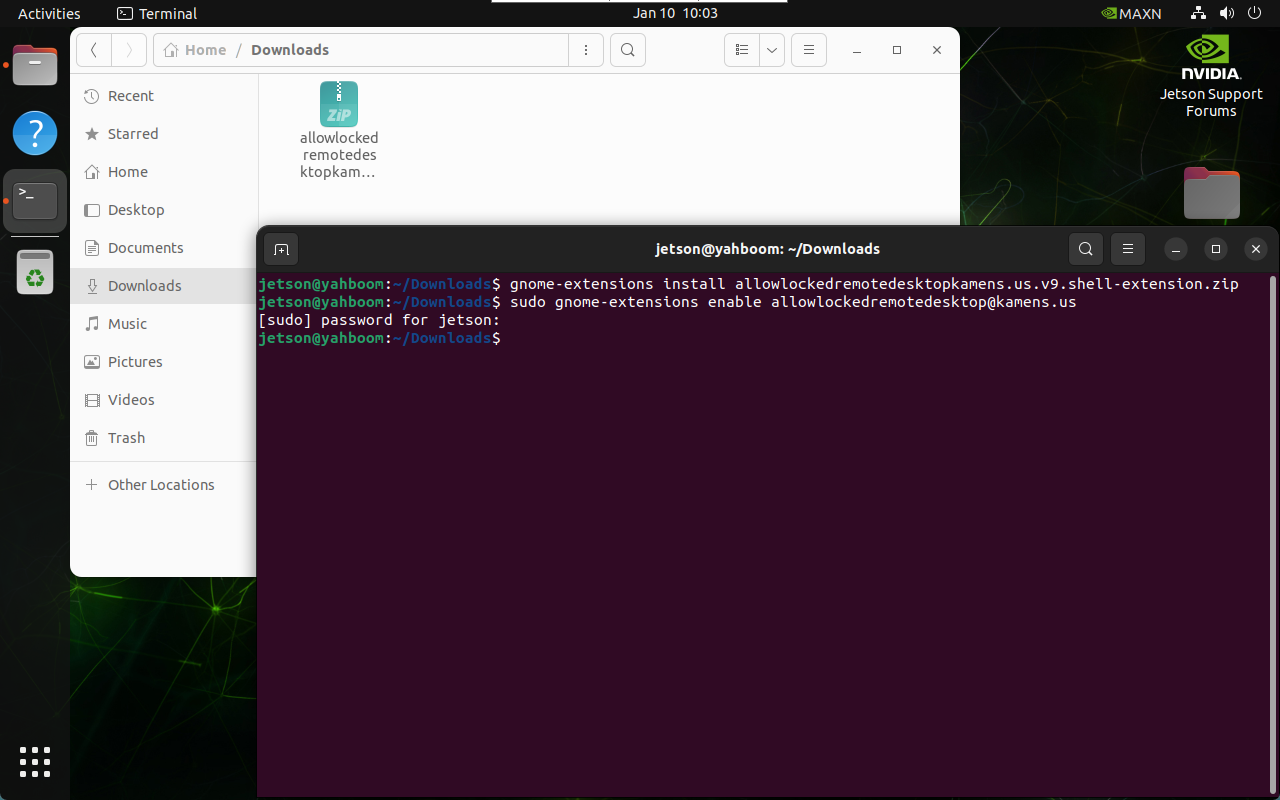
Install/enable plug-in: Users need to enter the file location to install
gnome-extensions install allowlockedremotedesktopkamens.us.v9.shell-extension.zip
sudo gnome-extensions enable allowlockedremotedesktop@kamens.us
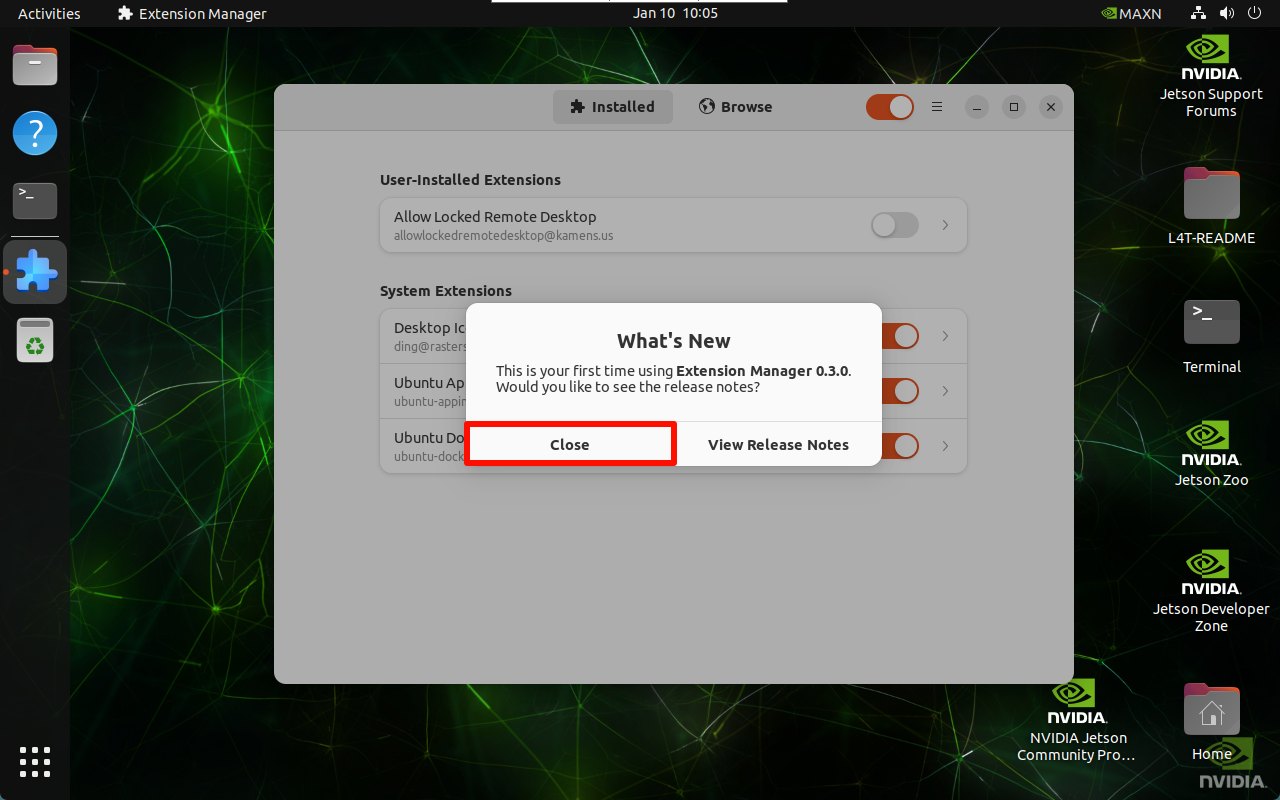
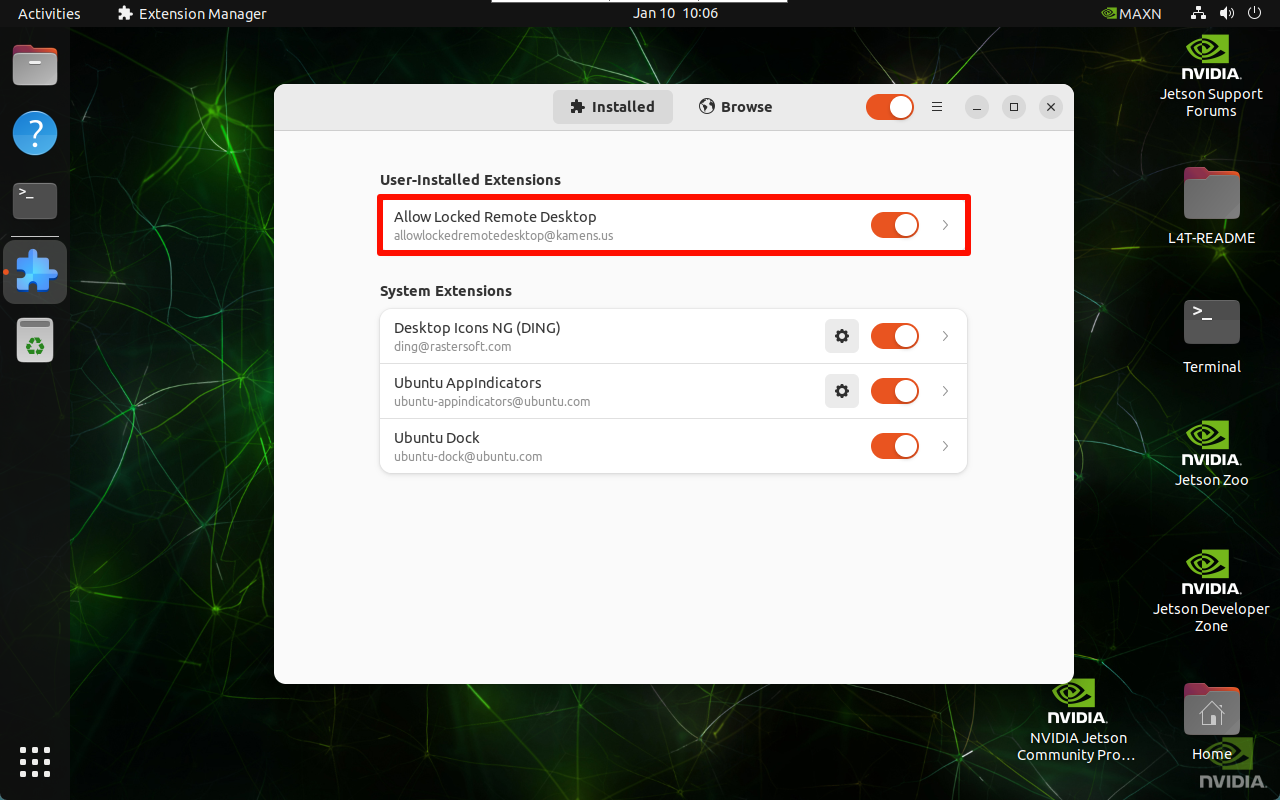
Restart the system: open Extension Manager to enable the corresponding function (find it in the Ubuntu system application)
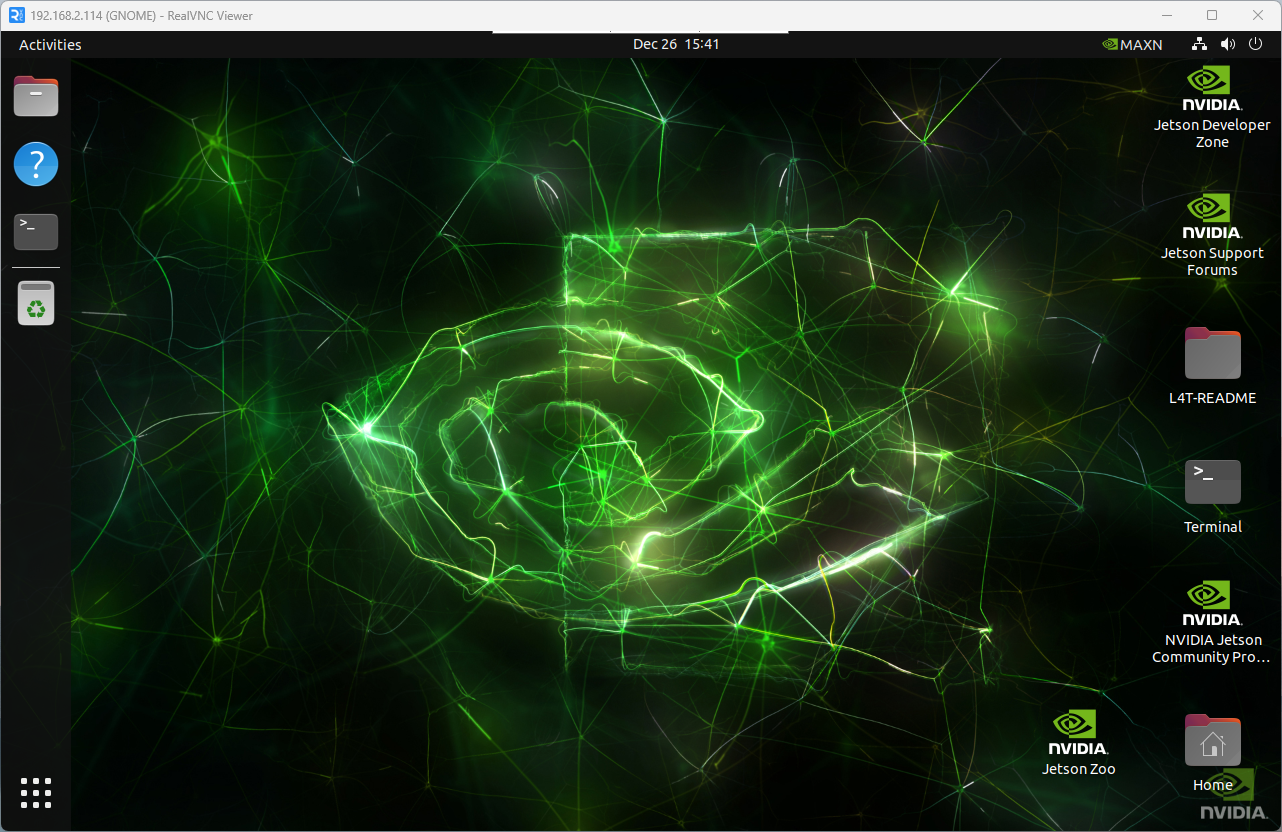
3. VNC remote control
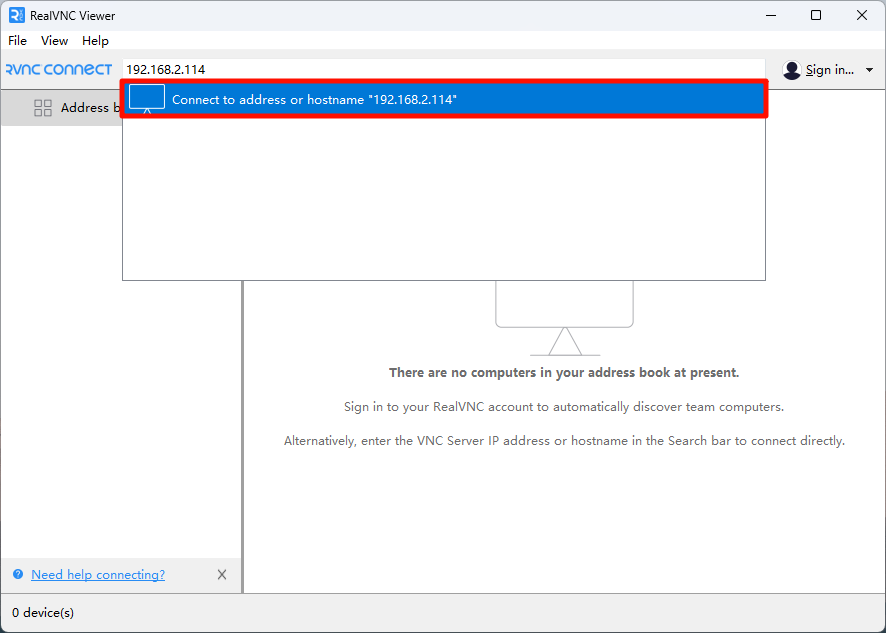
VNC Viewer input motherboard IP:
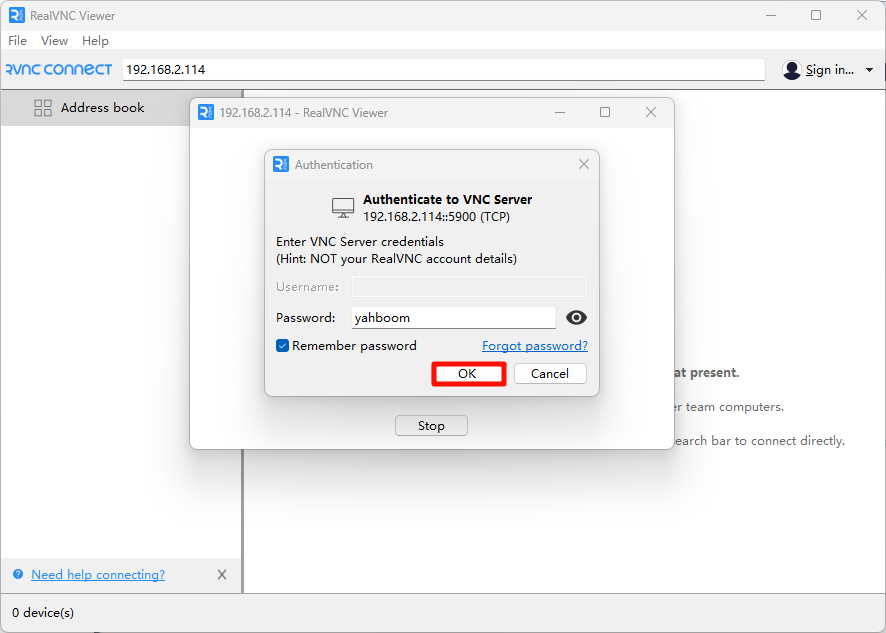
Fill in the motherboard system password:
Frequently Asked Questions
VNC Remote Display Reconnection
Reconnection Phenomenon
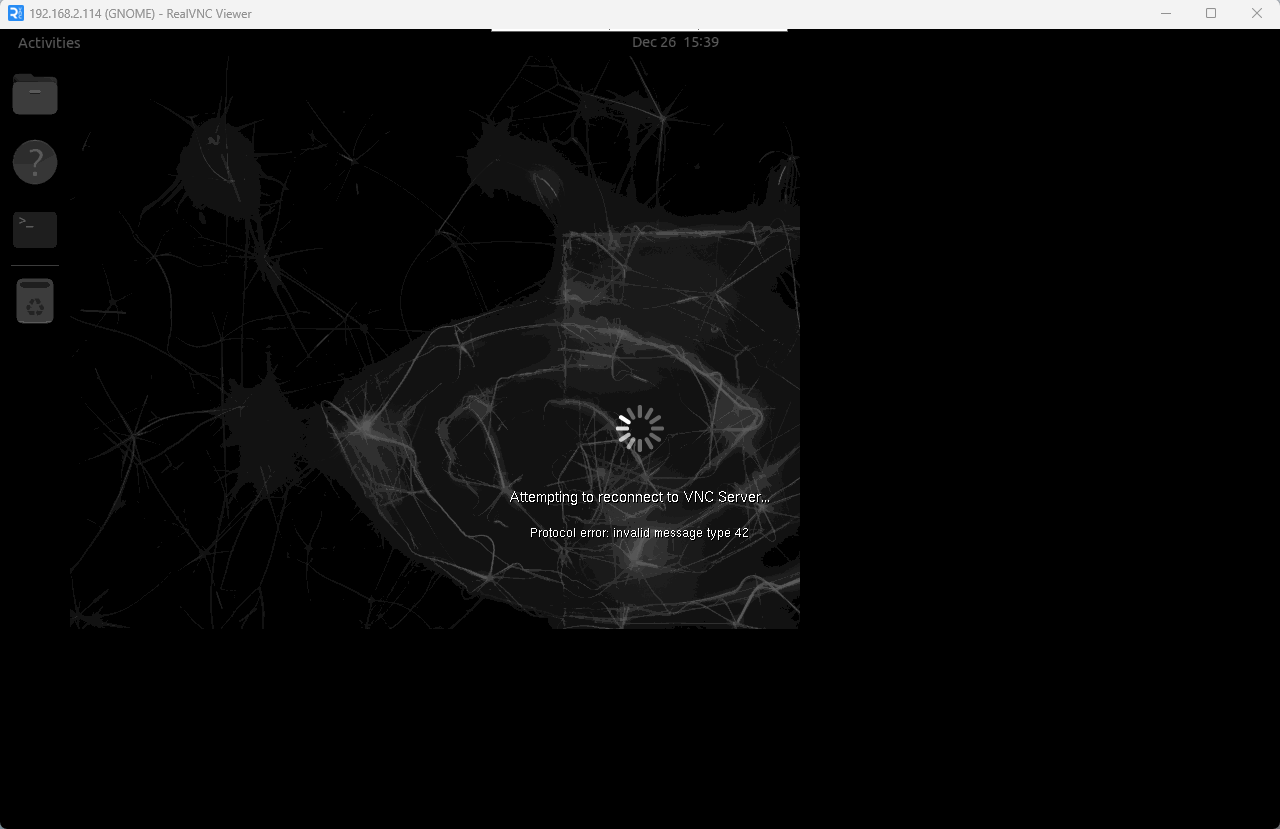
Solution
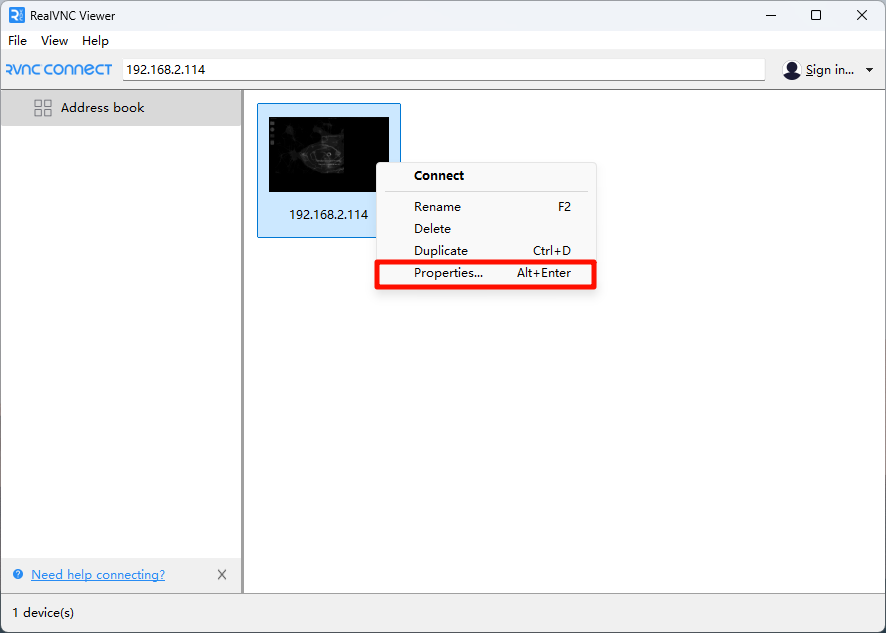
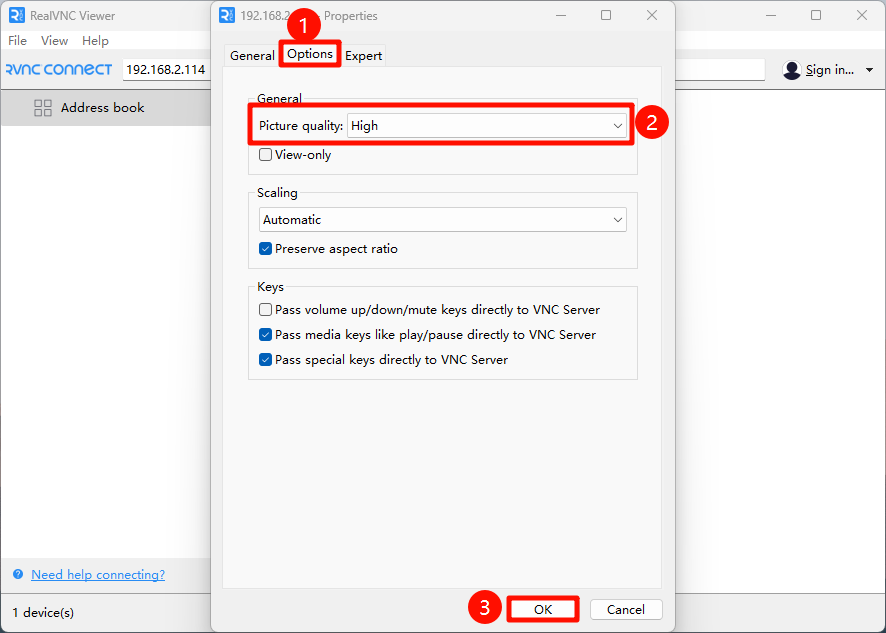
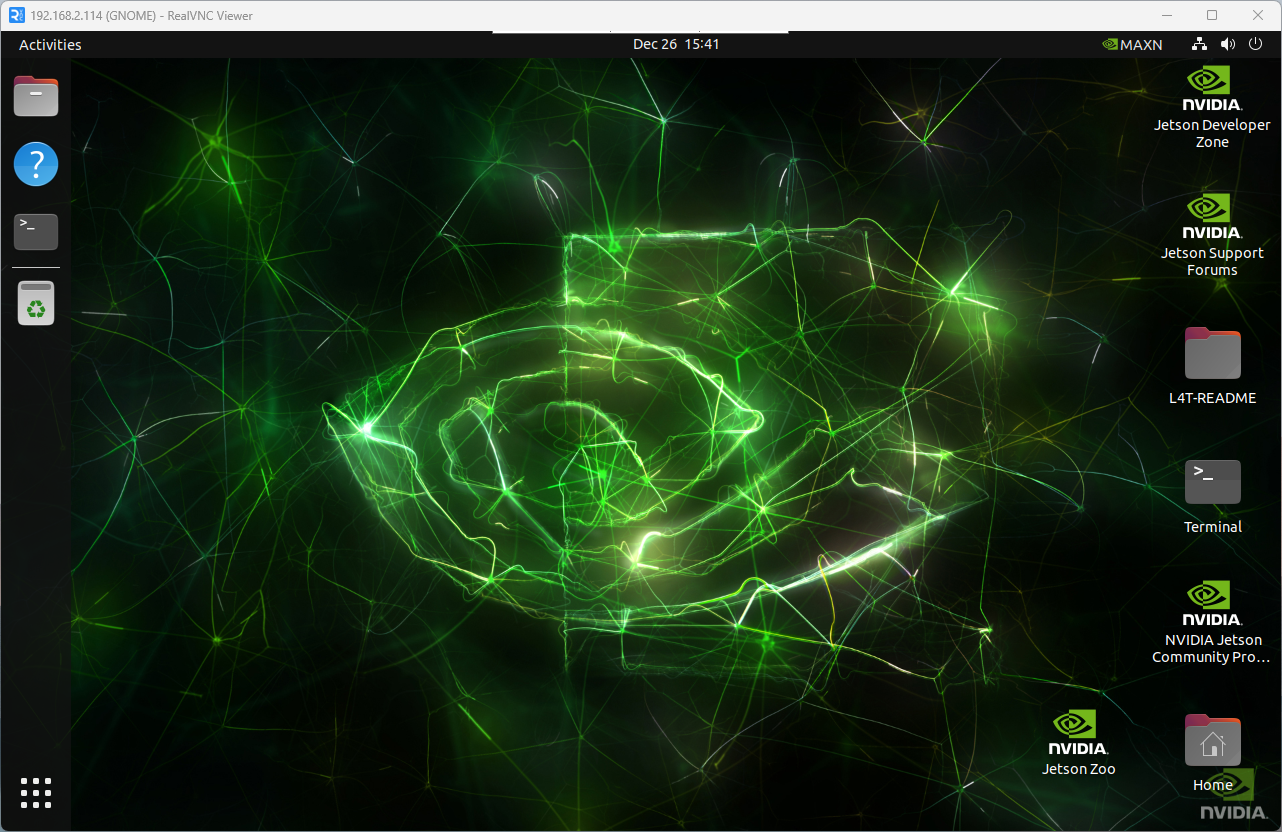
Modify the options of the corresponding remote device → Specify remote image quality
VNC remote switch uppercase and lowercase
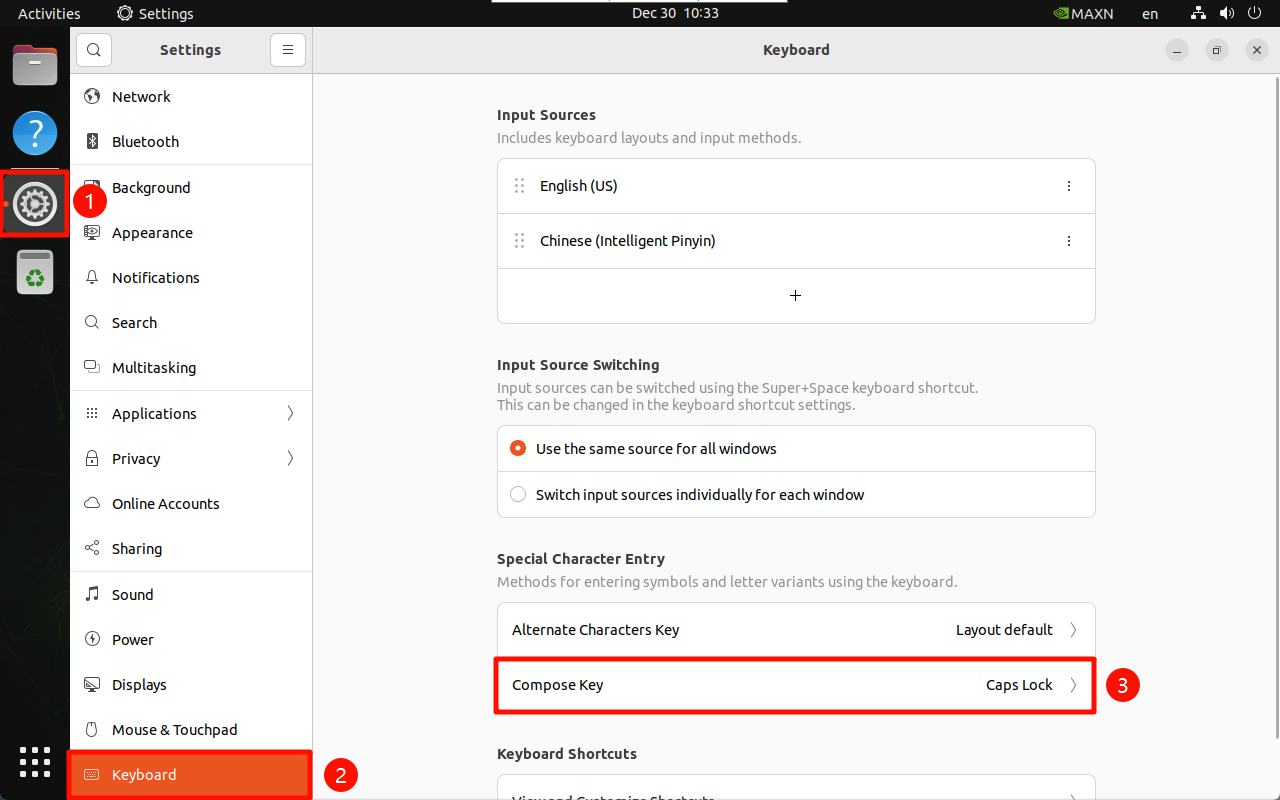
Enter Settings → Compose Key → Caps Lock: Set to Caps Lock to switch uppercase and lowercase input