09-Isaac ROS pose estimation
Isaac ROS 3D pose estimation official website link:https://nvidia-isaac-ros.github.io/repositories_and_packages/isaac_ros_pose_estimation/isaac_ros_centerpose/index.html
Overview
Isaac ROS Pose Estimation contains three ROS 2 packages to predict the pose of an object. Please refer the following table to see the differences of them:
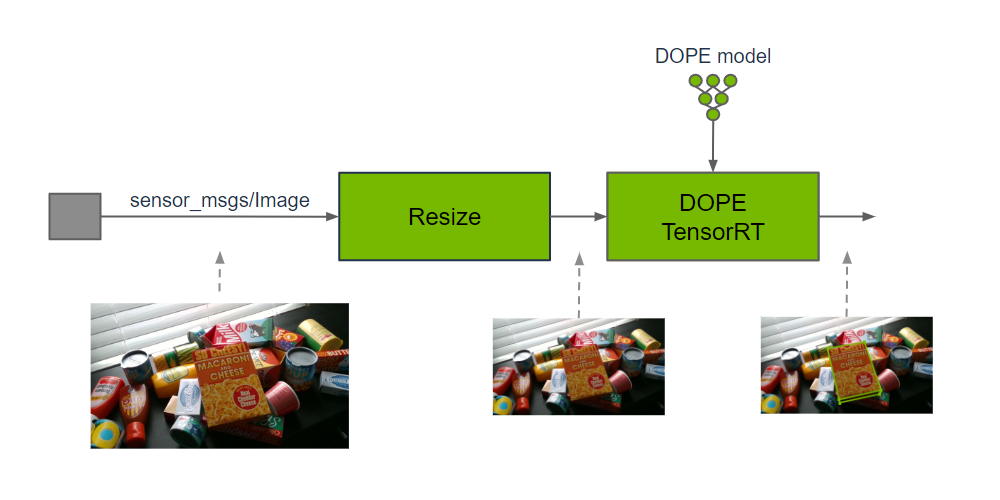
Those packages use GPU acceleration for DNN inference to estimate the pose of an object. The output prediction can be used by perception functions when fusing with the corresponding depth to provide the 3D pose of an object and distance for navigation or manipulation.
Quick Experience
To simplify development, we primarily use the Isaac ROS Dev Docker image and demonstrate the effects there. This demonstration does not require any camera device installation; it simulates the data stream from a camera by playing a rosbag file.
Note: If you wish to install on your own device or connect a camera to develop other features, please refer to the Isaac ROS official website and connect to an NVIDIA-specified camera model for your own development.
Open a terminal and enter the working directory.
cd ${ISAAC_ROS_WS}/src
Enter the Isaac ROS Dev Docker container.
cd ${ISAAC_ROS_WS}/src/isaac_ros_common && \
./scripts/run_dev.sh
Run the following startup command.
ros2 launch isaac_ros_examples isaac_ros_examples.launch.py ••launch_fragments:=centerpose,centerpose_visualizer interface_specs_file:=${ISAAC_ROS_WS}/isaac_ros_assets/isaac_ros_centerpose/quickstart_interface_specs.json model_name:=centerpose_shoe model_repository_paths:=[${ISAAC_ROS_WS}/isaac_ros_assets/models]
Open a second terminal and enter the container.
cd ${ISAAC_ROS_WS}/src/isaac_ros_common && \
./scripts/run_dev.sh
Run the following command:
ros2 bag play -l ${ISAAC_ROS_WS}/isaac_ros_assets/isaac_ros_centerpose/quickstart.bag
View the results
Open a third terminal and enter the container.
cd ${ISAAC_ROS_WS}/src/isaac_ros_common && \
./scripts/run_dev.sh
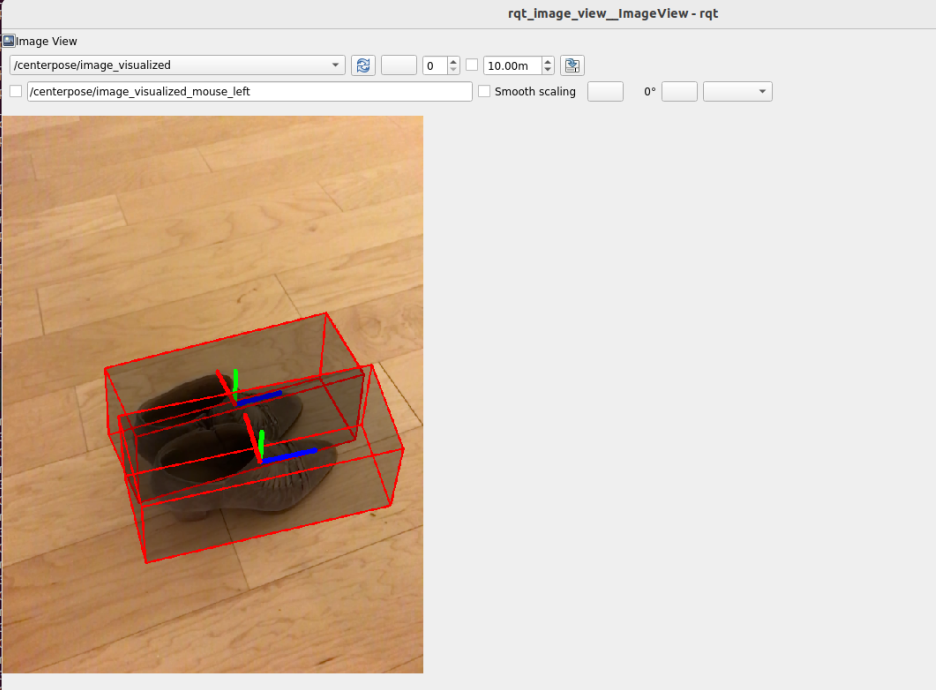
Run the following command to view the results.
ros2 run rqt_image_view rqt_image_view /centerpose/image_visualized