05-Isaac ROS Image distortion processing
Isaac ROS image distortion processing:https://nvidia-isaac-ros.github.io/repositories_and_packages/isaac_ros_image_pipeline/index.html
Overview
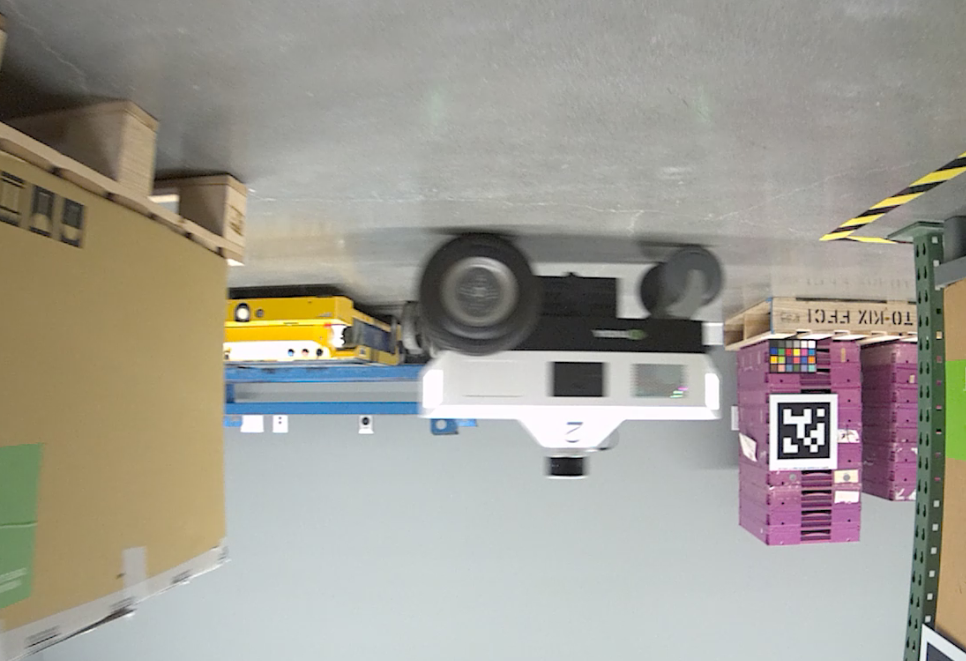
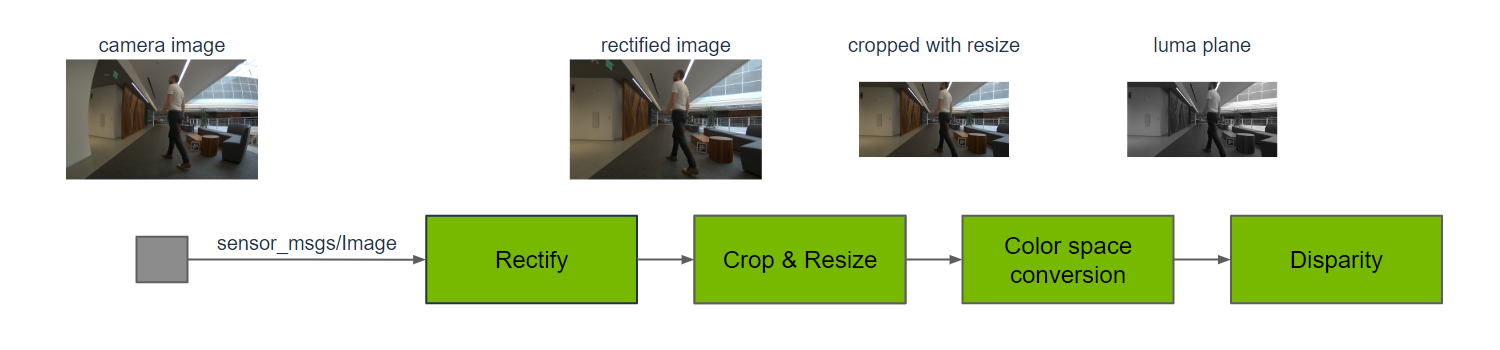
Isaac ROS image distortion processing uses the Isaac ROS image pipeline. Isaac ROS Image Pipeline is a metapackage of functionality for image processing. Camera output often needs pre-processing to meet the input requirements of multiple different perception functions. This can include cropping, resizing, mirroring, correcting for lens distortion, and color space conversion. For stereo cameras, additional processing is required to produce disparity between left + right images and a point cloud for depth perception.
Quick Experience
To simplify development, we primarily use the Isaac ROS Dev Docker image and demonstrate the effects there. This demonstration does not require any camera device installation; it simulates the camera data stream by playing a rosbag file.
Note: If you wish to install on your own device or connect a camera to develop other features, please refer to the Isaac ROS official website and connect a designated NVIDIA camera model for your own development.
Resize:
Open a terminal and enter the working directory.
cd ${ISAAC_ROS_WS}/src
Enter the Isaac ROS Dev Docker container.
cd ${ISAAC_ROS_WS}/src/isaac_ros_common && \
./scripts/run_dev.sh
Run the following startup command.
ros2 launch isaac_ros_examples isaac_ros_examples.launch.py ••launch_fragments:=resize
Open a second terminal and enter the container.
cd ${ISAAC_ROS_WS}/src/isaac_ros_common && \
./scripts/run_dev.sh
Run the following command.
ros2 bag play --loop ${ISAAC_ROS_WS}/isaac_ros_assets/isaac_ros_image_proc/quickstart --remap /hawk_0_left_rgb_image:=/image_raw /hawk_0_left_rgb_camera_info:=/camera_info
View the results
Open a third terminal and enter the container.
cd ${ISAAC_ROS_WS}/src/isaac_ros_common && \
./scripts/run_dev.sh
Run the following command:
ros2 run image_view image_view --ros-args --remap image:=resize/image
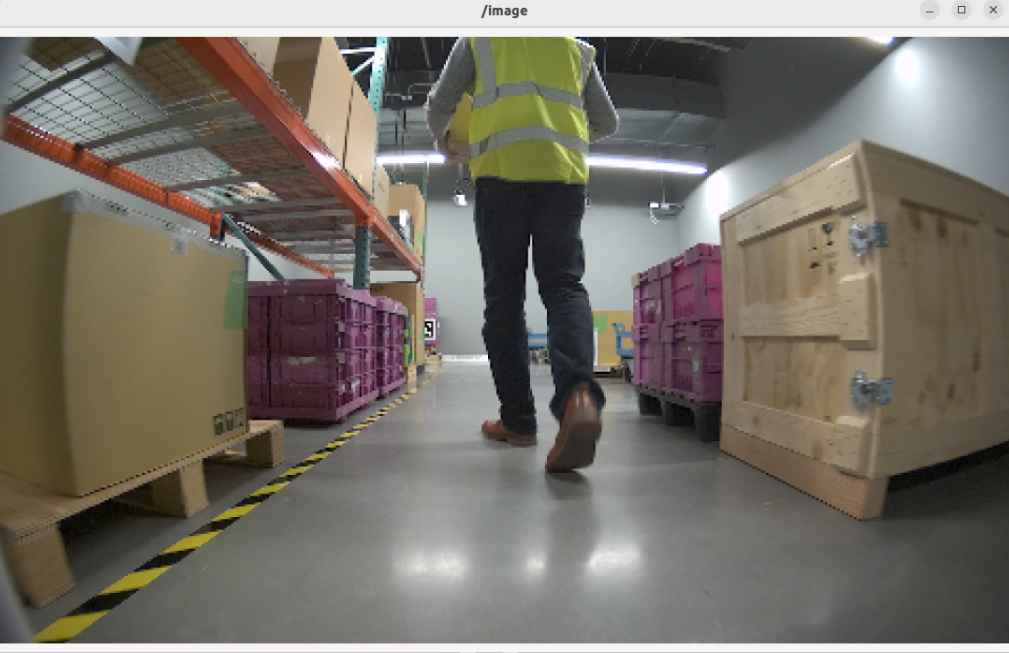
Color Conversion:
Open a terminal and enter the working directory.
Note: If you have already opened a container and run other commands, exit all Docker containers by typing exit in the first terminal before running the command.
cd ${ISAAC_ROS_WS}/src
Enter the Isaac ROS Dev Docker container
cd ${ISAAC_ROS_WS}/src/isaac_ros_common && \
./scripts/run_dev.sh
Run the following startup command
ros2 launch isaac_ros_examples isaac_ros_examples.launch.py ••launch_fragments:=color_conversion interface_specs_file:=${ISAAC_ROS_WS}/isaac_ros_assets/isaac_ros_image_proc/quickstart_interface_specs.json
Open a second terminal and enter the container
cd ${ISAAC_ROS_WS}/src/isaac_ros_common && \
./scripts/run_dev.sh \
./scripts/run_dev.sh
Run the following command
ros2 bag play --loop ${ISAAC_ROS_WS}/isaac_ros_assets/isaac_ros_image_proc/quickstart --remap /hawk_0_left_rgb_image:=/image_raw /hawk_0_left_rgb_camera_info:=/camera_info
View the run results
Open a third terminal and enter the container
cd ${ISAAC_ROS_WS}/src/isaac_ros_common && \
./scripts/run_dev.sh
Run the following command
ros2 run image_view image_view --ros-args --remap image:=image_mono
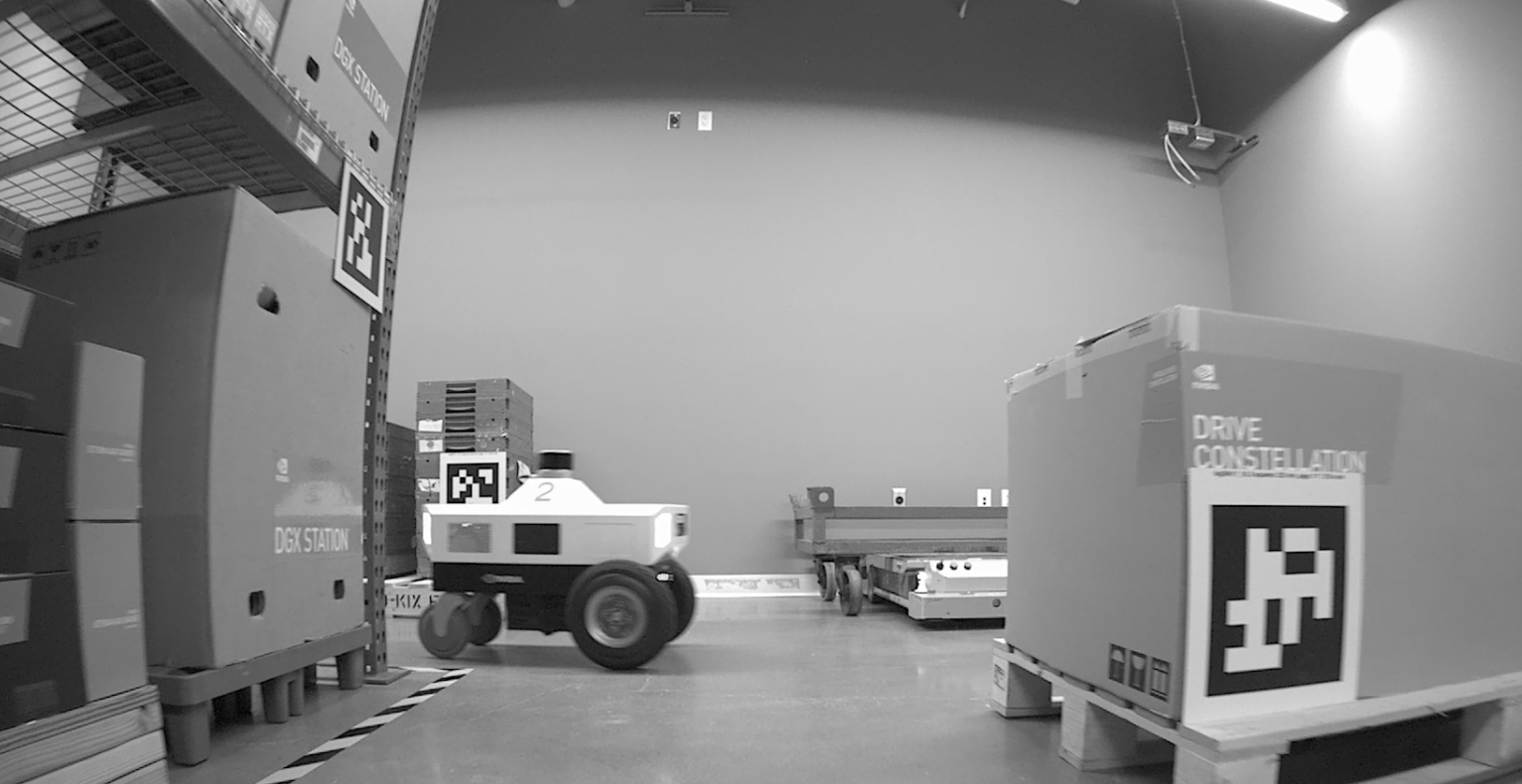
Crop:
Open a terminal and enter the working directory
cd ${ISAAC_ROS_WS}/src
Enter the Isaac ROS Dev Docker container
cd ${ISAAC_ROS_WS}/src/isaac_ros_common && \
./scripts/run_dev.sh
Run the following startup command
ros2 launch isaac_ros_examples isaac_ros_examples.launch.py ••launch_fragments:=crop interface_specs_file:=${ISAAC_ROS_WS}/isaac_ros_assets/isaac_ros_image_proc/quickstart_interface_specs.json
Open a second terminal and enter the container
cd ${ISAAC_ROS_WS}/src/isaac_ros_common && \
./scripts/run_dev.sh
Run the following command
ros2 bag play --loop ${ISAAC_ROS_WS}/isaac_ros_assets/isaac_ros_image_proc/quickstart --remap /hawk_0_left_rgb_image:=/image_raw /hawk_0_left_rgb_camera_info:=/camera_info
View the run results
Open a third terminal and enter the container
cd ${ISAAC_ROS_WS}/src/isaac_ros_common && \
./scripts/run_dev.sh
Run the following command
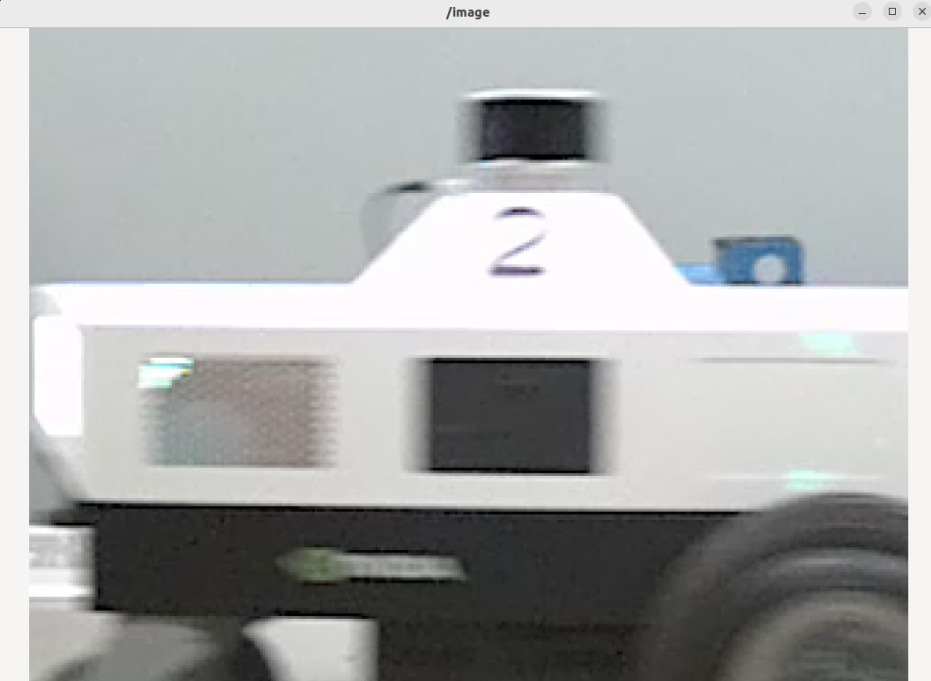
ros2 run image_view image_view --ros-args --remap image:=crop/image
Rectify:
Open a terminal and enter the working directory
cd ${ISAAC_ROS_WS}/src
Enter Isaac ROS Dev Docker container
cd ${ISAAC_ROS_WS}/src/isaac_ros_common && \
./scripts/run_dev.sh
Run the following startup command
ros2 launch isaac_ros_examples isaac_ros_examples.launch.py ••launch_fragments:=rectify_mono interface_specs_file:=${ISAAC_ROS_WS}/isaac_ros_assets/isaac_ros_image_proc/quickstart_interface_specs.json
Open a second terminal and enter the container
cd ${ISAAC_ROS_WS}/src/isaac_ros_common && \
./scripts/run_dev.sh
Run the following command
ros2 bag play --loop ${ISAAC_ROS_WS}/isaac_ros_assets/isaac_ros_image_proc/quickstart --remap /hawk_0_left_rgb_image:=/image_raw /hawk_0_left_rgb_camera_info:=/camera_info
View the Run Results
Open a third terminal and enter the container
cd ${ISAAC_ROS_WS}/src/isaac_ros_common && \
./scripts/run_dev.sh
Run the following command
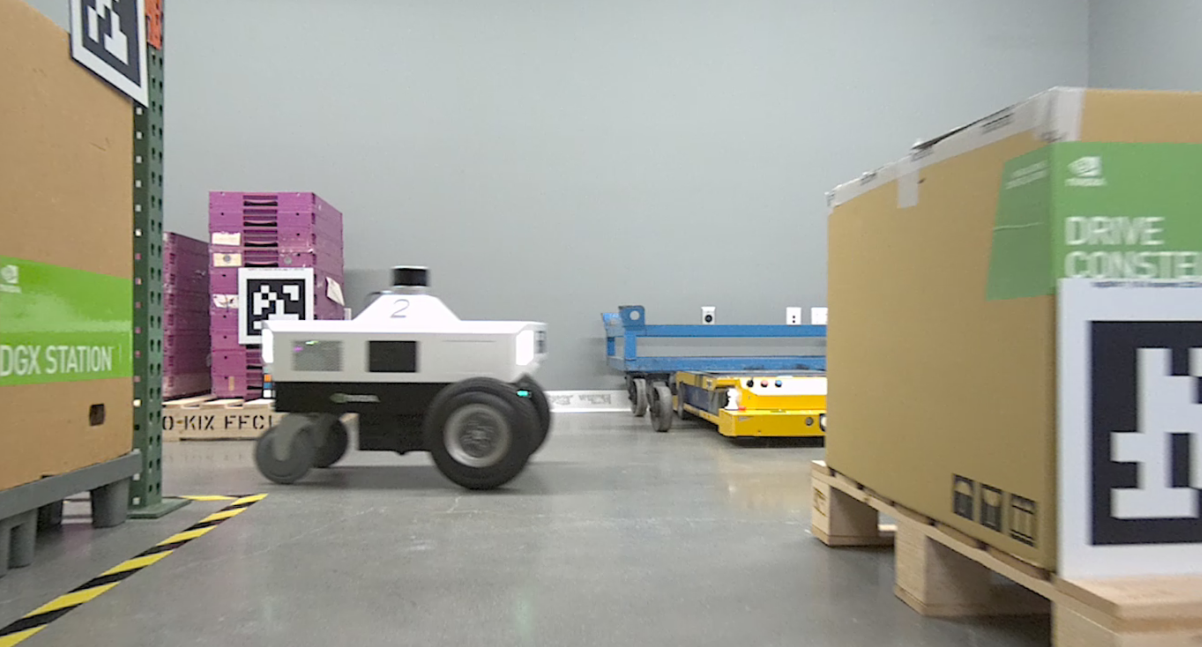
ros2 run image_view image_view --ros-args --remap image:=image_rect
Flip:
Open a terminal and enter the working directory
cd ${ISAAC_ROS_WS}/src
Enter Isaac ROS Dev Docker container
cd ${ISAAC_ROS_WS}/src/isaac_ros_common && \
./scripts/run_dev.sh
Run the following startup command
ros2 launch isaac_ros_examples isaac_ros_examples.launch.py ••launch_fragments:=flip
Open a second terminal and enter the container
cd ${ISAAC_ROS_WS}/src/isaac_ros_common && \
./scripts/run_dev.sh
Run the following command
ros2 bag play --loop ${ISAAC_ROS_WS}/isaac_ros_assets/isaac_ros_image_proc/quickstart --remap /hawk_0_left_rgb_image:=/image_raw /hawk_0_left_rgb_camera_info:=/camera_info
View the run results
Open a third terminal and enter the container
cd ${ISAAC_ROS_WS}/src/isaac_ros_common && \
./scripts/run_dev.sh
Run the following command
ros2 run image_view image_view --ros-args --remap image:=image_flipped