21-Multimodal Text and Graphics Application
Since Ollama does not support the text-based image function, we need to use other tools to implement the local text-based image function. Currently, voice control of the text-based image function is not supported, so the content of this article is the same as the offline text multimodal text-based image application.
1. Concept Introduction
1.1 What is Text-to-Image?
Text-to-Image is an AI technology that automatically generates corresponding images based on text description . Simply input a piece of text (for example, "A Shiba Inu wearing sunglasses surfing on the beach"), and the AI model will generate an image that matches the description based on semantic understanding, without any drawing or design knowledge required.
Core Principles
1.2 What is FastSDCPU?
FastSDCPU is an open-source Stable Diffusion image processing project optimized for CPU devices. Through algorithmic and engineering optimizations, it enables rapid generation of high-quality images on standard computers without GPUs, significantly lowering the hardware barrier to entry for AI painting.
Core Features
Applicable Scenarios
2. Project Deployment
2.1 Deployment Environment
Open a terminal and execute the following code:
# If Git is not installed on your system, run:
sudo apt update
sudo apt install git -y
sudo apt install python3.10-venv -y
# Add environment variables
echo 'export PATH="$HOME/.local/bin:$PATH"' >> ~/.bashrc
source ~/.bashrc
# Clone the project code
git clone https://github.com/rupeshs/fastsdcpu.git
cd fastsdcpu
# Create a virtual environment and install dependencies
python -m venv venv
source venv/bin/activate
# Install uv
curl -Ls https://astral.sh/uv/install.sh | sh (This step may fail if you don't have a proxy in China. If not, skip this step and proceed to the next command.)
#If the curl command in the previous step failed to install uv, run these three commands:
wget https://mirrors.huaweicloud.com/astral/uv/0.8.4/uv-aarch64-unknown-linux-gnu -O ~/.local/bin/uv
chmod +x ~/.local/bin/uv
~/.local/bin/uv --version
chmod +x install.sh start-webui.sh
./install.sh --disable-gui
# If Git is not installed on your system, run:
sudo apt update
sudo apt install git -y
sudo apt install python3.10-venv -y
# Add environment variables
echo 'export PATH="$HOME/.local/bin:$PATH"' >> ~/.bashrc
source ~/.bashrc
# Clone the project code
git clone https://github.com/rupeshs/fastsdcpu.git
cd fastsdcpu
# Create a virtual environment and install dependencies
python -m venv venv
source venv/bin/activate
# Install uv
curl -Ls https://astral.sh/uv/install.sh | sh (This step may fail if you don't have a proxy in China. If not, skip this step and proceed to the next command.)
#If the curl command in the previous step failed to install uv, run these three commands:
wget https://mirrors.huaweicloud.com/astral/uv/0.8.4/uv-aarch64-unknown-linux-gnu -O ~/.local/bin/uv
chmod +x ~/.local/bin/uv
~/.local/bin/uv --version
chmod +x install.sh start-webui.sh
./install.sh --disable-gui
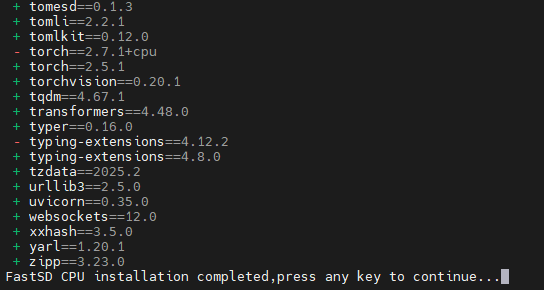
Installation successful. Press any key to exit:
2.2 LAN Access
Before starting, you need to modify a file to support LAN access. Otherwise, the webui can only be accessed locally:
vim ~/fastsdcpu/src/frontend/webui/ui.py
vim ~/fastsdcpu/src/frontend/webui/ui.py
After opening the ui.py file, scroll to the last line and find webui.launch(share=share) . Change it to webui.launch(server_name="0.0.0.0",share=share)
Save the file.
Start:
./start-webui.sh
./start-webui.sh
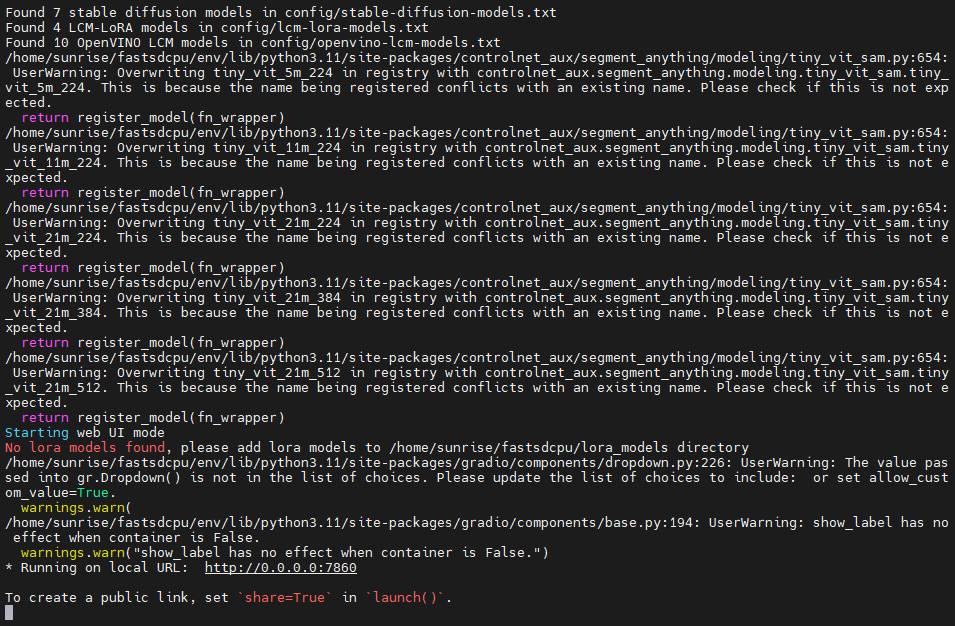
You can then access the webui by entering your motherboard's IP address: 7860 in your browser.
2.3 Using the Vincent Image Function
Use ifconfig in the terminal to query the motherboard's IP address. For example, mine is 192.168.2.106.
Then open a browser and enter your motherboard's IP address:7860 . For example, I entered 192.168.2.106:7860. This will access the web UI.
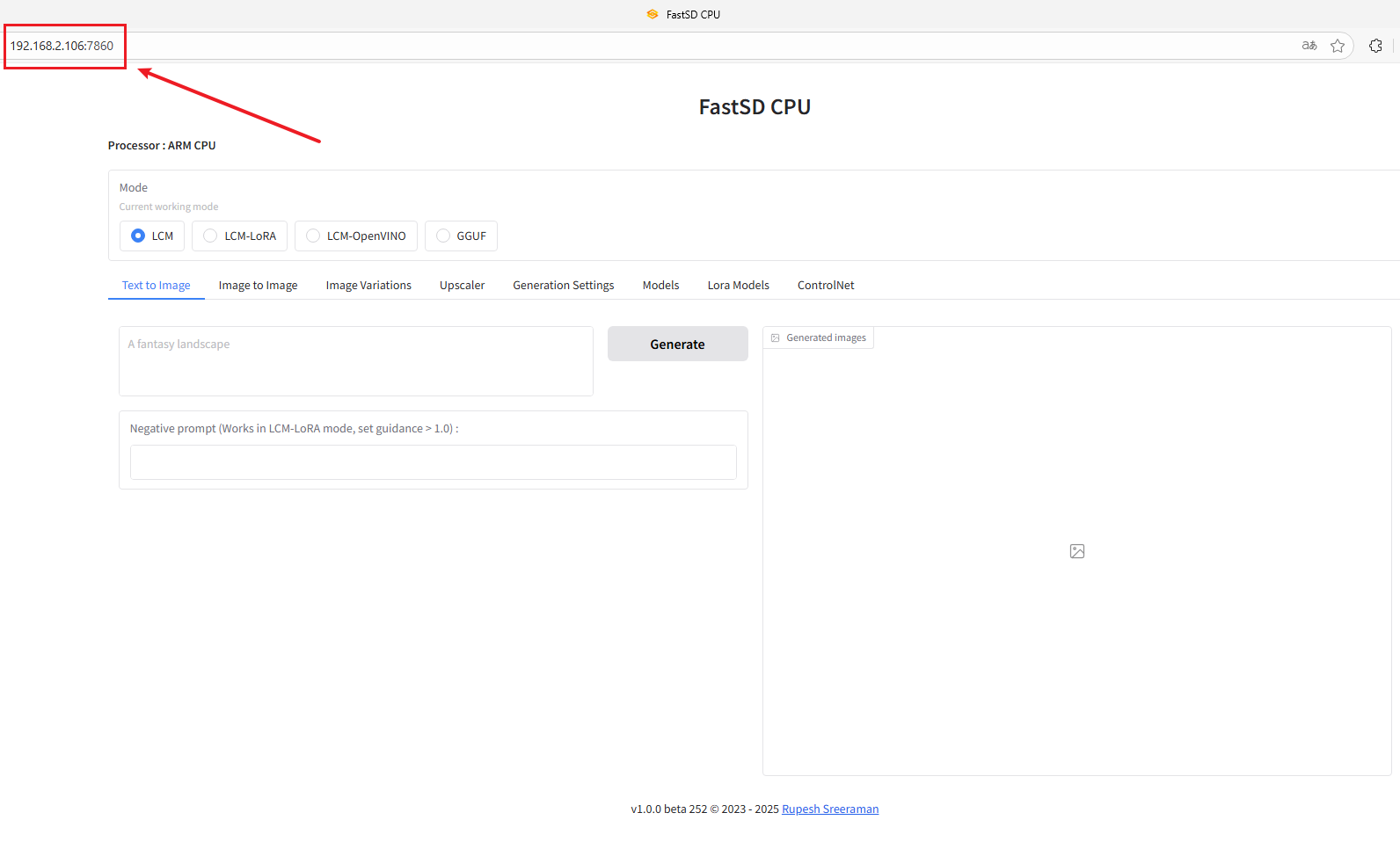
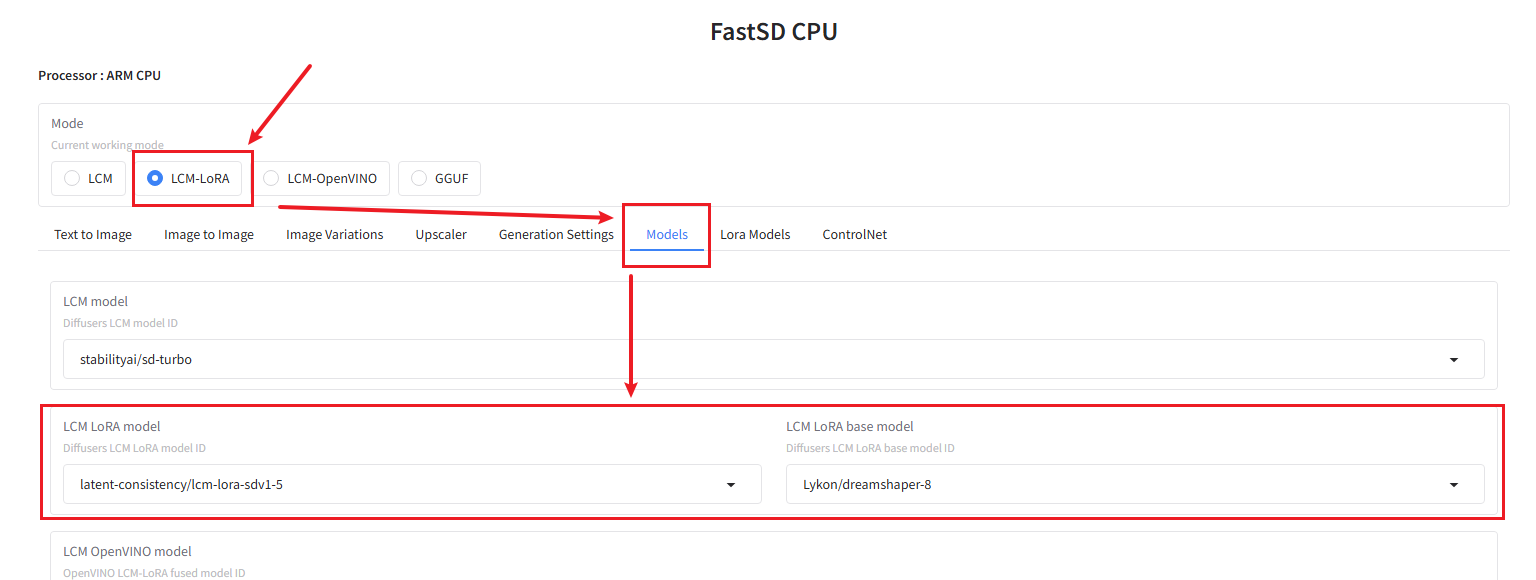
Next, click LCM-LoRA. This model uses less memory. If you want to use a different model, feel free to research it yourself.
Next, click Models to view the LCM-LoRA model settings. You can change the model to your preference, or just stick with the default, as I did.
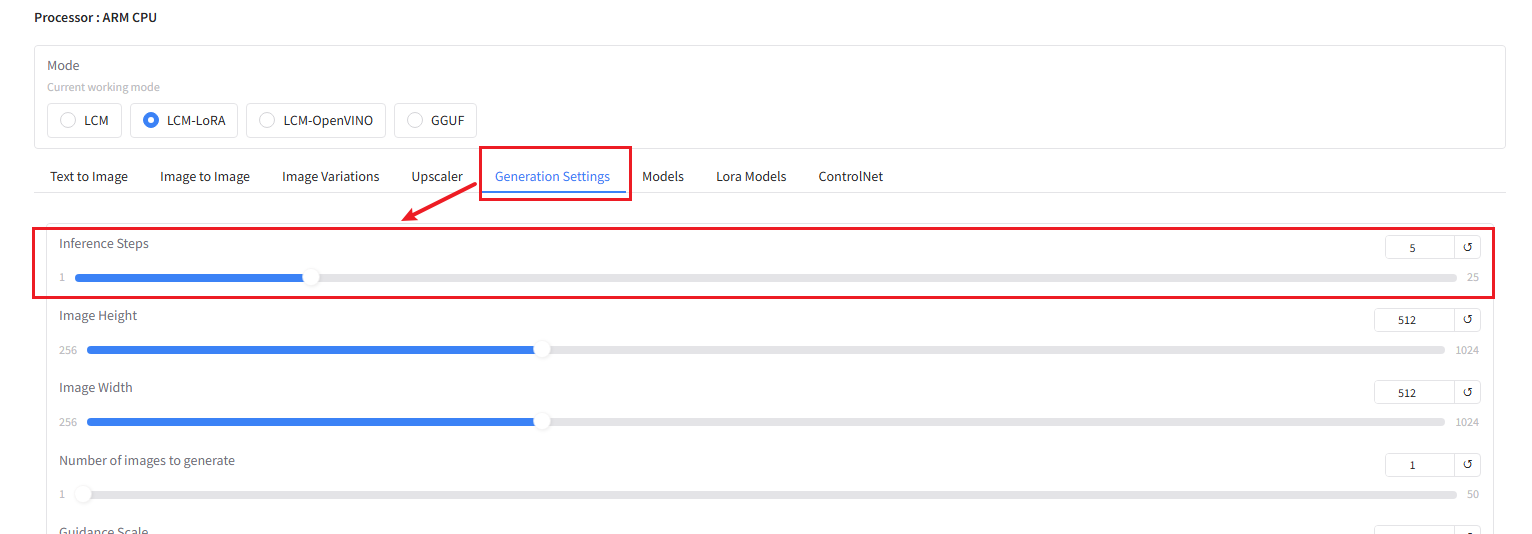
Next, click Generation Settings and increase the Inference Steps setting to improve the quality of the generated image. I've set it to 5.
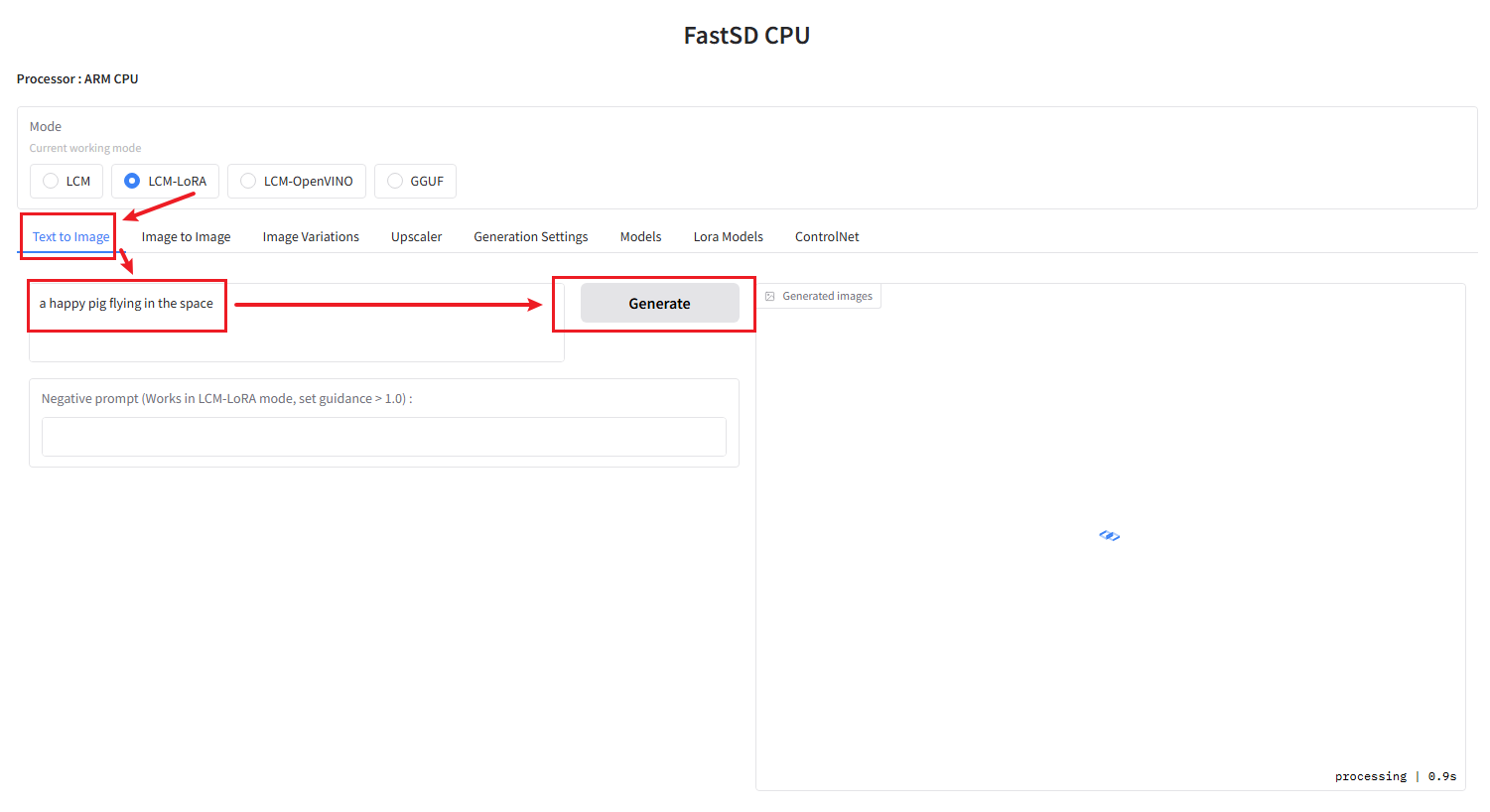
Next, return to the Text to Image dialog box and enter the content you want to generate. Click Generate to begin generating the image.
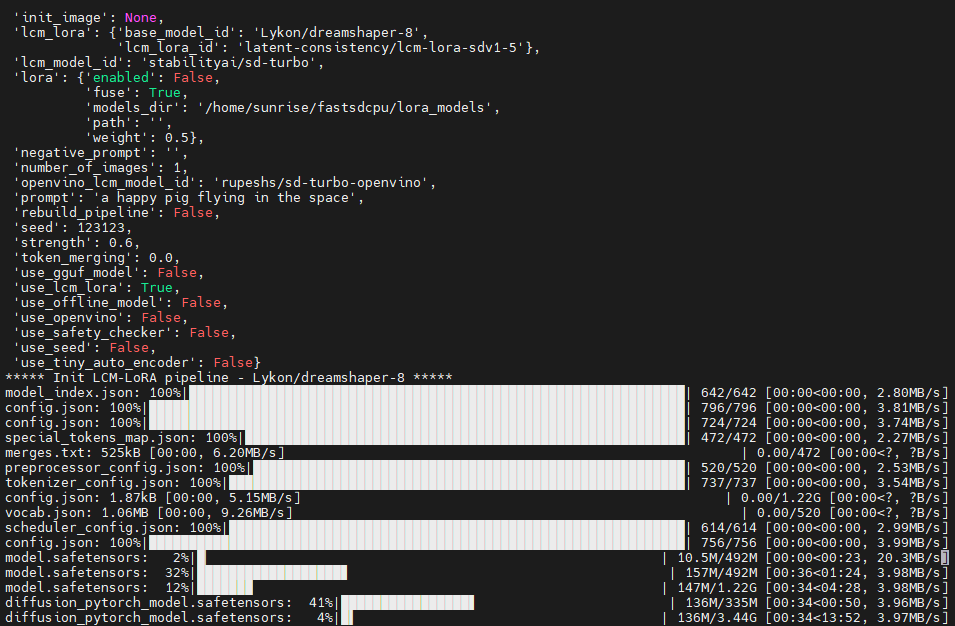
For first-time users, you'll need to download the model. You'll see the default model being downloaded in the terminal. Once it's finished downloading, the text-to-image function will begin.
Generated result:
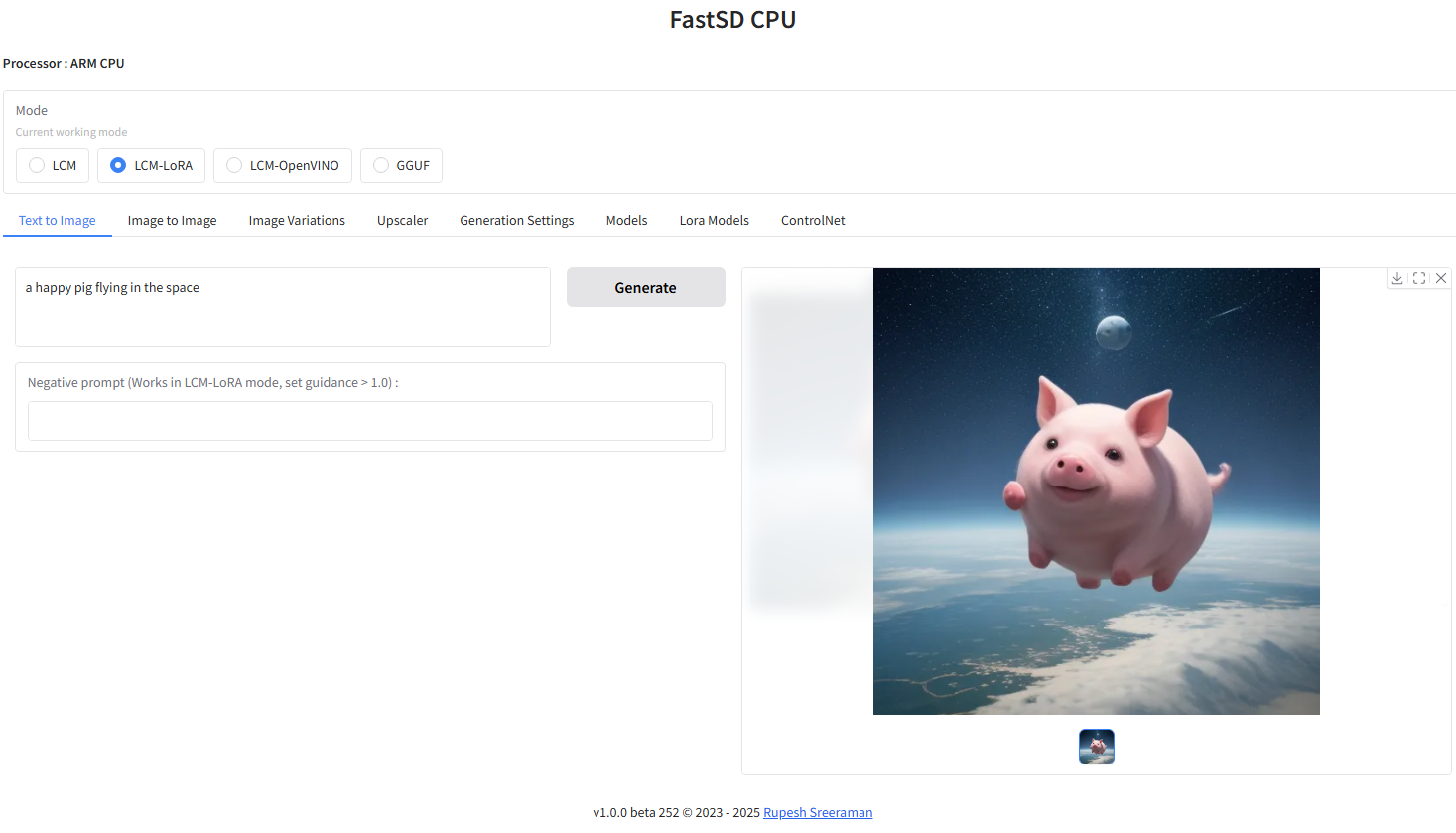
This project has improved support for English, and the generated images will be more consistent with the text. We recommend using English descriptions when generating images.