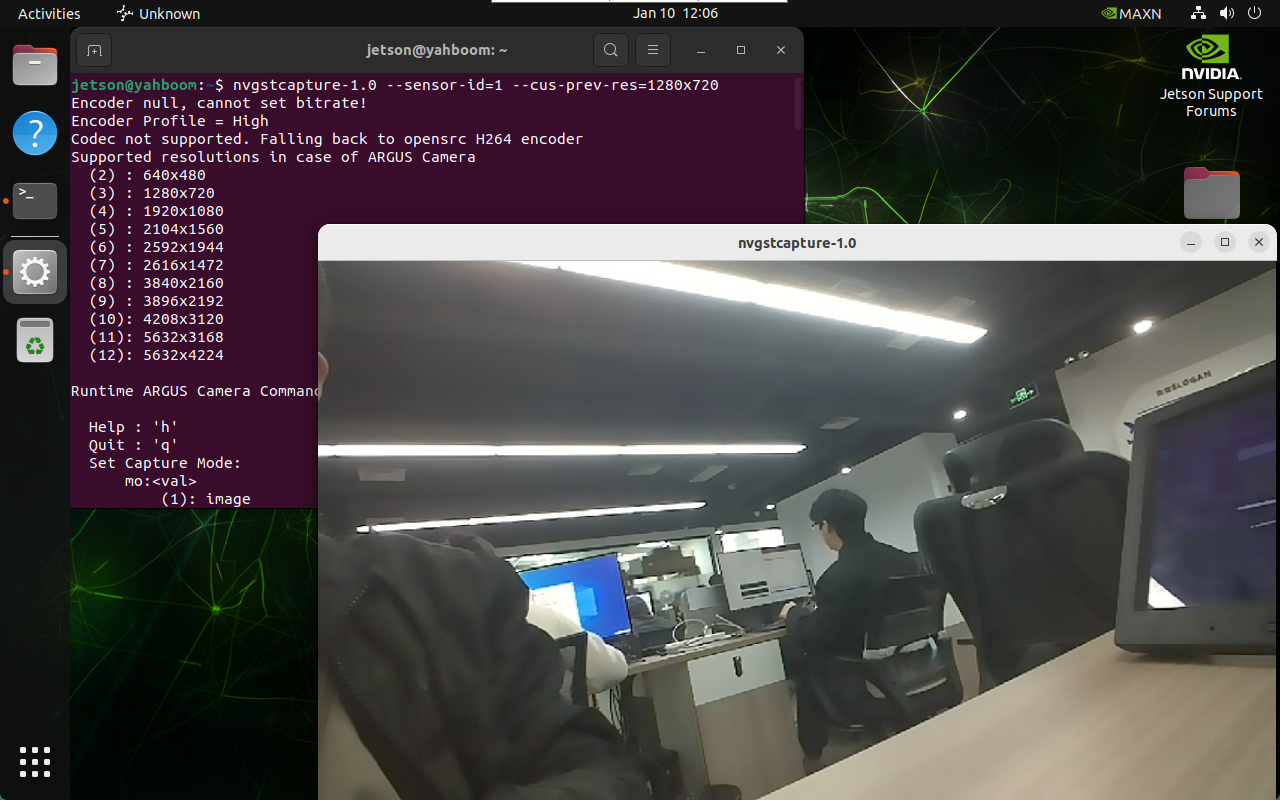
01-CSI camera preview
1. Enable CSI camera
If the user has installed the CSI camera but does not have the /dev/video* device, you can enable the CSI camera pins as follows.
1.1. Configure pins
Enter the following command in the terminal:
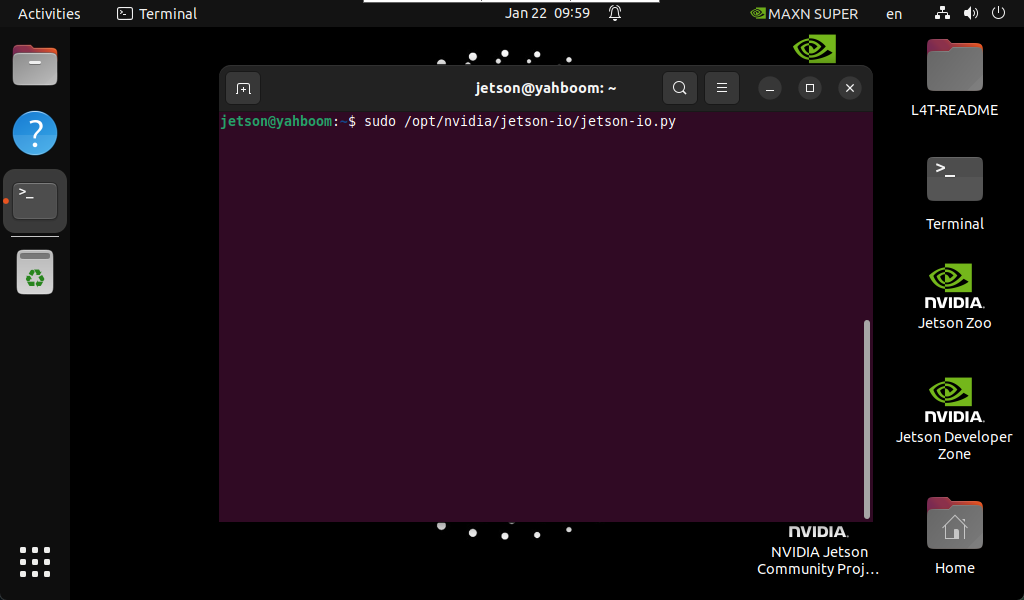
sudo /opt/nvidia/jetson-io/jetson-io.py
sudo /opt/nvidia/jetson-io/jetson-io.py
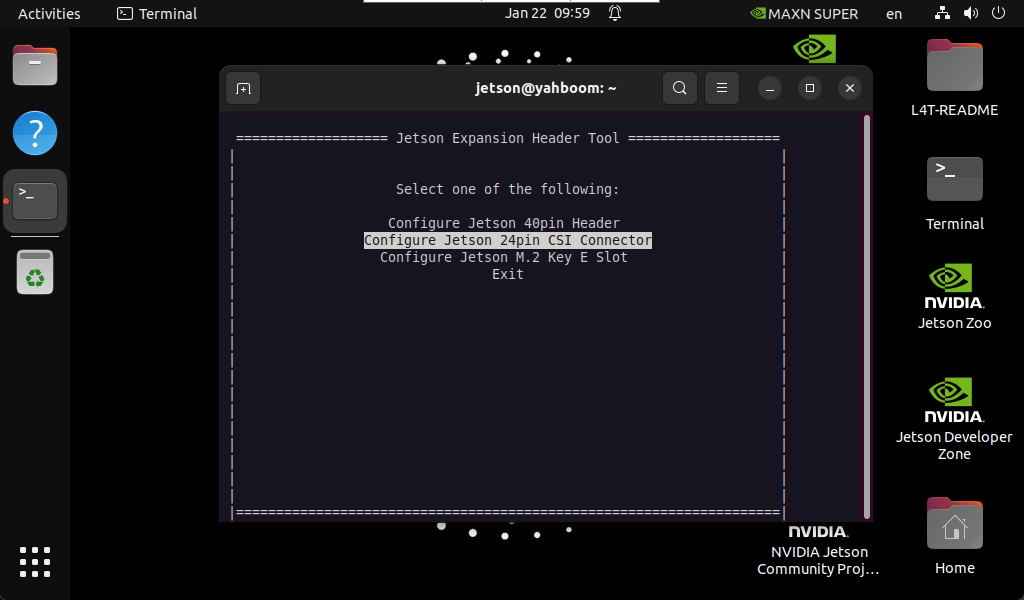
Press the arrow keys to select Configure Jetson 24pin CSI Connector , then press Enter to enter the configuration:
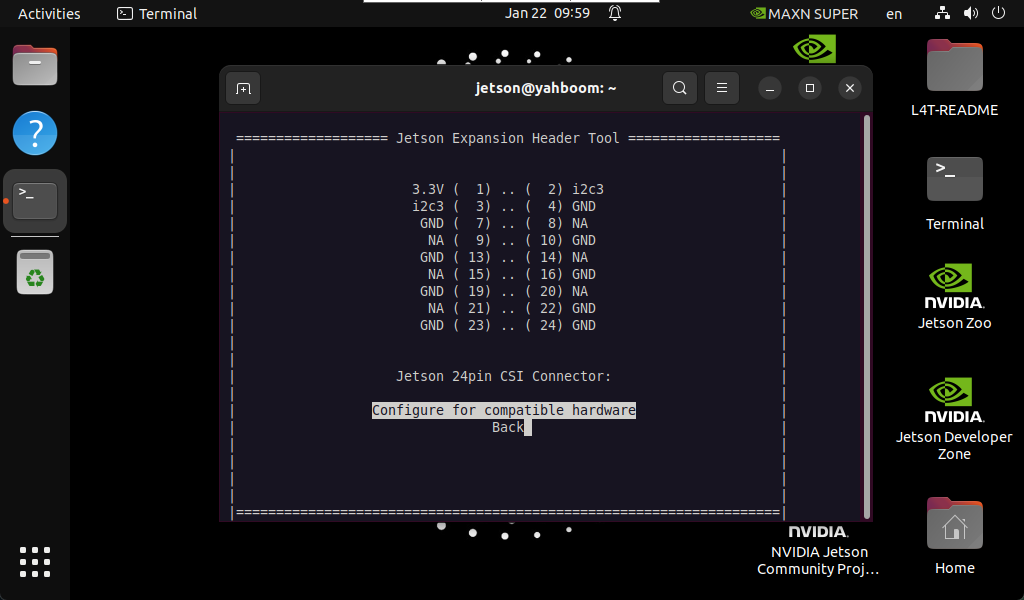
Select Configure for compatible hardware , then press Enter to enter the configuration:
Select Camera IMX219 Dual , then press Enter to enter the configuration:
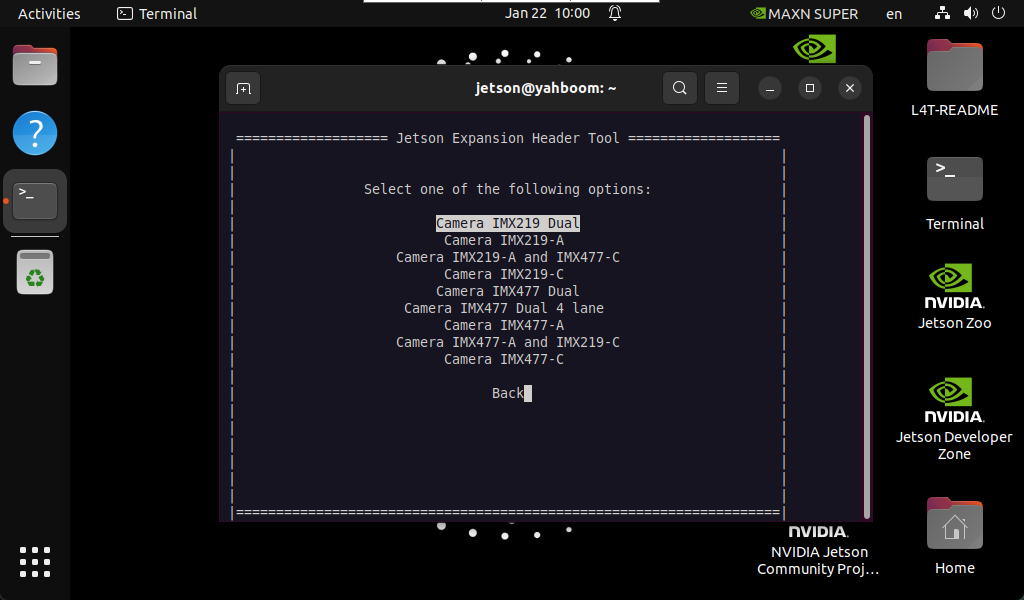
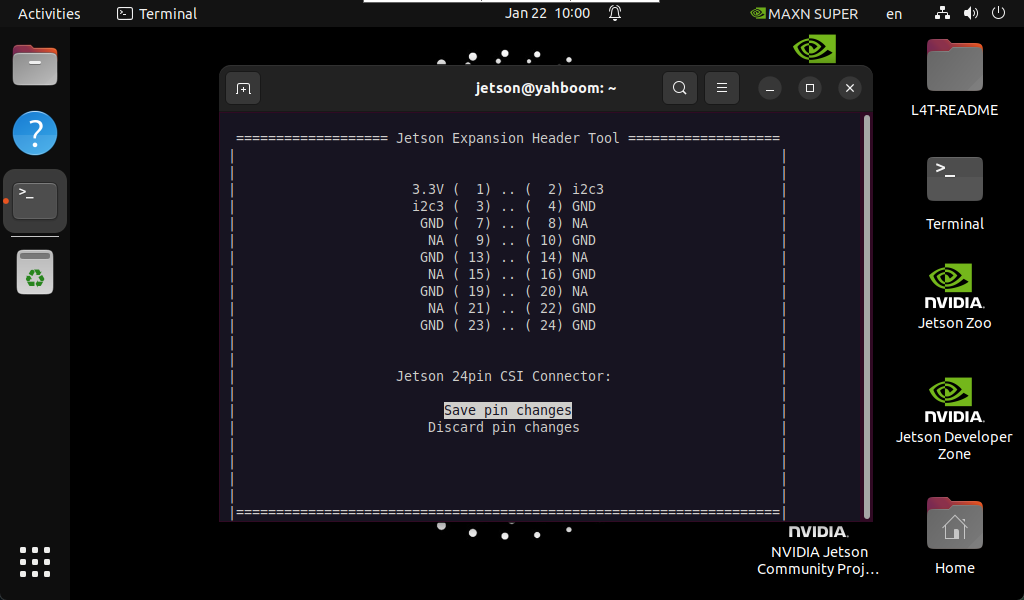
Select Save pin changes , then press Enter to enter the configuration:
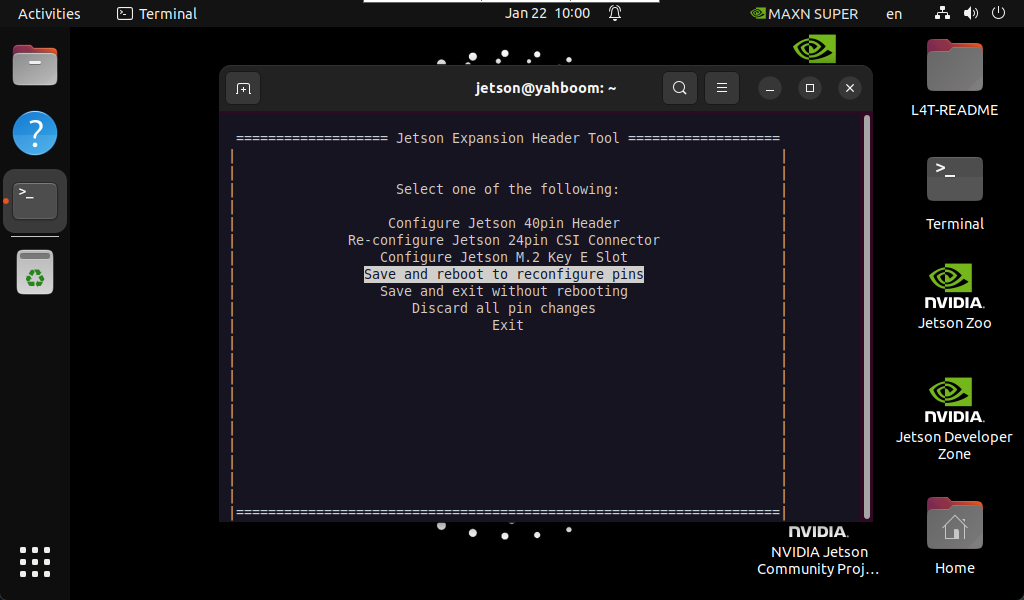
Select Save and reboot to reconfigure pins , and then wait for the system to restart:
2. Check the video device
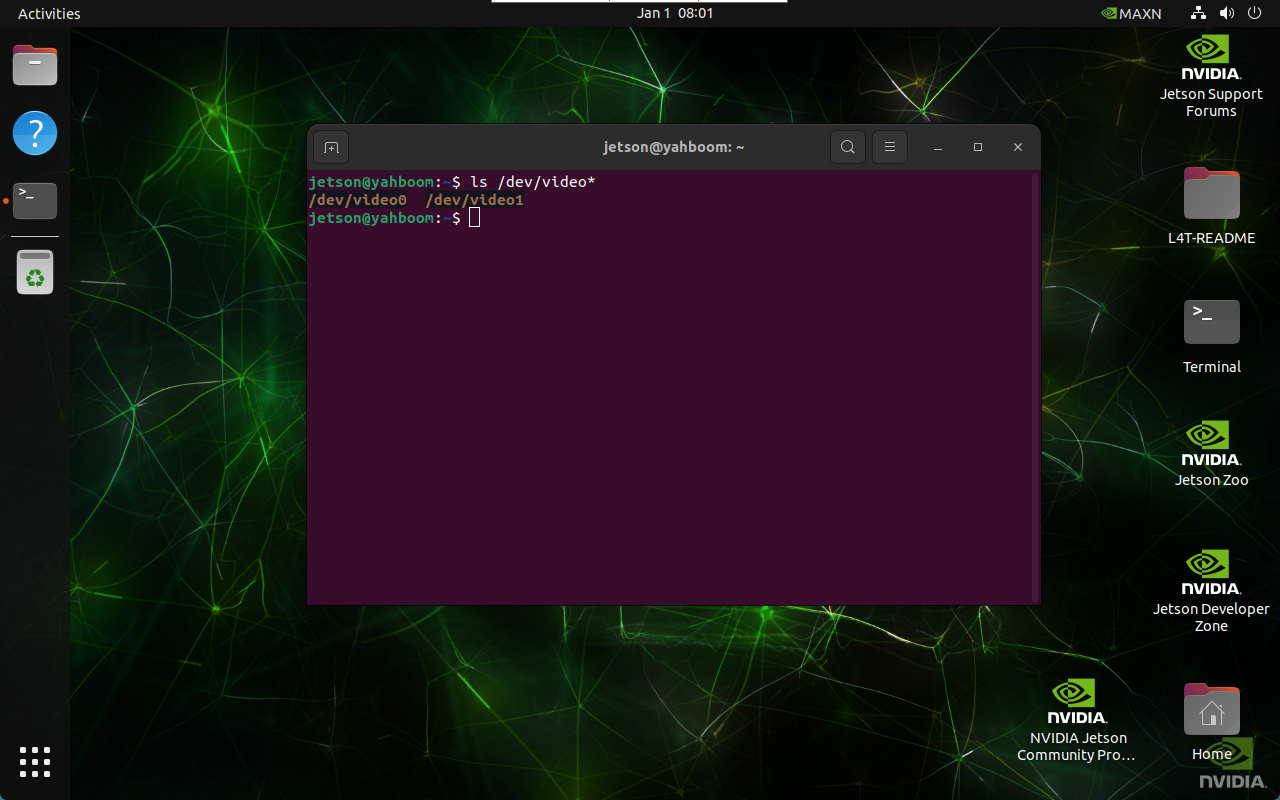
ls /dev/video*
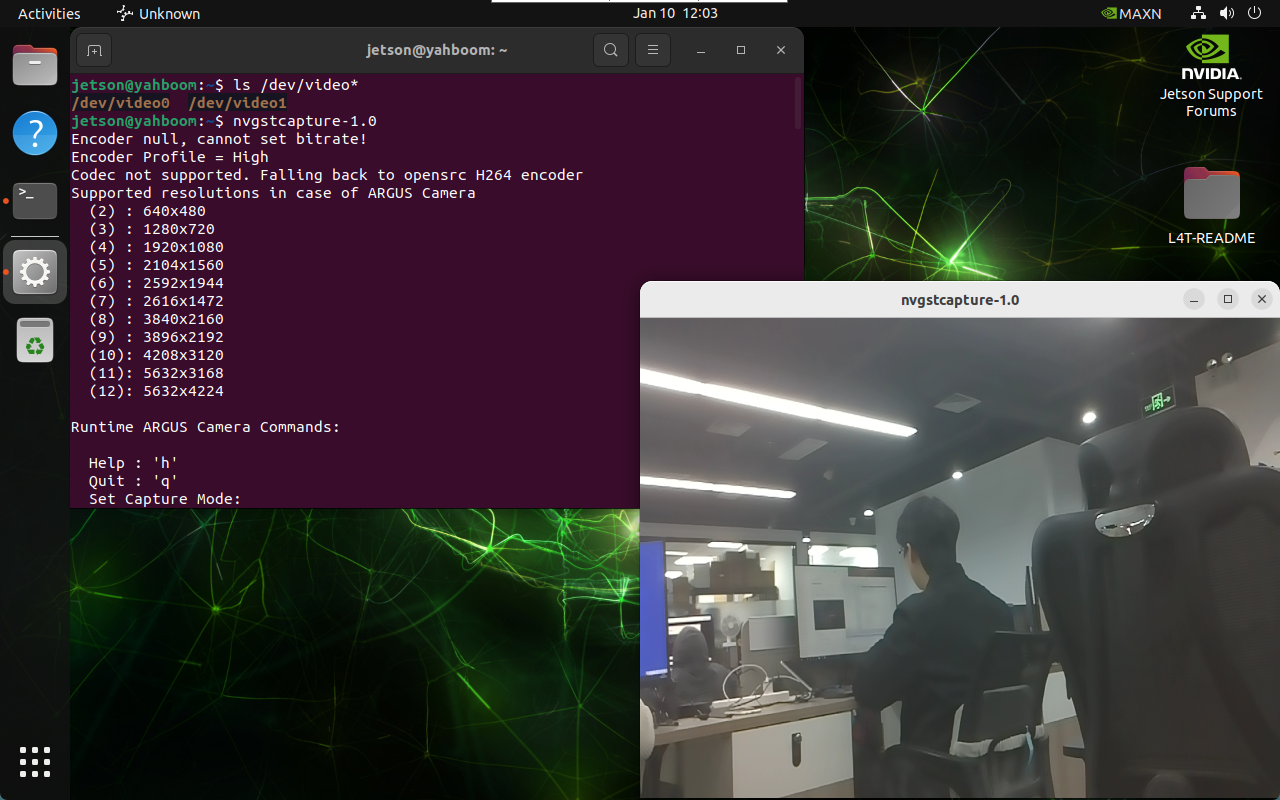
The result of the picture is the result of connecting two CSI cameras: generally one CSI camera displays one video device
3. Preview the camera screen
Enter the following command in the terminal, and the system will automatically pop up the camera screen window: Open the /dev/video0 device by default
nvgstcapture-1.0
3.1. Specify the camera
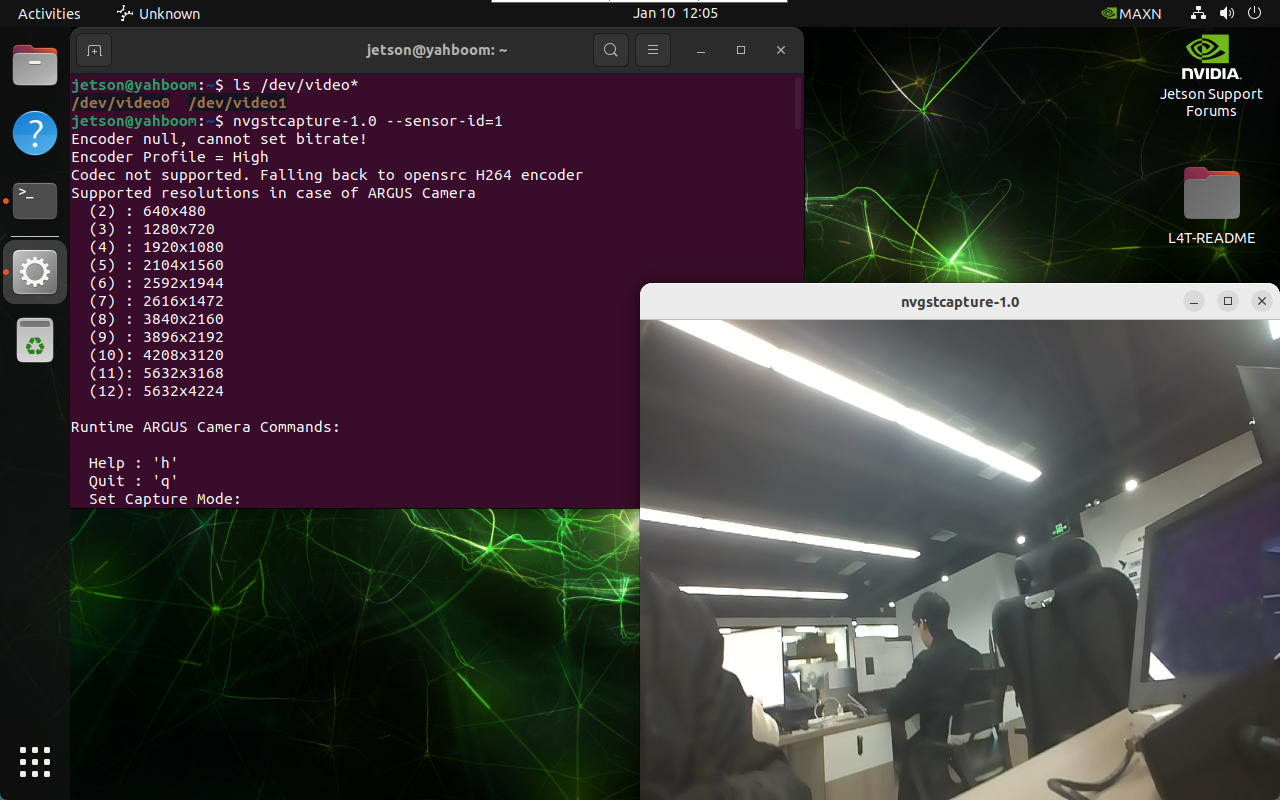
If there are multiple cameras, you can specify the camera ID:
nvgstcapture-1.0 --sensor-id=1
3.2. Specify preview resolution
If there is only one CSI camera, change --sensor-id=1 to --sensor-id=0 :
nvgstcapture-1.0 --sensor-id=1 --cus-prev-res=1280x720