09-Use VMware
1. VMware download
Official website: https://www.broadcom.com/
note
: You need to register an account to download the software. Currently, VMware Workstation Pro is free for personal use!
The VMware Workstation Pro software package will be provided in the software data folder
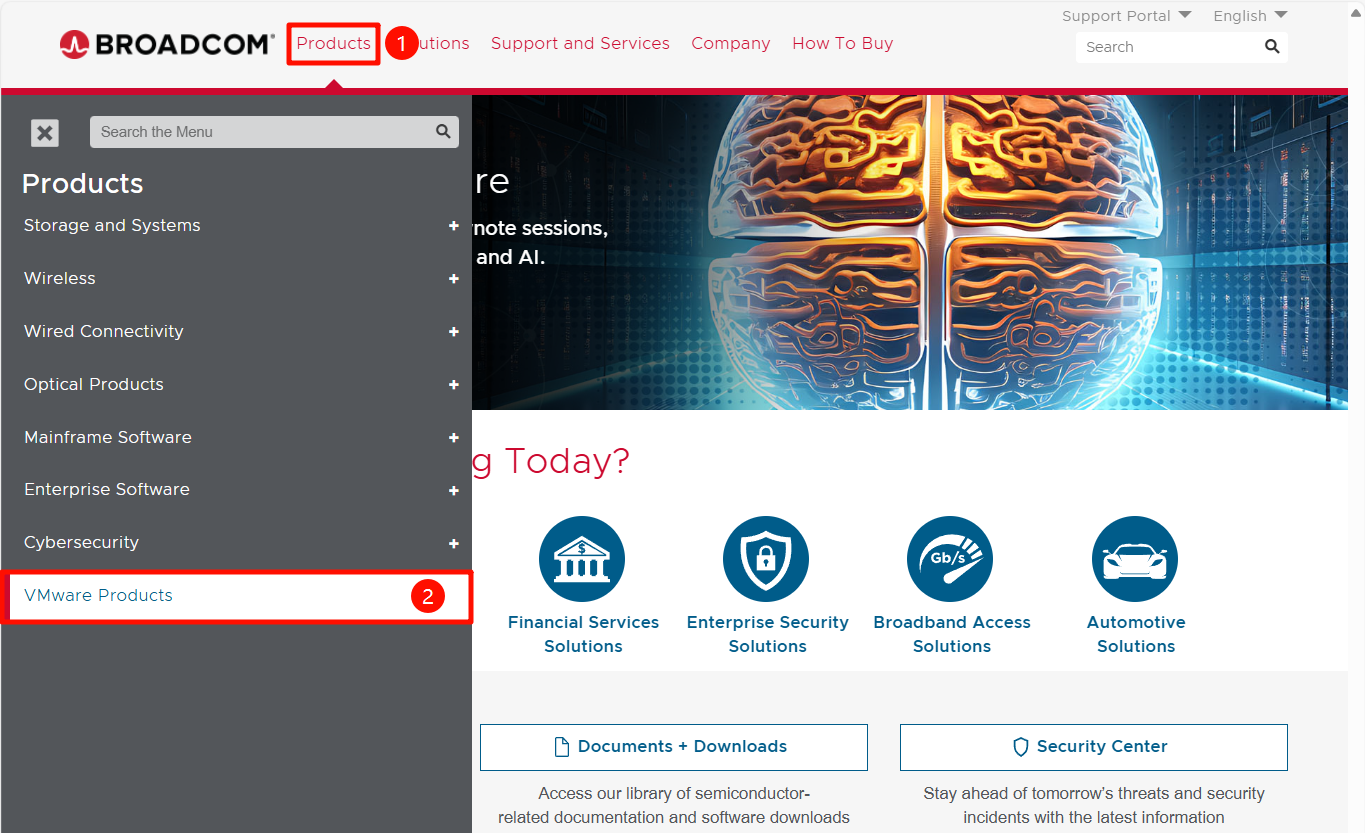
Go to the official website and select "VMware Products":
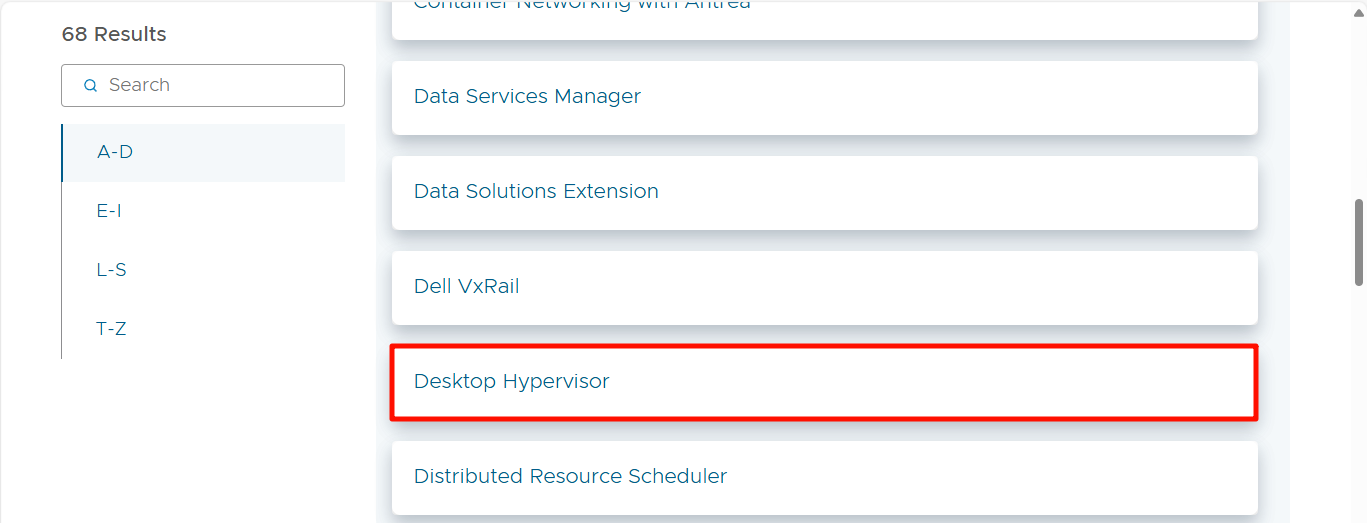
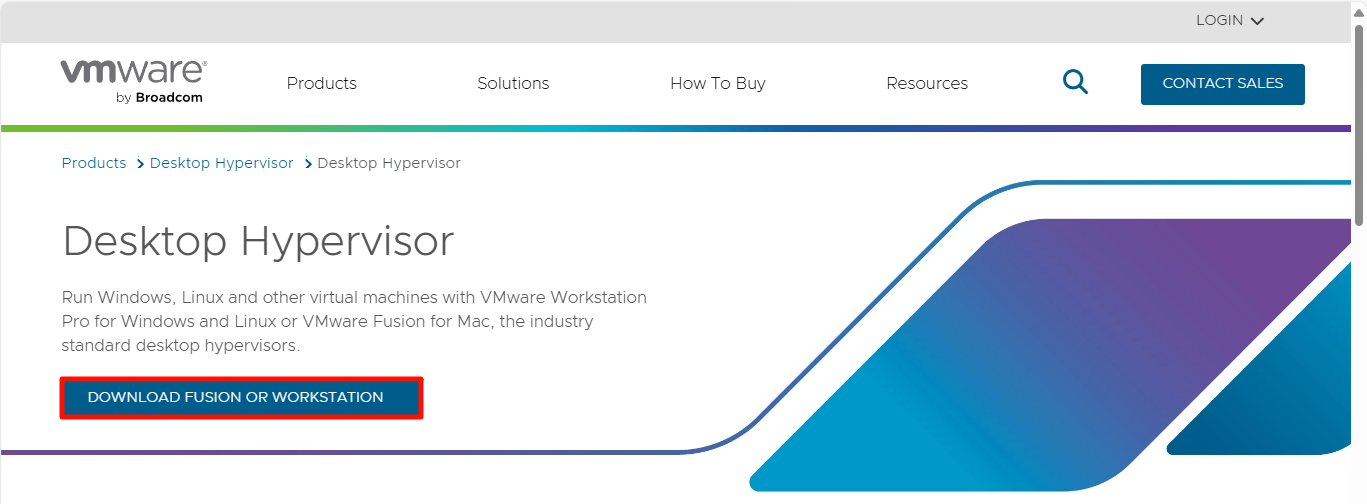
Select "Desktop Hypervisor":
Click "DOWNLOAD FUSION OR WORKSTATION" to enter the download interface:
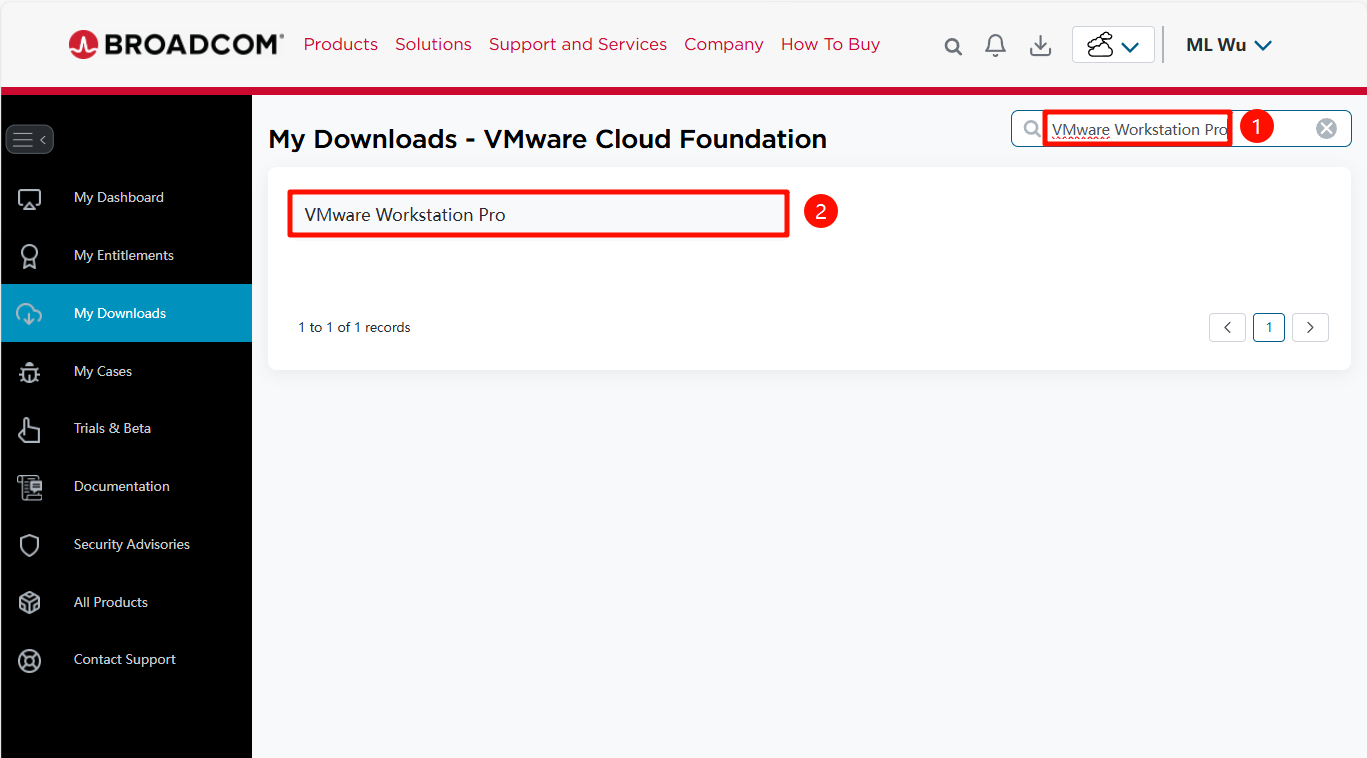
Search for "VMware Workstation" on the download interface Pro”:
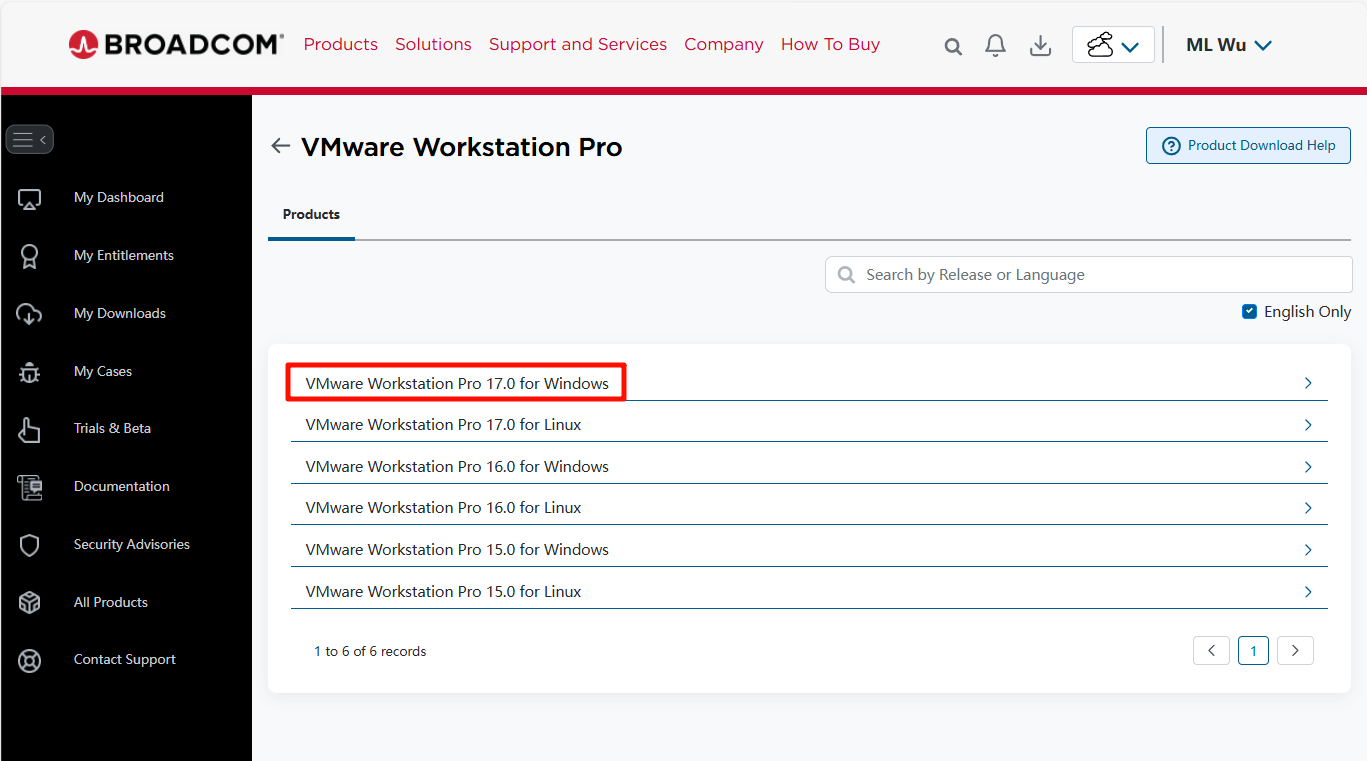
Select the corresponding platform to download: We choose Windows here
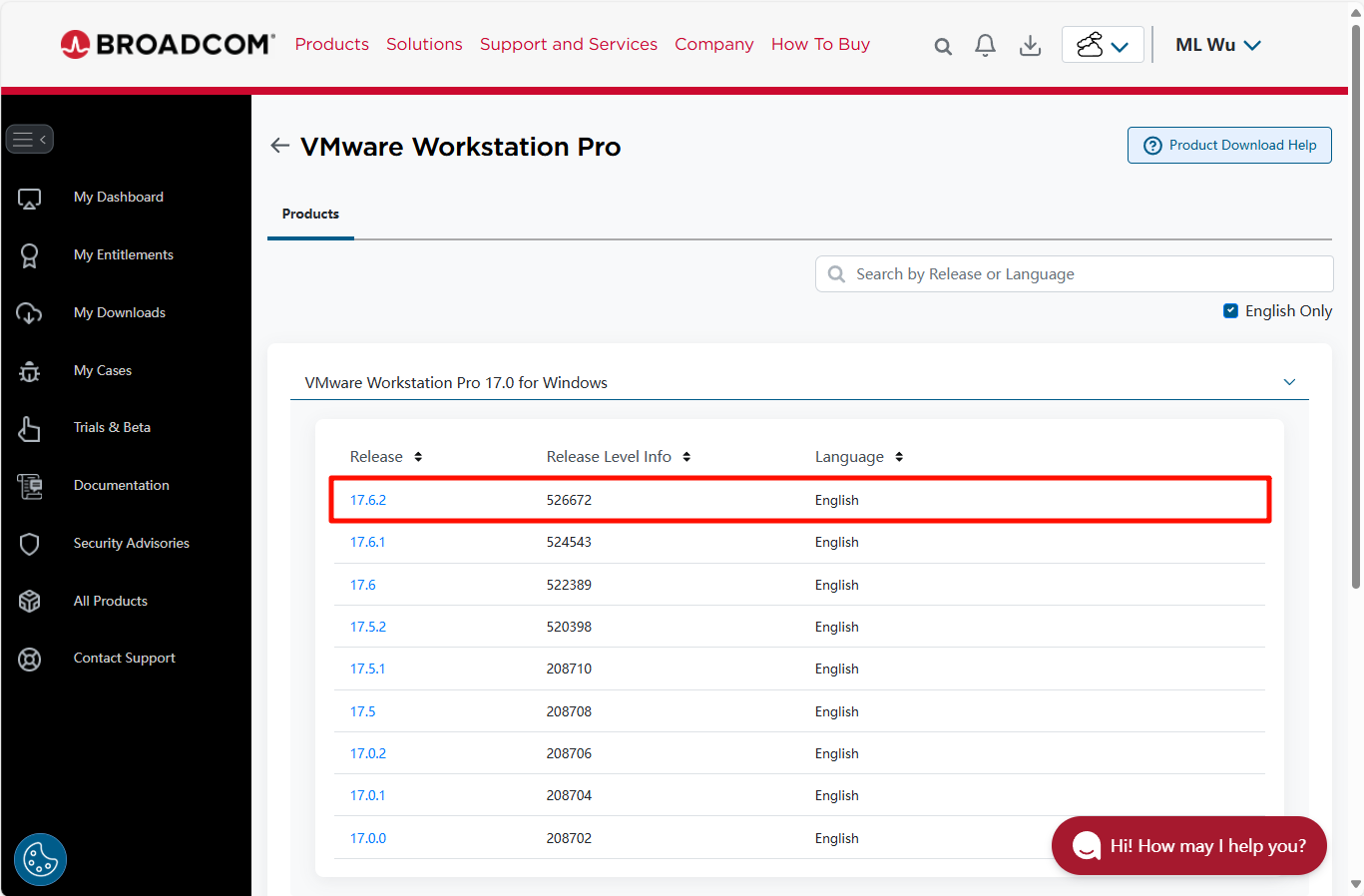
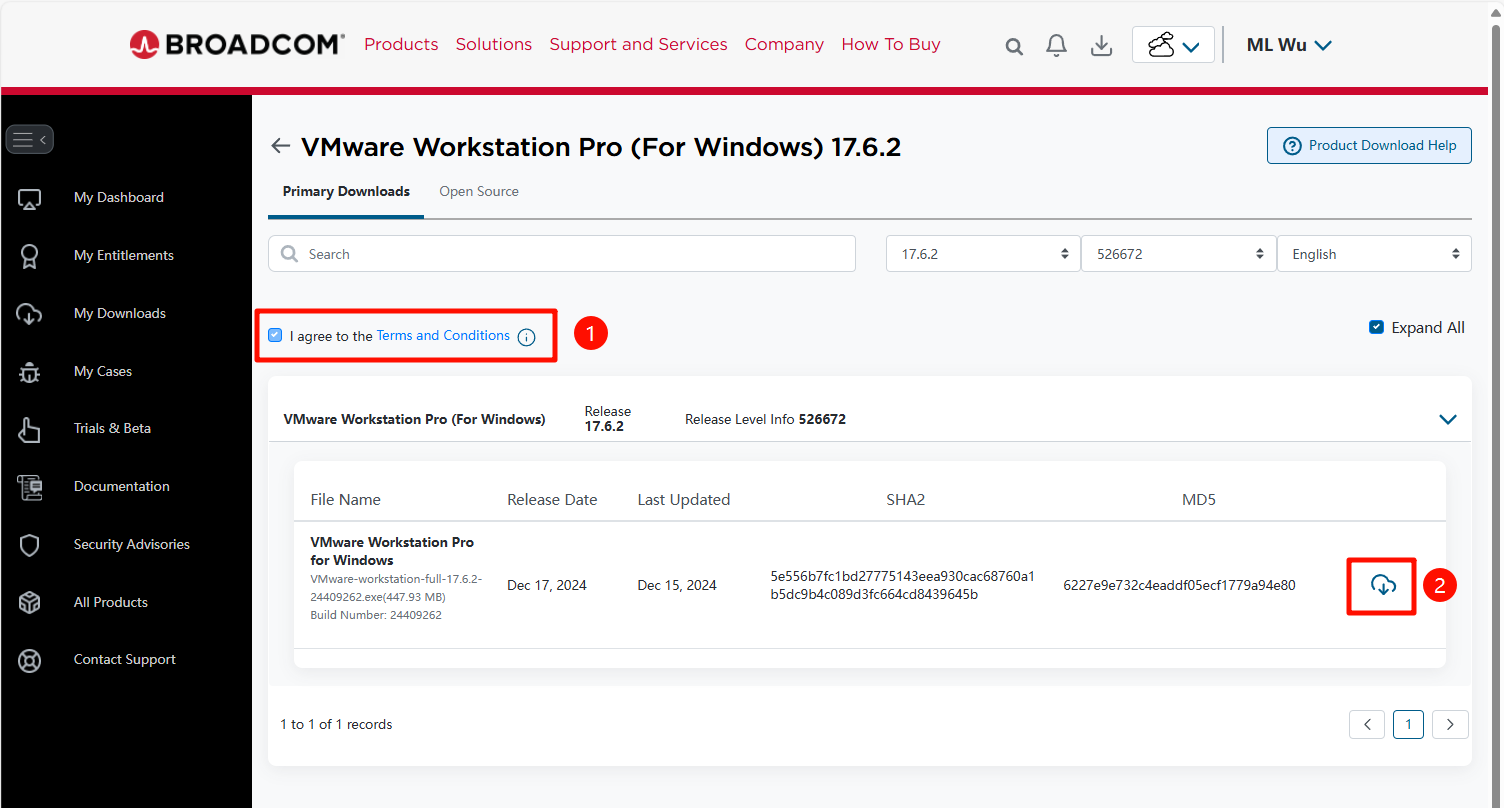
Select the version number to download:
Download software:
2. VMware installation
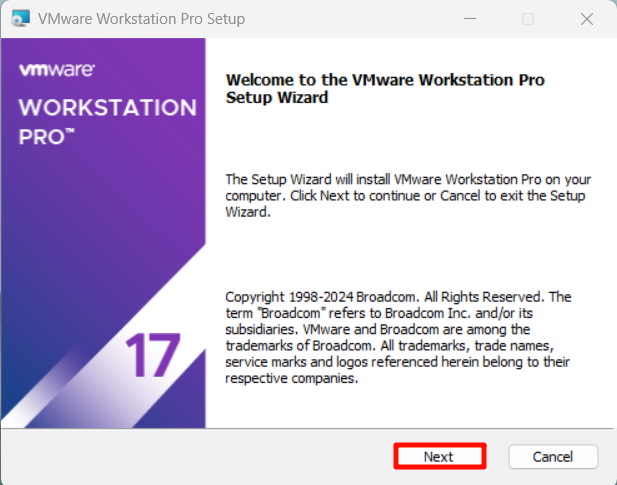
2.1. Open the installation package
Open VMware-workstation-full-xxx.exe as an administrator

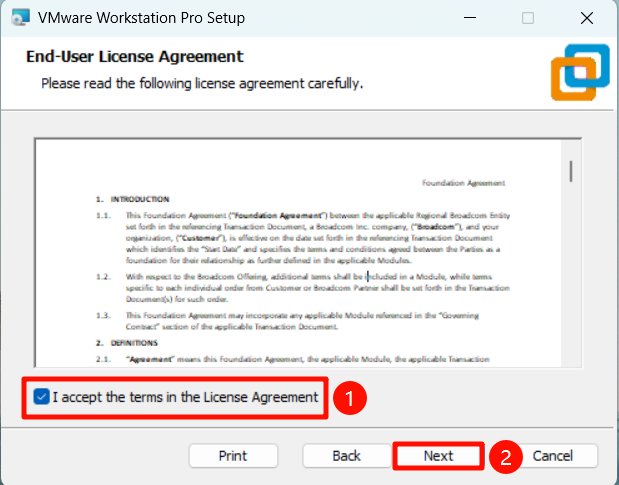
2.2. Agree to the agreement
2.3. Installation location
It is recommended to select the default installation location of the software:
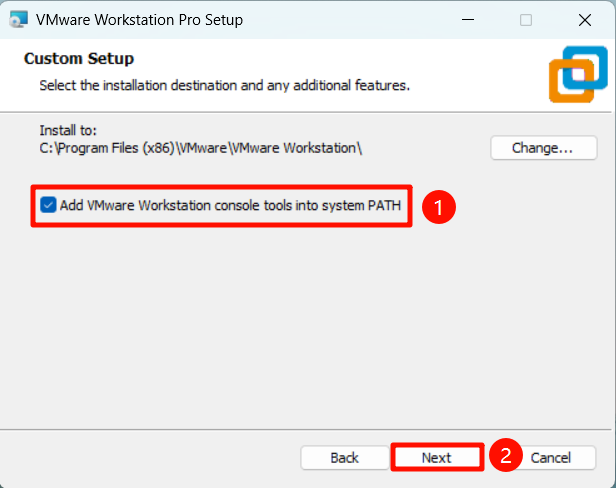
2.4. Installation options
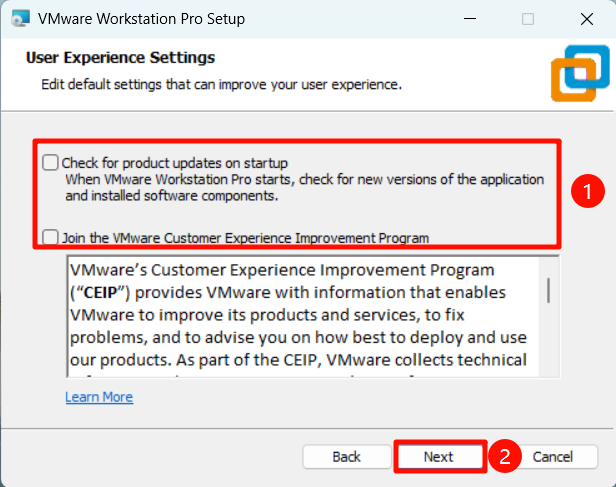
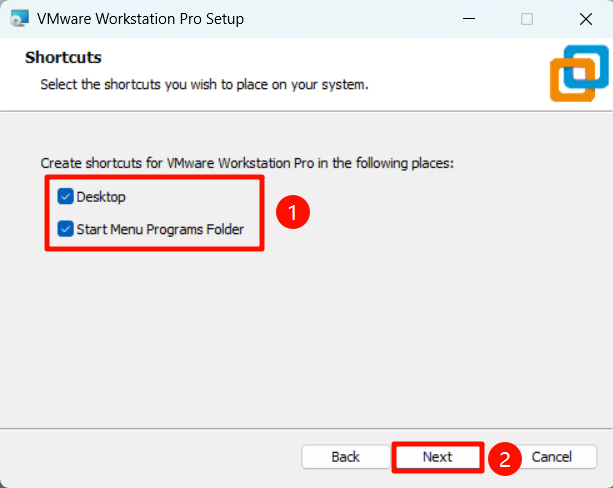
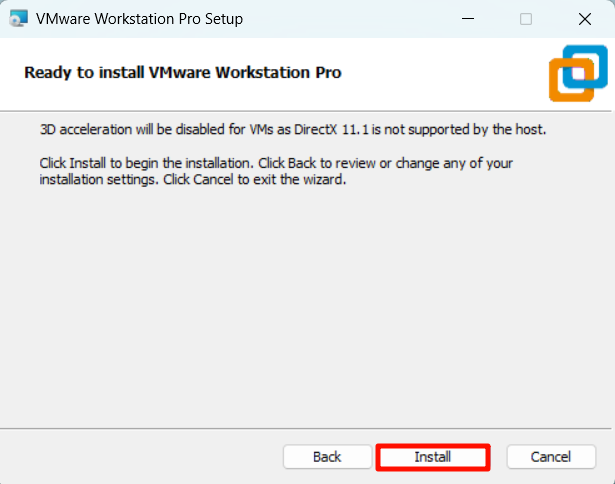
2.5. Complete the installation
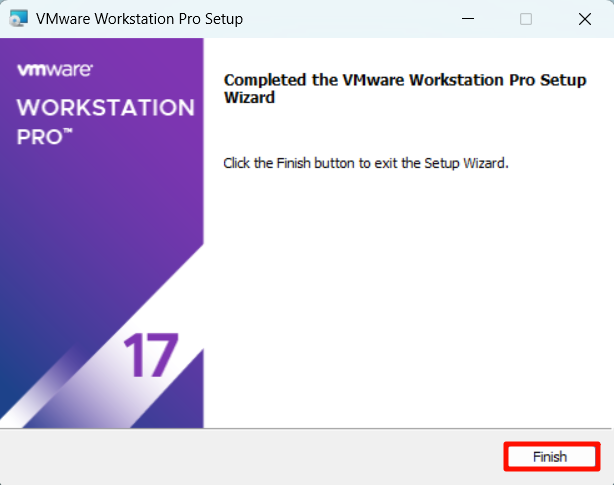
3. VMware use
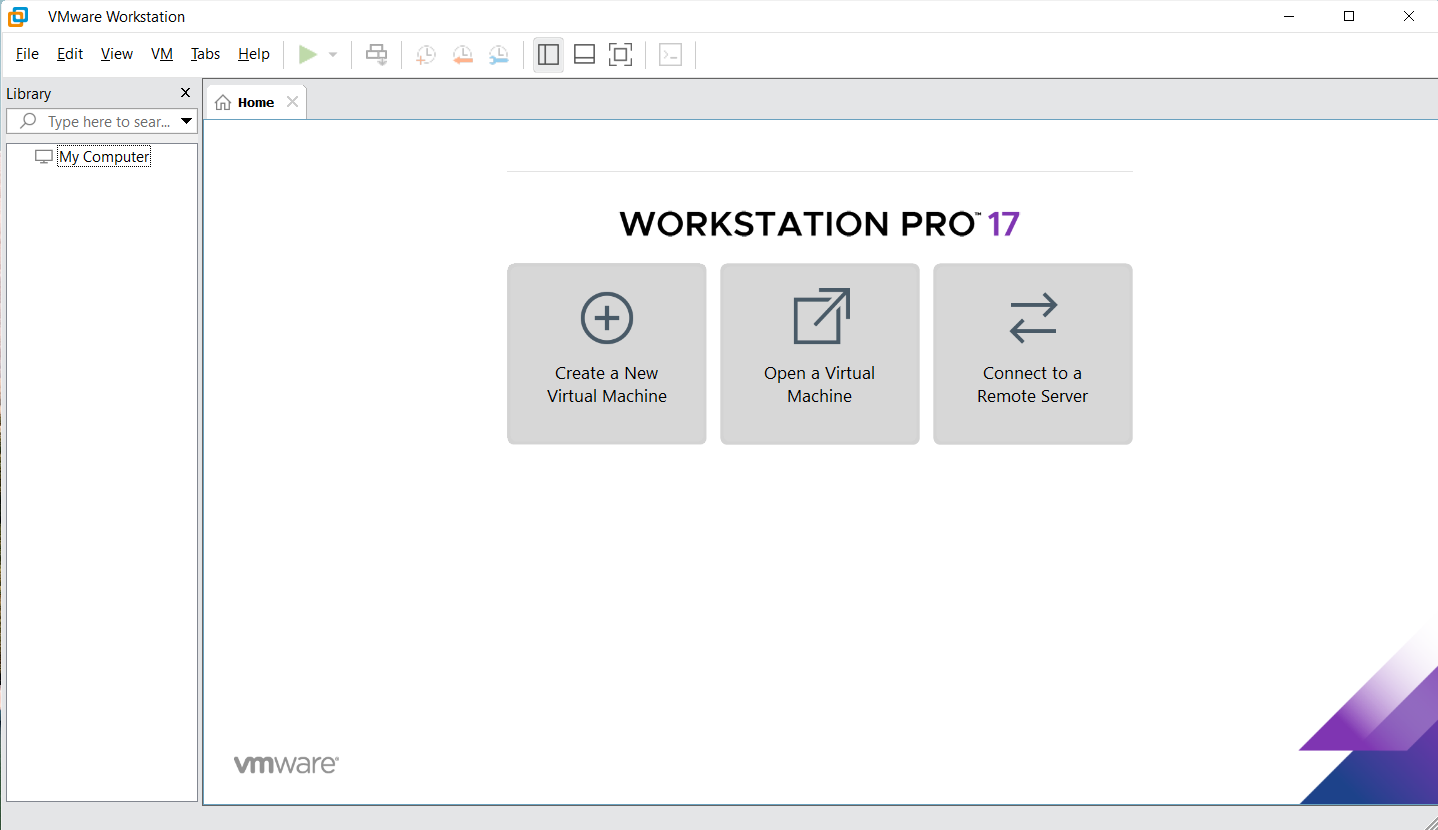
Double-click the "VMware Workstation Pro" icon to open the application: