08-Server Side
In the previous lesson, we discussed how the client requests services and how the server provides services. In this section, we focus on how to implement a service server.
8.1 C++ Language Implementation
8.1.1 Implementation Steps
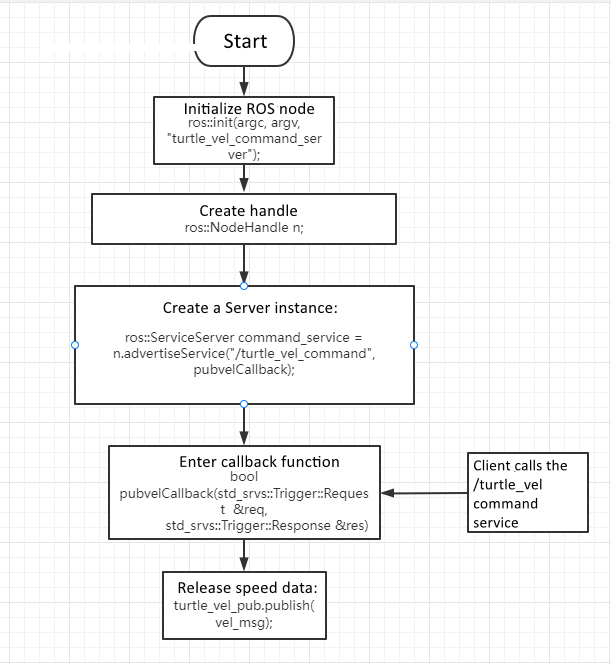
- Initialize the ROS node\
- Create a server instance\
- Loop while waiting for service requests and enter the callback function\
- Process the service logic in the callback and return a response
8.1.2 Create the Server Program
Switch to:
~/catkin_ws/src/learning_server/src
Create the following file:
turtle_vel_command_server.cpp
Paste the following code:
#include <ros/ros.h>
#include <geometry_msgs/Twist.h>
#include <std_srvs/Trigger.h>

ros::Publisher turtle_vel_pub;
bool pubvel = false;

bool pubvelCallback(std_srvs::Trigger::Request &req,
                    std_srvs::Trigger::Response &res)
{
    pubvel = !pubvel;

    ROS_INFO("Do you want to publish the vel?: [%s]", pubvel == true ? "Yes" : "No");

    res.success = true;
    res.message = "The status is changed!";

    return true;
}

int main(int argc, char **argv)
{
    ros::init(argc, argv, "turtle_vel_command_server");
    ros::NodeHandle n;

    ros::ServiceServer command_service =
        n.advertiseService("/turtle_vel_command", pubvelCallback);

    turtle_vel_pub =
        n.advertise<geometry_msgs::Twist>("/turtle1/cmd_vel", 8);

    ros::Rate loop_rate(10);

    while (ros::ok())
    {
        ros::spinOnce();

        if (pubvel)
        {
            geometry_msgs::Twist vel_msg;
            vel_msg.linear.x = 0.6;
            vel_msg.angular.z = 0.8;
            turtle_vel_pub.publish(vel_msg);
        }

        loop_rate.sleep();
    }

    return 0;
}
Process Flow Diagram
CMakeLists.txt Configuration
Add the following under the build section:
add_executable(turtle_vel_command_server src/turtle_vel_command_server.cpp)
target_link_libraries(turtle_vel_command_server ${catkin_LIBRARIES})
Compile the Workspace
cd ~/catkin_ws
catkin_make
source devel/setup.bash
Run the Program
roscore
rosrun turtlesim turtlesim_node
rosrun learning_server turtle_vel_command_server
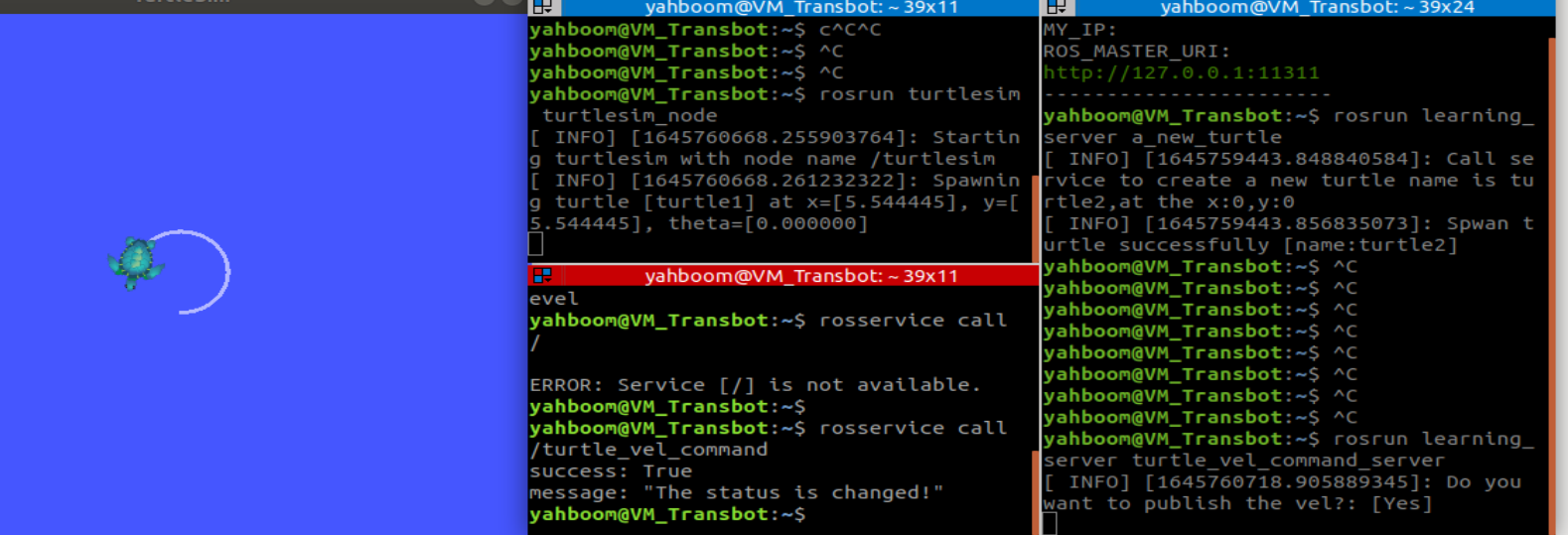
Runtime Effect
Program Description
After starting the turtlesim node, you can list available services:
rosservice list
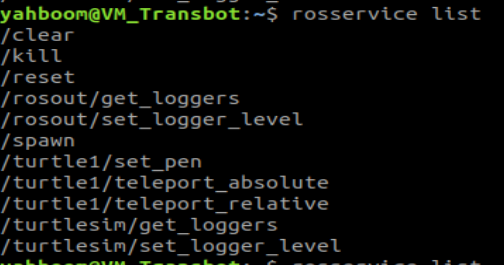
After running the server, you will see the /turtle_vel_command service
appear:
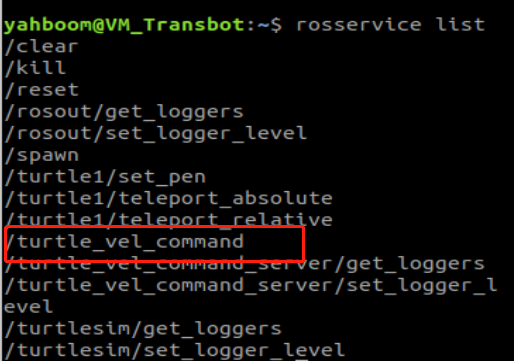
Calling the service toggles the movement of the turtle. If the service
is called once, the turtle starts moving in a circular motion. If called
again, the turtle stops. This is achieved by toggling the pubvel flag
inside the service callback.
8.2 Python Language Implementation
8.2.1 Create the Python Server Script
Switch to:
~/catkin_ws/src/learning_server/scripts
Create the following file:
turtle_vel_command_server.py
Paste the following code:
#!/usr/bin/env python
# -*- coding: utf-8 -*-

import rospy
import thread, time
from geometry_msgs.msg import Twist
from std_srvs.srv import Trigger, TriggerResponse

pubvel = False
turtle_vel_pub = rospy.Publisher('/turtle1/cmd_vel', Twist, queue_size=8)

def pubvel_thread():
    while True:
        if pubvel:
            vel_msg = Twist()
            vel_msg.linear.x = 0.6
            vel_msg.angular.z = 0.8
            turtle_vel_pub.publish(vel_msg)
        time.sleep(0.1)

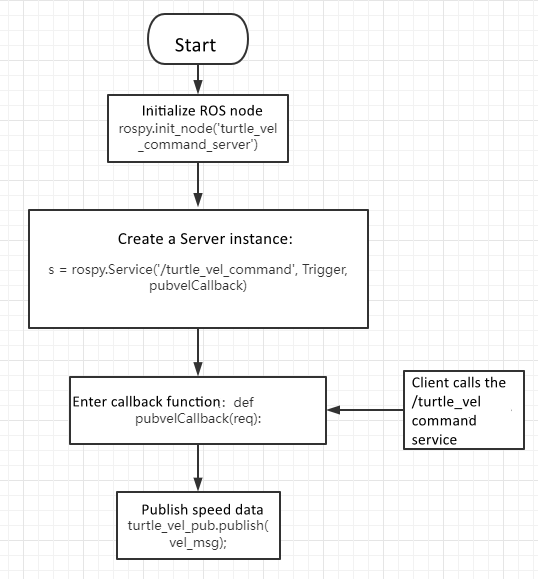
def pubvelCallback(req):
    global pubvel
    pubvel = bool(1 - pubvel)

    rospy.loginfo("Do you want to publish the vel? [%s]", pubvel)

    return TriggerResponse(1, "Change state!")

def turtle_pubvel_command_server():
    rospy.init_node('turtle_vel_command_server')

    s = rospy.Service('/turtle_vel_command', Trigger, pubvelCallback)

    print("Ready to receive turtle_pub_vel_command.")

    thread.start_new_thread(pubvel_thread, ())
    rospy.spin()

if __name__ == "__main__":
    turtle_pubvel_command_server()
Python Server Flow Diagram