04-Docker Usage
This tutorial demonstrates how to build a ROS 1 Melodic environment
inside a Docker container based on ubuntu:18.04.
All commands are executed inside the Docker container. Administrator
privileges (sudo) are not required inside Docker.
1. Start the Image
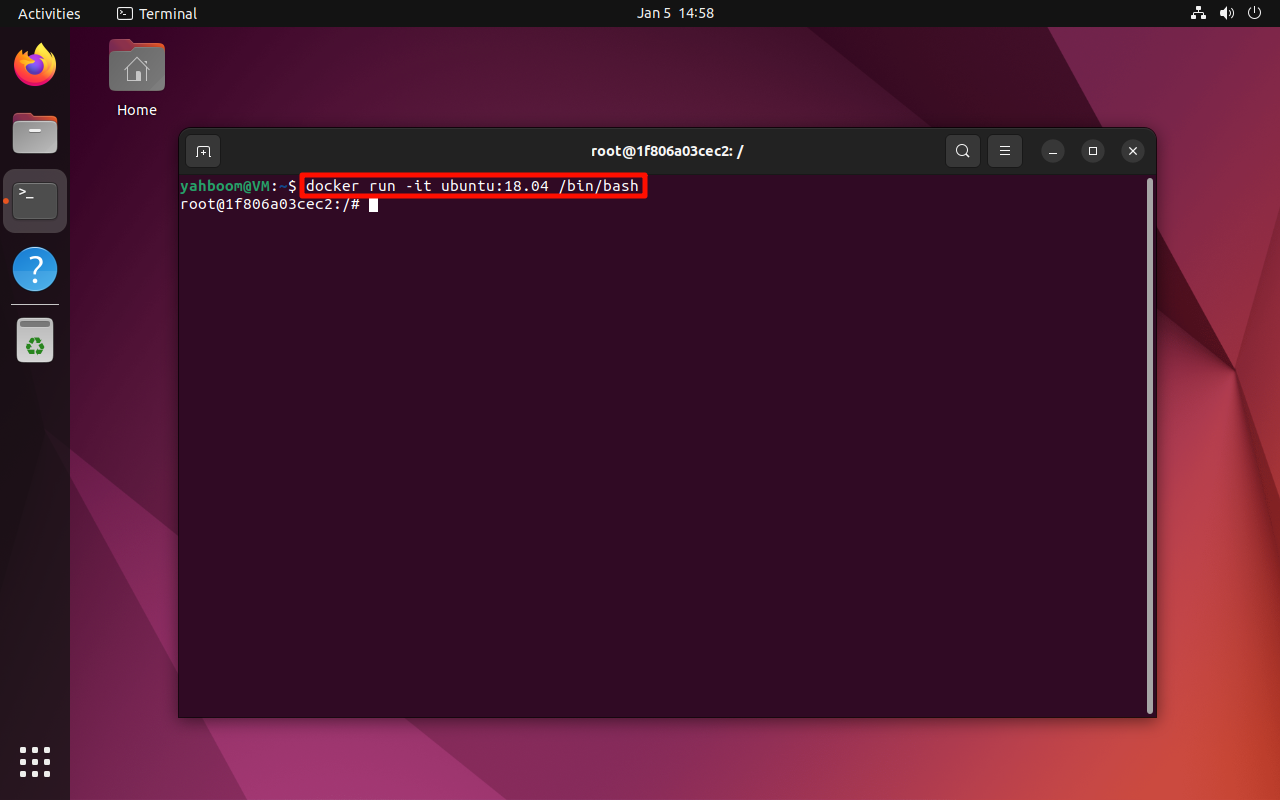
Start the Ubuntu 18.04 image in interactive mode:
docker run -it ubuntu:18.04 /bin/bash
2. ROS Environment Construction
2.1 Update System Software
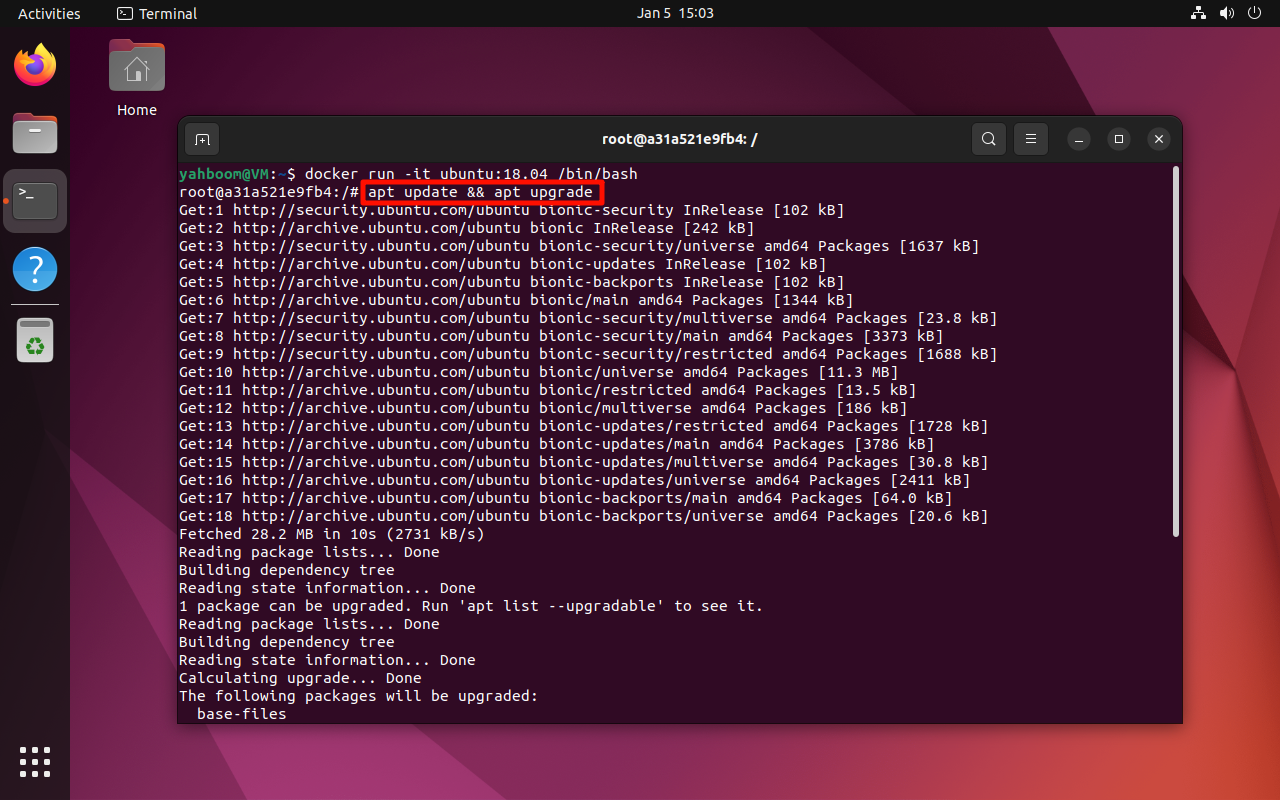
Ensure system packages are up to date:
apt update && apt upgrade
2.2 Determine the Language Environment
ROS requires UTF-8 support.
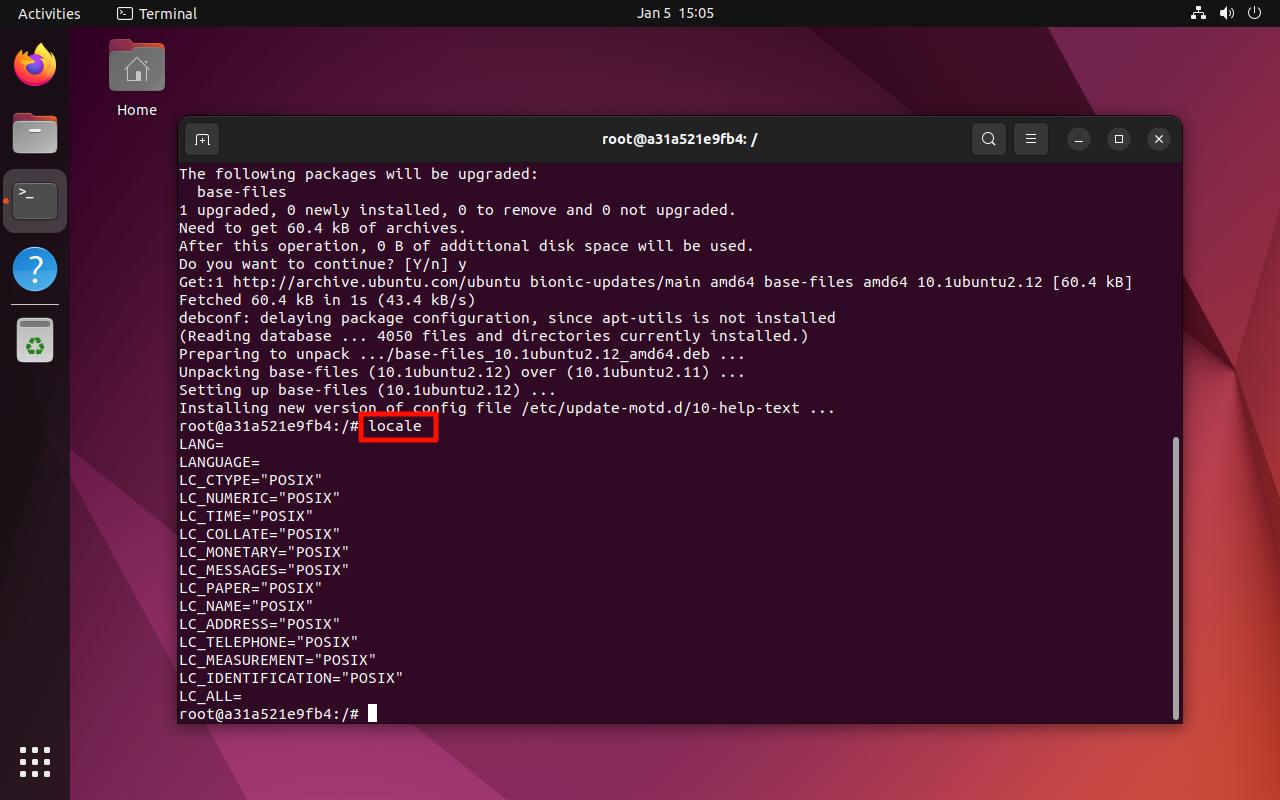
2.2.1 Verify the System Environment
locale
2.2.2 Set the UTF-8 Environment
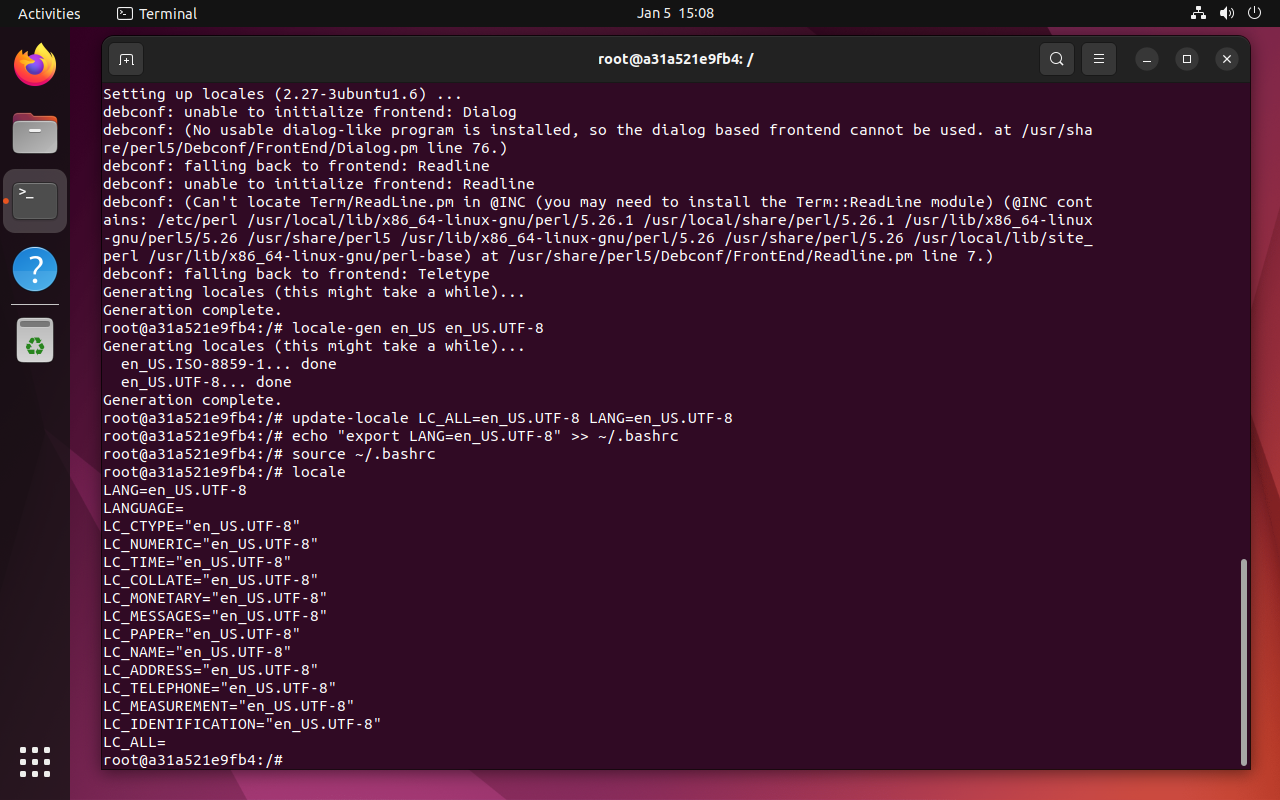
If UTF-8 is not enabled, run:
apt install locales
locale-gen en_US en_US.UTF-8
update-locale LC_ALL=en_US.UTF-8 LANG=en_US.UTF-8
echo "export LANG=en_US.UTF-8" >> ~/.bashrc
source ~/.bashrc
2.3 Set Software Source
Install required tools:
apt install lsb-core
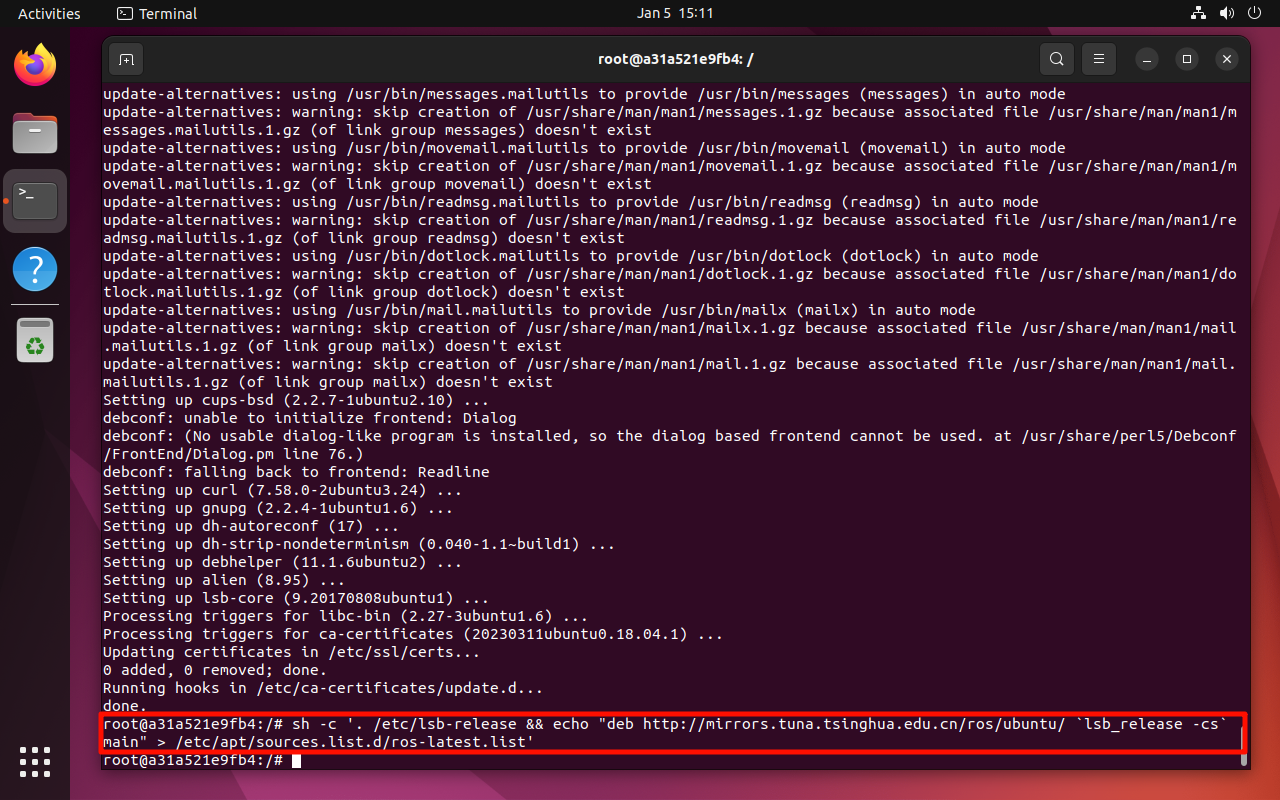
Add ROS software source:
sh -c '. /etc/lsb-release && echo "deb http://mirrors.tuna.tsinghua.edu.cn/ros/ubuntu/ `lsb_release -cs` main" > /etc/apt/sources.list.d/ros-latest.list'
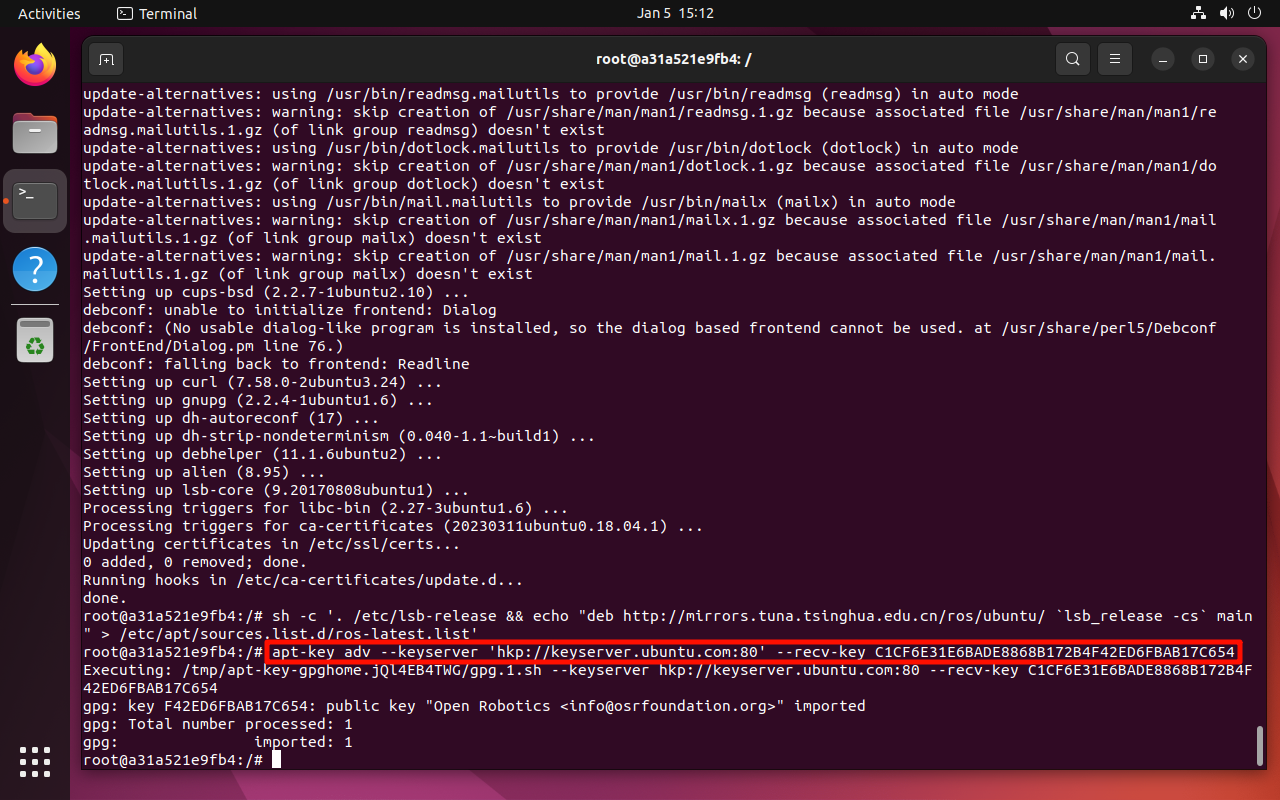
2.4 Set ROS Key
apt-key adv --keyserver 'hkp://keyserver.ubuntu.com:80' --recv-key C1CF6E31E6BADE8868B172B4F42ED6FBAB17C654
2.5 Install ROS 1 Desktop Version
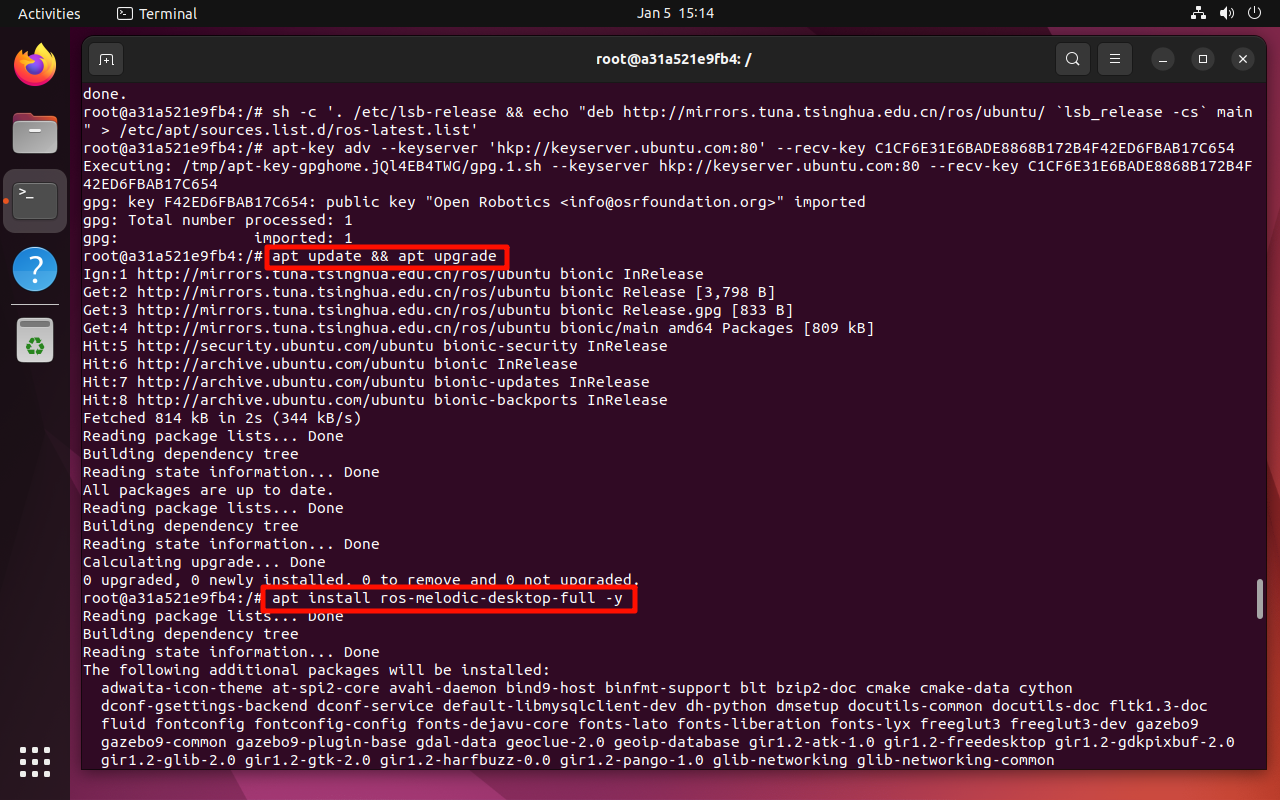
Install ROS Melodic desktop-full:
apt update && apt upgrade
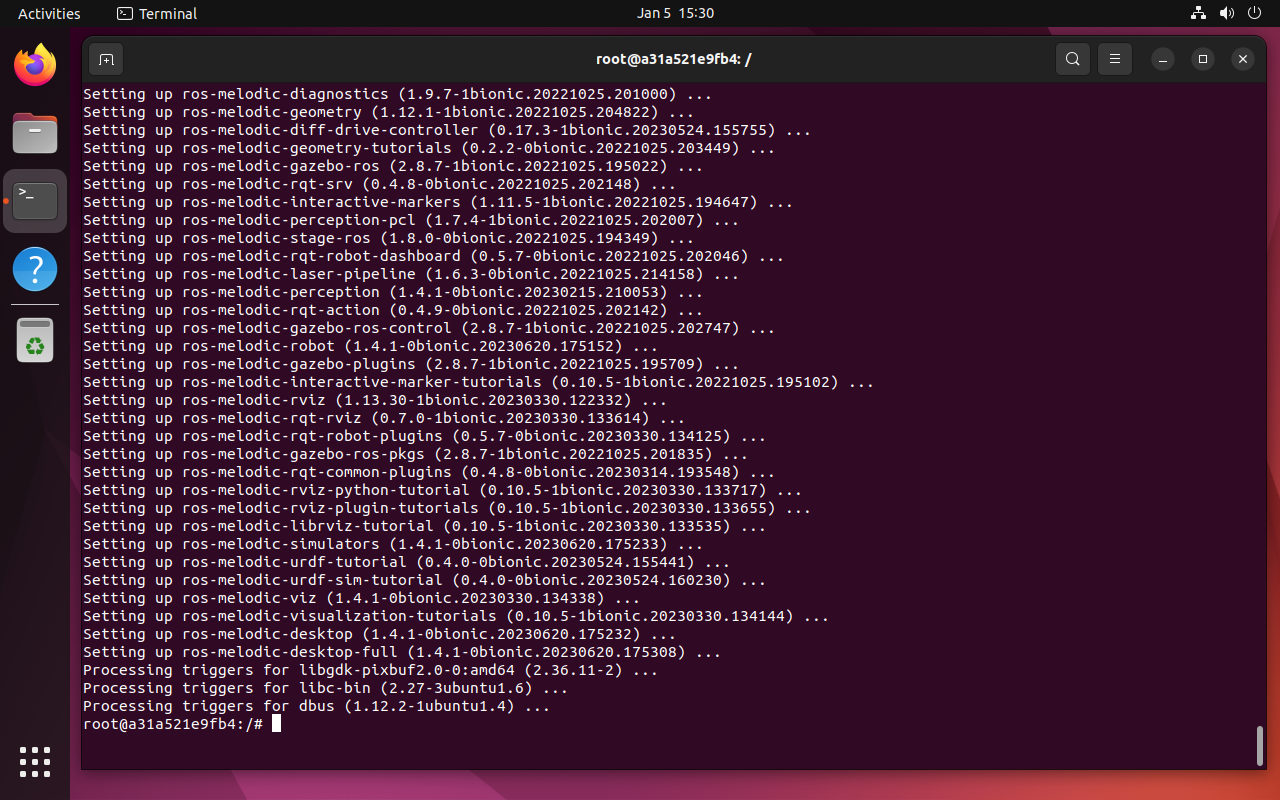
apt install ros-melodic-desktop-full -y
During installation, select your region and city when prompted.
2.6 Install ROS Dependencies
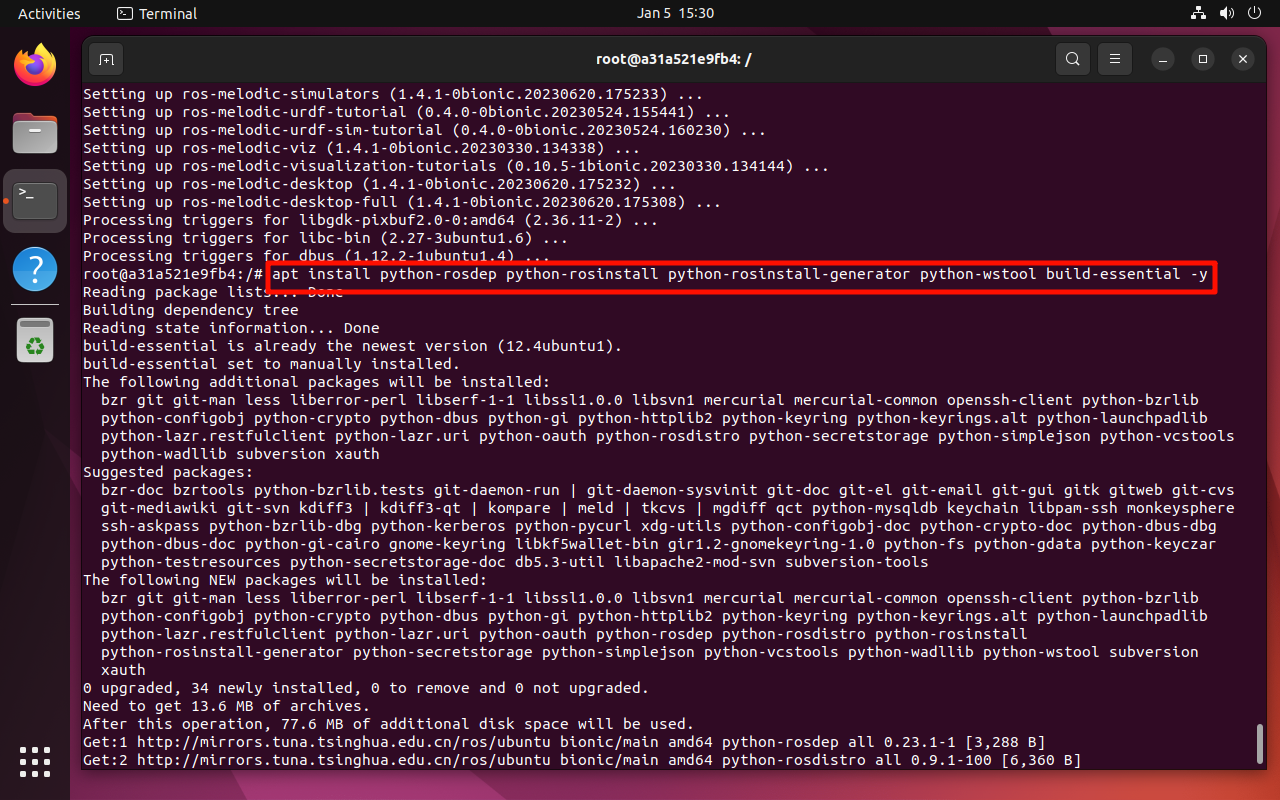
apt install python-rosdep python-rosinstall python-rosinstall-generator python-wstool build-essential -y
2.7 rosdep Initialization
rosdep init
rosdep update
If rosdep init fails due to GitHub access issues, resolve DNS manually
by mapping raw.githubusercontent.com in /etc/hosts.
Install editor if needed:
apt install nano -y
2.8 Setting Environment Variables
2.8.1 Temporary Settings
source /opt/ros/melodic/setup.bash
2.8.2 Automatic Settings (Recommended)
echo "source /opt/ros/melodic/setup.bash" >> ~/.bashrc
source ~/.bashrc
3. Submit the Image
After completing configuration, exit the container:
exit
Find the container ID:
docker ps -a
Commit the container as a new image:
docker commit <CONTAINER_ID> ros-melodic:18.04
4. Verify the Image / ROS
4.1 Start the Image
docker run -it ros-melodic:18.04 /bin/bash
4.2 Verify the ROS Environment
roscore
If ROS starts successfully, the environment is ready.
Maintained by HemiHex.