11-Add Line Segments with OpenCV
This section explains how to draw line segments on an image using OpenCV in Python.
Drawing line segments is commonly used for: - Visual annotation - Highlighting edges or paths - Debugging and result visualization in vision pipelines
1. Implementation Principle
OpenCV provides the cv2.line() function to draw a straight line
directly on an image.
cv2.line(image, start_point, end_point, color, thickness)
Where: - image is the input image - start_point is the (x, y)
coordinate of the line start - end_point is the (x, y) coordinate of
the line end - color is the line color in BGR format - thickness
defines the line width in pixels
2. Implementation Effect
Navigate to the OpenCV working directory:
cd ~/opencv
Run the line drawing script:
python3 11.image_draw_line.py
note
Select the image window and press q to exit the program.
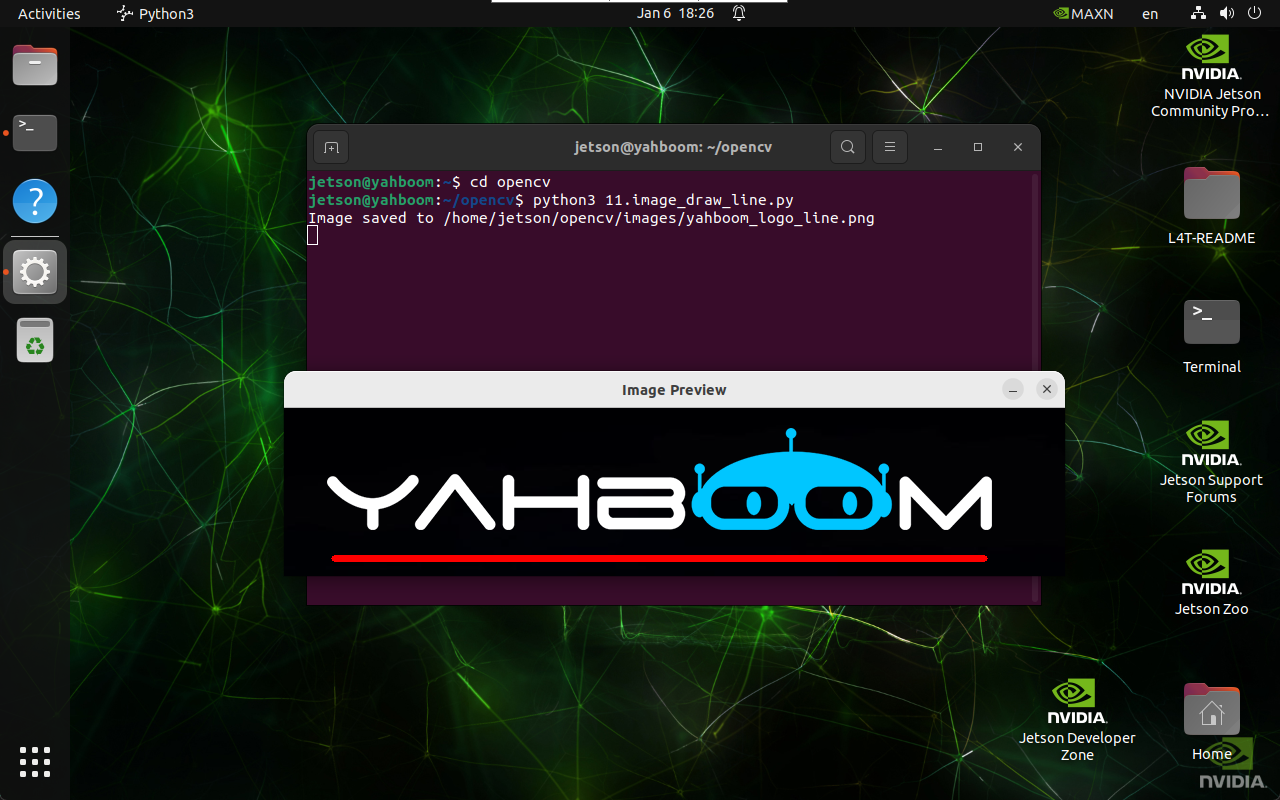
3. Implementation Code
import cv2

def draw_line(input_path, output_path, start_point, end_point, color, thickness):
    image = cv2.imread(input_path)

    if image is None:
        print("Error: Unable to open image file.")
        return

    cv2.line(image, start_point, end_point, color, thickness)

    if cv2.imwrite(output_path, image):
        print(f"Image saved to {output_path}")
        cv2.imshow('Image Preview', cv2.imread(output_path))
        cv2.waitKey(0)
        cv2.destroyAllWindows()
    else:
        print("Error: Unable to save image file.")

draw_line(
    '/home/jetson/opencv/images/hemihex_logo.png',
    '/home/jetson/opencv/images/hemihex_logo_line.png',
    (50, 150),
    (700, 150),
    (0, 0, 255),
    5
)
4. Code Explanation
cv2.imread()loads the source image\cv2.line()draws a straight line between two points\cv2.imwrite()saves the annotated image\- Display functions preview the result
Maintained by HemiHex for OpenCV-based image processing workflows.