08-Image Grayscale Conversion with OpenCV
This section explains how to convert a color image to grayscale using OpenCV.
Grayscale conversion is commonly used for: - Reducing computational complexity - Feature extraction - Preprocessing for computer vision algorithms
1. Implementation Principle
OpenCV provides the cv2.cvtColor() function to convert images between
different color spaces.
For grayscale conversion, the following flag is used:
cv2.COLOR_BGR2GRAY
This converts a BGR color image into a single-channel grayscale image.
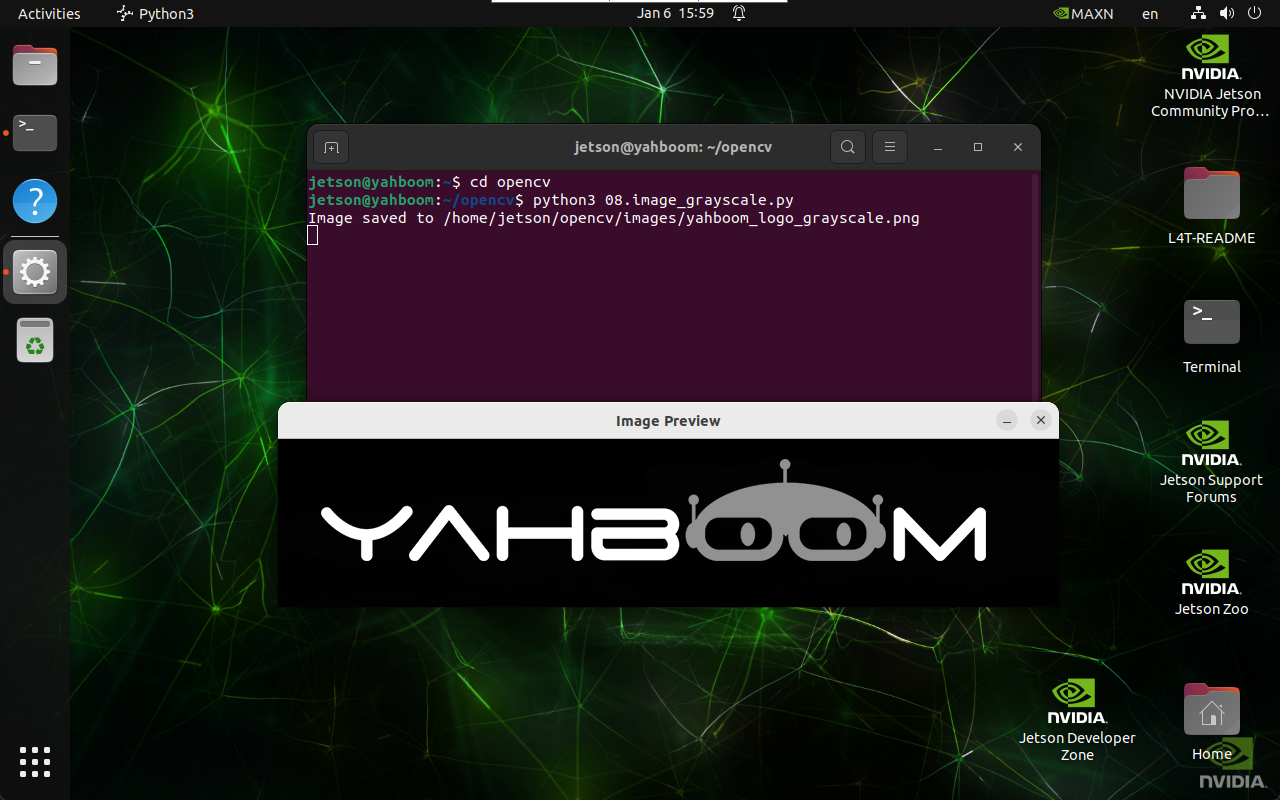
2. Implementation Effect
Navigate to the OpenCV working directory:
cd ~/opencv
Run the grayscale conversion script:
python3 08.image_grayscale.py
note
Select the image window and press q to exit the program.
3. Implementation Code
import cv2

def grayscale_image(input_path, output_path):
    image = cv2.imread(input_path)

    if image is None:
        print("Error: Unable to open image file.")
        return

    gray_image = cv2.cvtColor(image, cv2.COLOR_BGR2GRAY)

    if cv2.imwrite(output_path, gray_image):
        print(f"Image saved to {output_path}")
        cv2.imshow('Image Preview', cv2.imread(output_path))
        cv2.waitKey(0)
        cv2.destroyAllWindows()
    else:
        print("Error: Unable to save image file.")

grayscale_image(
    '/home/jetson/opencv/images/hemihex_logo.png',
    '/home/jetson/opencv/images/hemihex_logo_grayscale.png'
)
4. Code Explanation
cv2.imread()loads the source imagecv2.cvtColor()converts the image to grayscalecv2.imwrite()saves the grayscale image- Display functions preview the result
Summary
- Grayscale images use a single intensity channel
- Conversion reduces data size and complexity
- Implemented using
cv2.cvtColor() - Common preprocessing step in vision pipelines
Maintained by HemiHex for OpenCV-based image processing workflows.