03-ROS 2 Development Environment
In theory, you can write basic ROS 2 programs in a simple text editor, but to significantly improve development efficiency, it is recommended to use Visual Studio Code (VS Code) as the integrated development environment.
1. Using the VS Code Development Environment
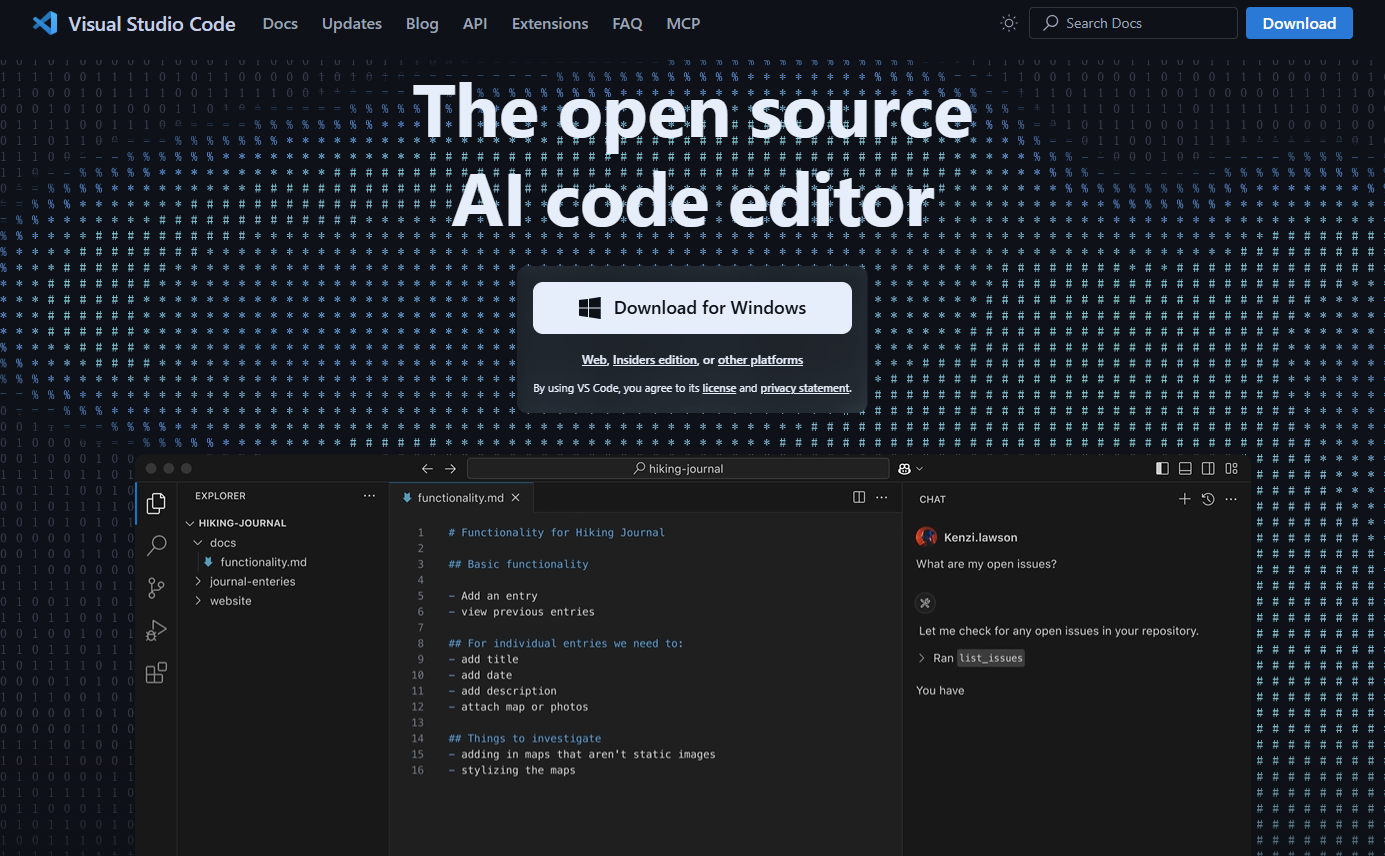
Install VS Code
- Search for VS Code in your browser.
- Download and install the version for your operating system.
Install Commonly Used Plugins
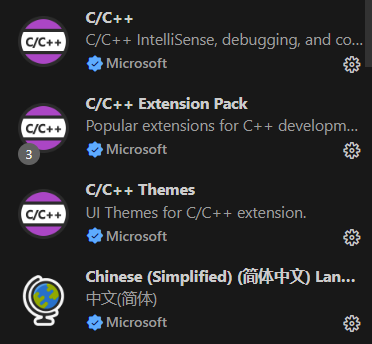
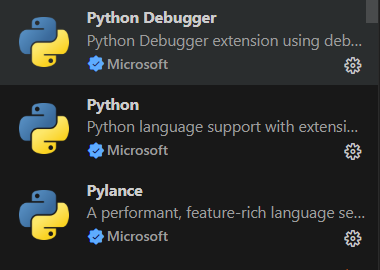
To improve development efficiency, install commonly used extensions such as:
- C/C++
- Python
- ROS 2
- GitLens
- YAML
- Docker

2. Using the Terminal
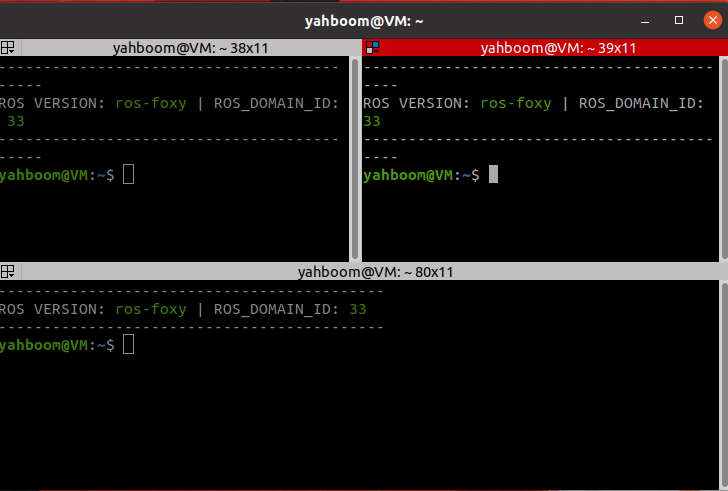
In ROS 2 development, you will frequently use the terminal. A highly recommended terminal tool is Terminator, which supports multi-window and split-screen workflows.
2.1 Installation
sudo apt install terminator
2.2 Launching
Use the shortcut below to open the terminal:
Ctrl + Alt + T
2.3 Common Terminator Shortcuts
Operations Within the Same Tab
Alt + Up            // Move to the upper terminal
Alt + Down          // Move to the lower terminal
Alt + Left          // Move to the left terminal
Alt + Right         // Move to the right terminal

Ctrl + Shift + O    // Split terminal horizontally
Ctrl + Shift + E    // Split terminal vertically

Ctrl + Shift + Right // Move splitter right (vertical split)
Ctrl + Shift + Left  // Move splitter left (vertical split)
Ctrl + Shift + Up    // Move splitter up (horizontal split)
Ctrl + Shift + Down  // Move splitter down (horizontal split)

Ctrl + Shift + S    // Hide / show scroll bars
Ctrl + Shift + F    // Search
Ctrl + Shift + C    // Copy to clipboard
Ctrl + Shift + V    // Paste from clipboard
Ctrl + Shift + W    // Close current terminal
Ctrl + Shift + Q    // Close all terminals in current window
Ctrl + Shift + X    // Maximize current terminal
Ctrl + Shift + Z    // Maximize terminal and enlarge font
Ctrl + Shift + N    // Switch to next terminal
Ctrl + Shift + P    // Switch to previous terminal
Operations Between Tabs
F11                       // Full screen toggle
Ctrl + Shift + T          // Open a new tab
Ctrl + PageDown           // Switch to next tab
Ctrl + PageUp             // Switch to previous tab

Ctrl + Shift + PageDown  // Move current tab to the right
Ctrl + Shift + PageUp    // Move current tab to the left

Ctrl + Plus (+)          // Increase font size
Ctrl + Minus (-)         // Decrease font size
Ctrl + Zero (0)          // Reset font size

Ctrl + Shift + R         // Reset terminal
Ctrl + Shift + G         // Reset terminal and clear screen

Super + G                // Bind all terminals for synchronized input
Super + Shift + G        // Unbind synchronized input

Super + T                // Bind all terminals in current tab
Super + Shift + T        // Unbind terminals in current tab
✅ You now have a complete and efficient ROS 2 development environment configured with VS Code and Terminator for professional robotics development.