09-ROS 2 Parameter Service Case
1. Introduction to Parameters
Parameters in ROS 2 are similar to global variables in C++ programming. They allow data to be shared across multiple programs and nodes in the ROS system.
In ROS, parameters exist in the form of a global dictionary. Like a real dictionary, each parameter consists of a key (name) and a value. Conceptually, this is similar to programming parameters:
parameter_name = parameter_value
Once defined, parameters can be accessed directly by name.
Parameters have powerful features: - One node can share parameters with other nodes. - If a node modifies a parameter, other nodes can immediately obtain the updated value. - Parameters support dynamic reconfiguration at runtime.
2. Parameters in the Turtlesim Example
The turtlesim simulator provides a number of built-in parameters. This section demonstrates how to inspect and modify parameters using command-line tools.
The following examples assume a graphical environment with turtlesim installed.
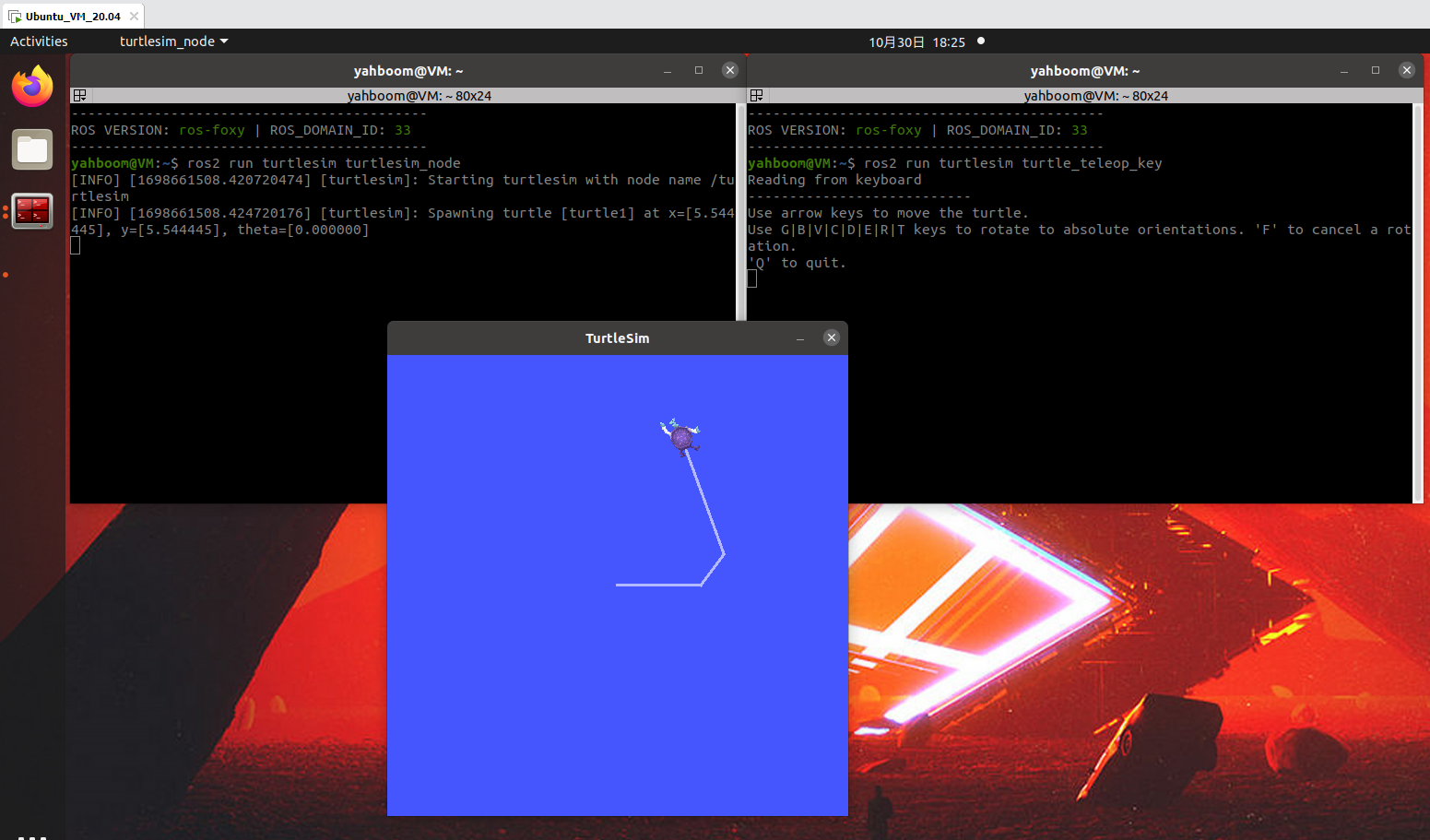
Step 1: Start the Simulator and Keyboard Control
Open two terminals and run:
ros2 run turtlesim turtlesim_node
ros2 run turtlesim turtle_teleop_key
Step 2: View the Parameter List
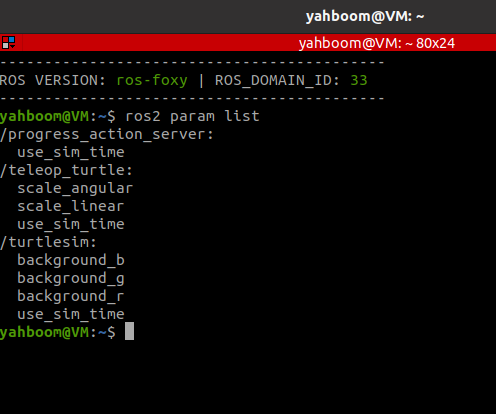
Open another terminal and list all available parameters:
ros2 param list
Step 3: Querying and Modifying Parameters
Use the following commands to inspect and modify parameters:
ros2 param describe turtlesim background_b   # View parameter description
ros2 param get turtlesim background_b        # Query parameter value
ros2 param set turtlesim background_b 10     # Modify parameter value
Step 4: Saving and Loading Parameter Files
Managing parameters individually can be inefficient. ROS 2 supports YAML-based parameter files.
ros2 param dump turtlesim >> turtlesim.yaml   # Save parameters to file
ros2 param load turtlesim turtlesim.yaml      # Load parameters from file
3. Parameter Programming Example
3.1 Create a New Function Package
Create a new package for parameter testing:
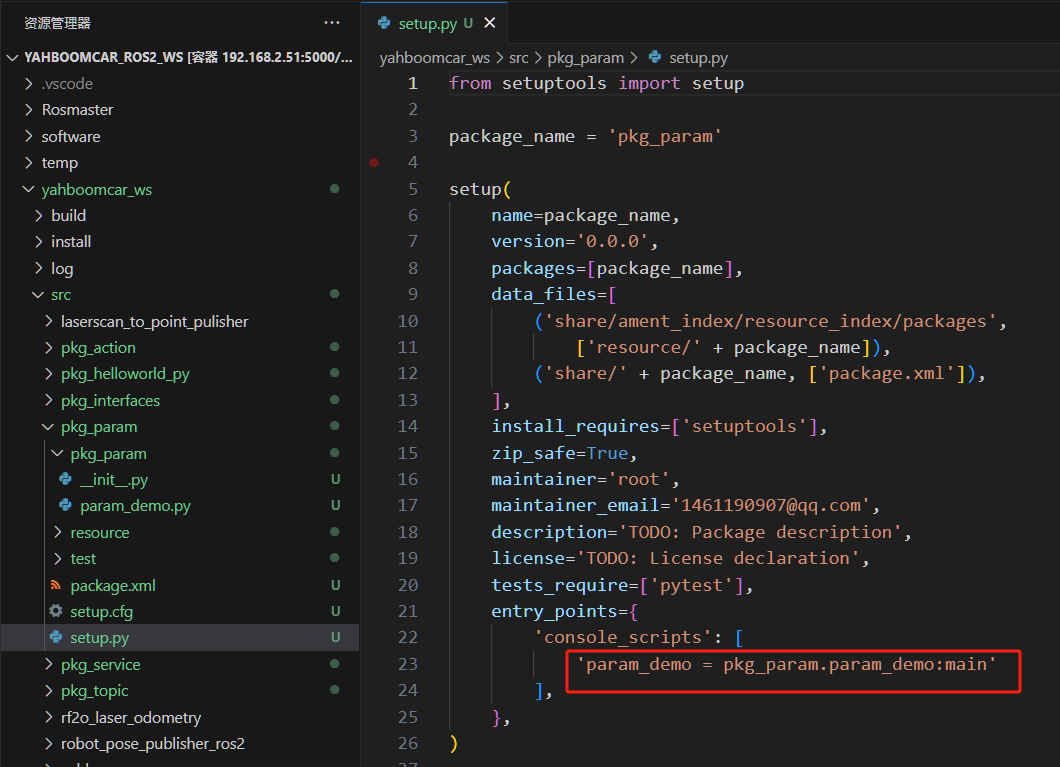
ros2 pkg create pkg_param --build-type ament_python --dependencies rclpy --node-name param_demo
After execution, the pkg_param package and param_demo node will be
created.
3.2 Code Implementation
Edit the param_demo.py file and add the following code:
import rclpy                # ROS 2 Python interface library
from rclpy.node import Node # ROS 2 Node class

class ParameterNode(Node):
    def __init__(self, name):
        super().__init__(name)

        # Create a timer (period in seconds, callback executed periodically)
        self.timer = self.create_timer(2, self.timer_callback)

        # Declare a parameter and set its default value
        self.declare_parameter('robot_name', 'muto')

    def timer_callback(self):
        # Read parameter value from the ROS 2 system
        robot_name_param = (
            self.get_parameter('robot_name')
            .get_parameter_value()
            .string_value
        )

        # Output parameter value
        self.get_logger().info('Hello %s!' % robot_name_param)

def main(args=None):
    rclpy.init(args=args)                 # Initialize ROS 2 Python interface
    node = ParameterNode("param_declare") # Create node
    rclpy.spin(node)                      # Keep node running
    node.destroy_node()                  # Destroy node
    rclpy.shutdown()                     # Shutdown ROS 2
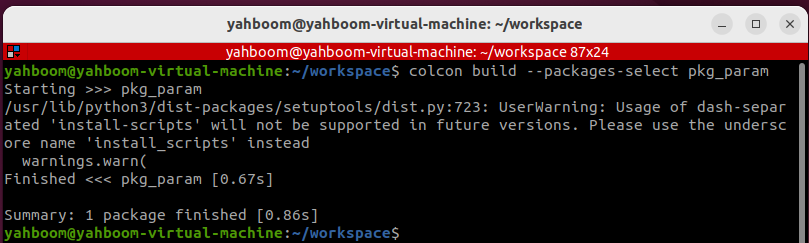
3.3 Compile the Package
colcon build --packages-select pkg_param
3.4 Run the Program
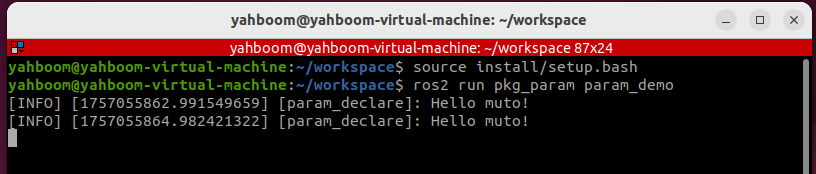
Refresh the environment and run the node:
source install/setup.bash
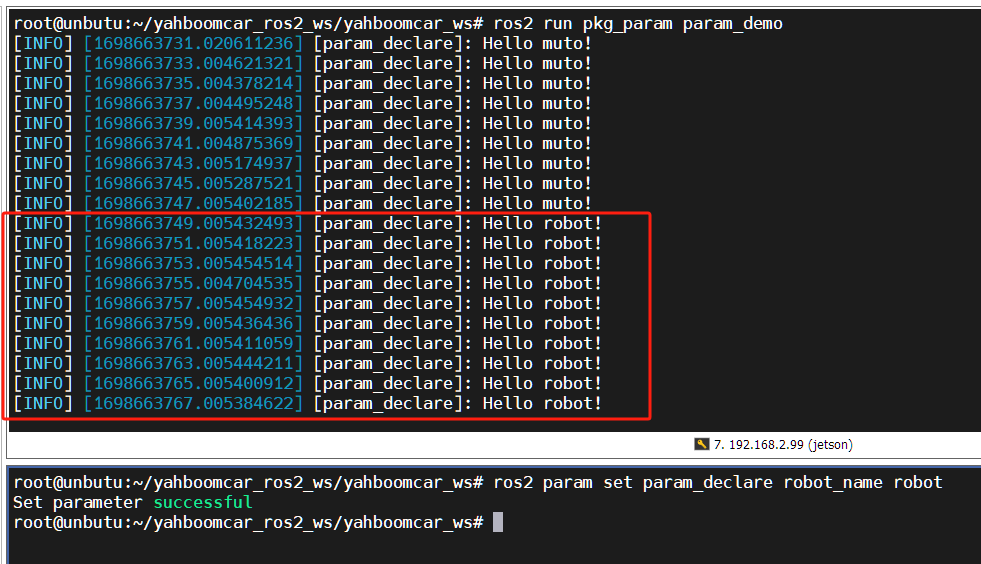
ros2 run pkg_param param_demo
Open another terminal and modify the parameter value:
ros2 param set param_declare robot_name Robot
You will see the log output update dynamically.
"muto" is the default value of robot_name, and it changes
immediately after setting a new value.